Appearance
FAC-CHAT-02 · Set your status and auto-forward chat while you're away
Your status shows beside your name everywhere in Vera Chat. When you are Away, on Do not disturb or Off shift, new messages to you can pull in the colleague covering you, so nothing waits for someone who is scrubbed in.
Steps
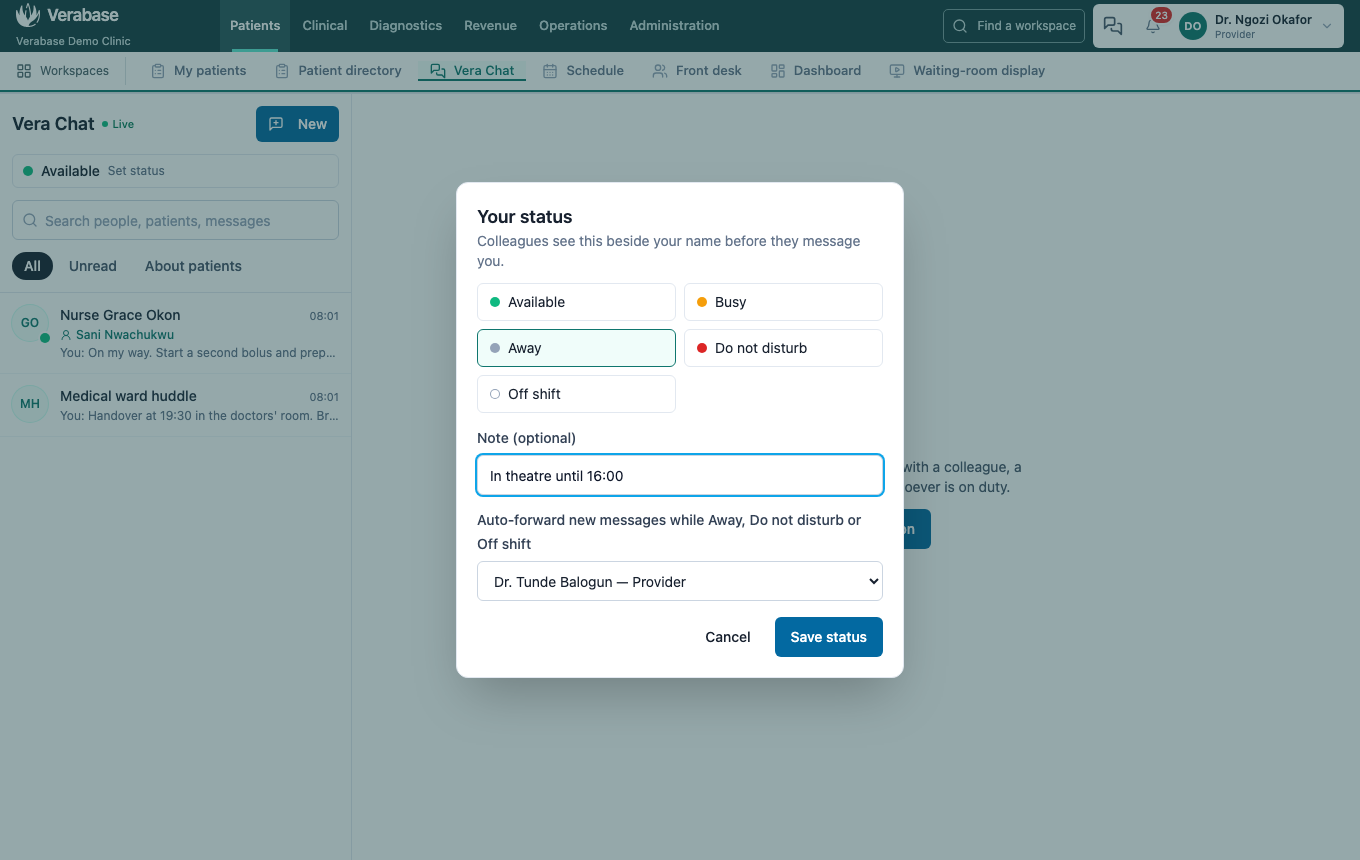
1. Set your status — as Provider
In Vera Chat, select your status under the title. Choose Away, add a note such as In theatre until 16:00, and pick who covers you under Auto-forward. Save status.
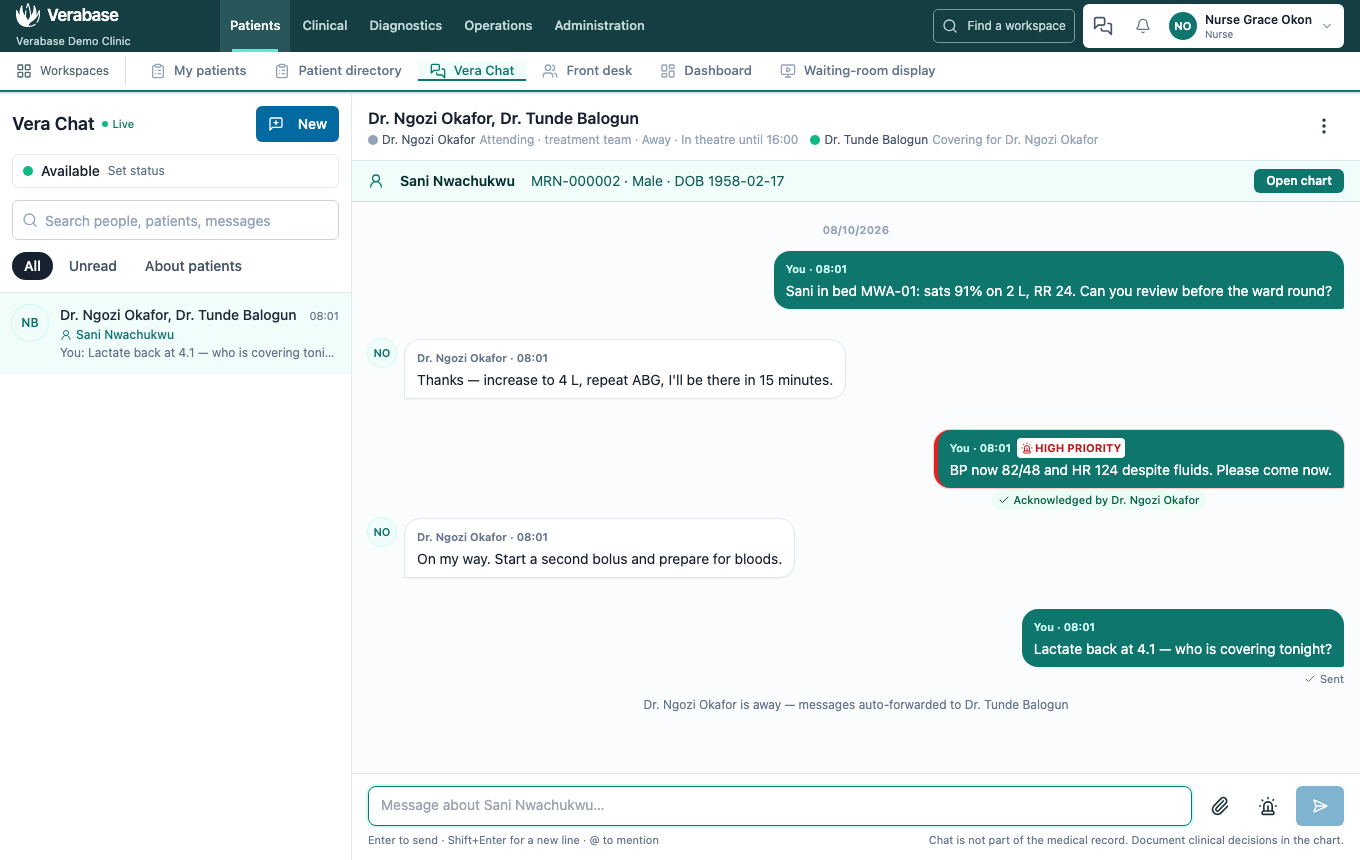
2. A colleague messages you — as Nurse
The nurse sees Away · In theatre until 16:00 beside your name before sending. When they send, the covering doctor joins the conversation, labelled Covering for (you). A line in the thread records the auto-forward.
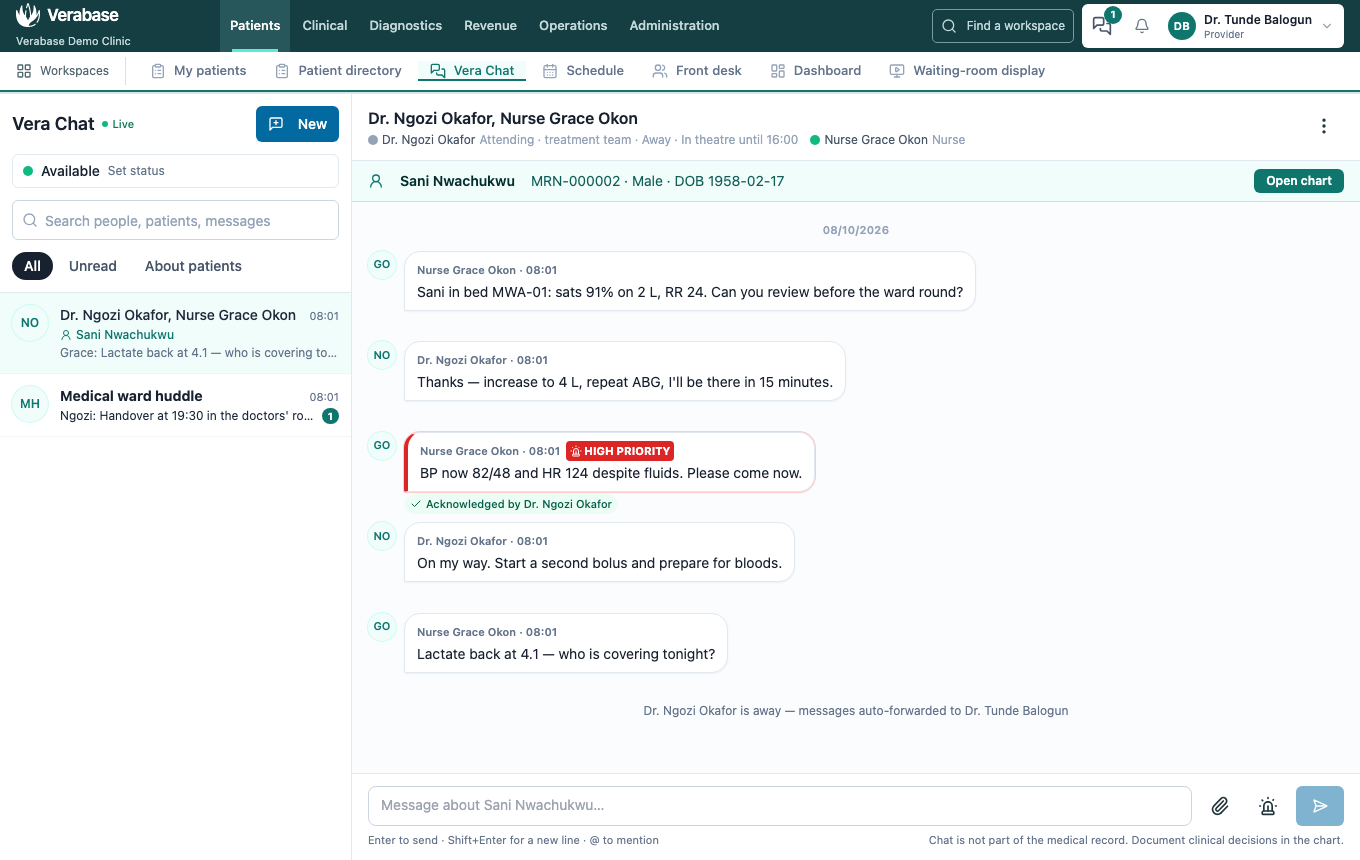
3. The cover picks it up — as the covering Provider
The conversation appears in their list with the patient attached. They can read the history for context, but only the message that pulled them in counts as unread, so an old, already-acknowledged high-priority message doesn't raise a new alert.
Set yourself back to Available and Don't forward when you return.
You're done when…
- [ ] Your status shows Away with your note, and forwarding to your cover.
- [ ] A message sent to you while away adds your cover, labelled Covering for you.
- [ ] You are back to Available and not forwarding.
Practice task
As a doctor, set Away with a covering colleague. As a nurse, message that doctor about a patient. Check: the trainer sees the auto-forward line in the thread and the conversation, with the patient attached, in the covering doctor's list.