Appearance
IMP-01 · First sign-in as Facility Admin
When Verabase activates the hospital (CP-02 step 5), its first Facility Admin account is created with a temporary password shown once to the Verabase operator. Replacing that password is the first thing to do: until you do, someone at Verabase has seen your key.
Before you start
- The email and temporary password from the handover note.
- facility-web's address for your hospital.
Steps
1. Sign in
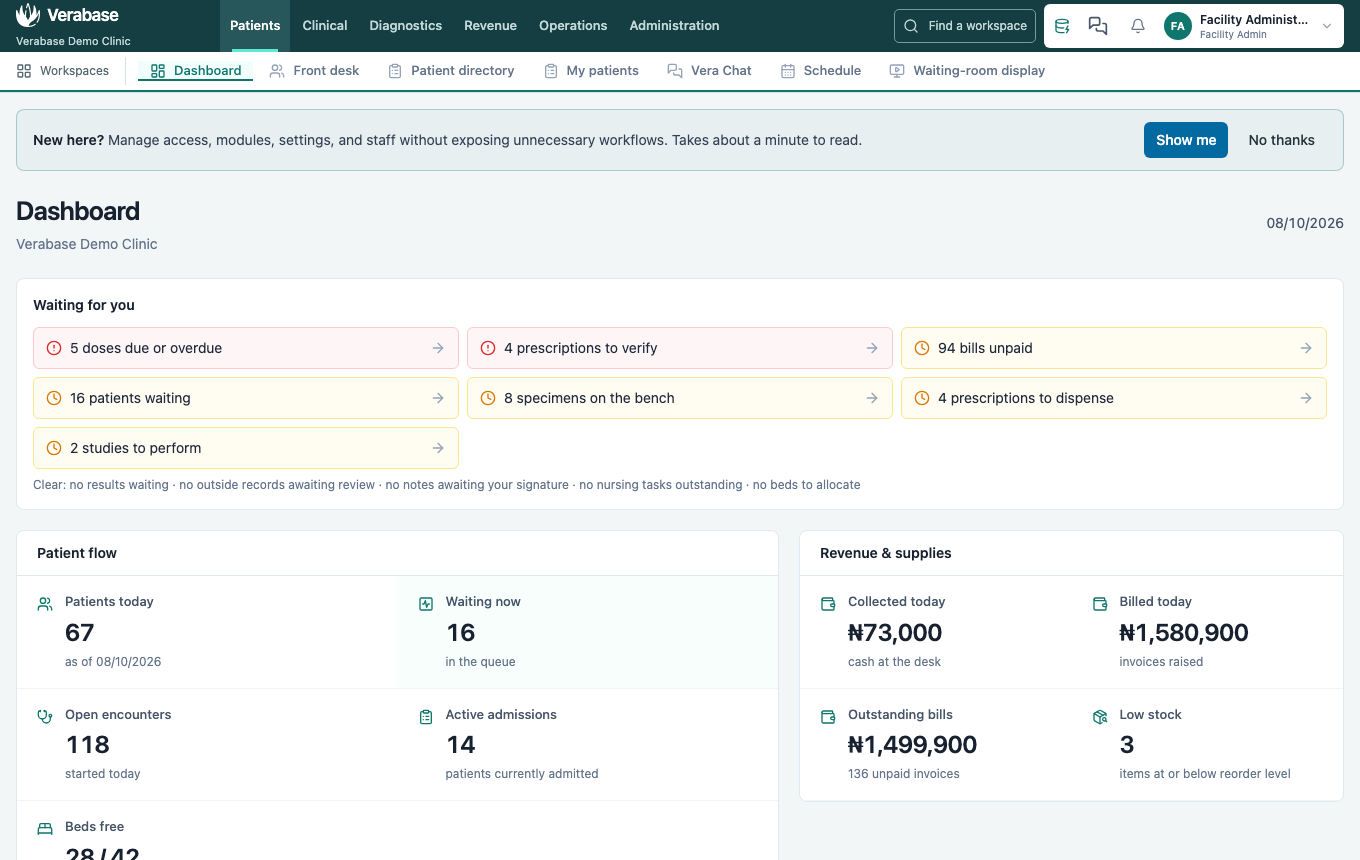
Enter the email and temporary password and choose Sign in. You land on the Dashboard. Waiting for you summarises the whole hospital's open work (doses due, prescriptions to verify, patients waiting, specimens on the bench, bills unpaid), because the Facility Admin role can see all of it.
2. Replace the temporary password
- Choose your name in the top-right corner, then Account & security.
- Under Password, enter the temporary password as Current password, then your new password twice (at least 8 characters), and choose Change password.
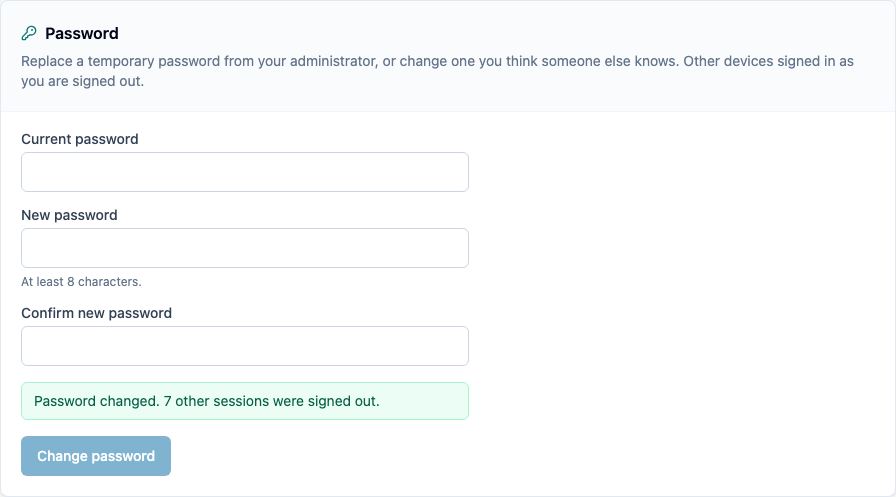
- Sign out and back in with the new password. The temporary one no longer works ("Invalid credentials").
While you're on this page, turn on MFA for your own account. It's the same page every member of staff uses (FAC-ACC-01).
Keep a second Facility Admin
Staff who forget a password reset it themselves with Forgot password? on the sign-in page, once the hospital's email is connected (IMP-09). Until then, or if email fails, only another Facility Admin can set a temporary password from Staff → Edit. Create a second Facility Admin in IMP-02.
You're done when…
- [ ] You can sign in with a password nobody else has seen.
- [ ] The temporary password is refused.
Practice task
Replace the password, sign out, confirm the old one is refused, sign in with the new one. Check: the old password is refused and the new one lets you in.