Appearance
CP-03 · Register a facility device
Hospital hardware (front-desk tablets, ward medication carts, kiosks, edge boxes) is registered in the control plane so support can see it, and lock or wipe it if it is lost.
Before you start
- The tenant exists and has at least one facility (CP-02).
- The device's name as the hospital will refer to it ("Ward A medication cart") and its serial number.
Steps
1. Register the device
- Open the tenant (Tenants → hospital) and scroll to Devices.
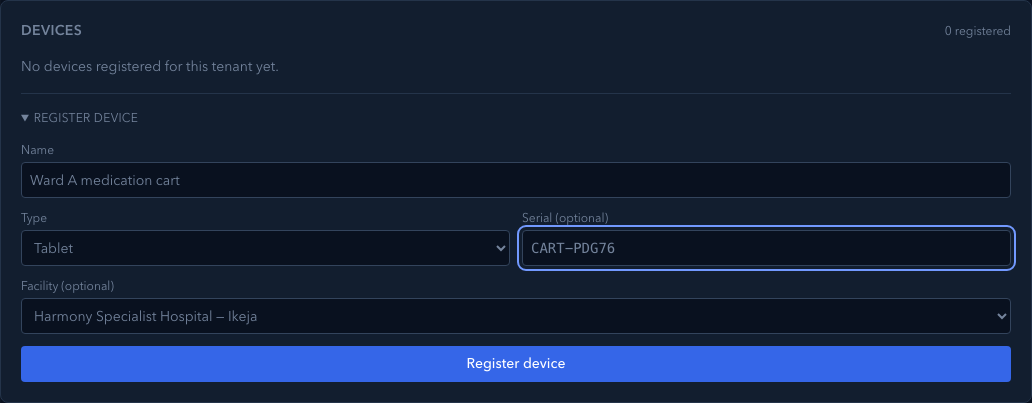
- Open Register device and fill in Name, Type (Tablet, …), Serial (optional) and Facility (optional). Assign the facility whenever you know it; support filters by it.
- Register device.
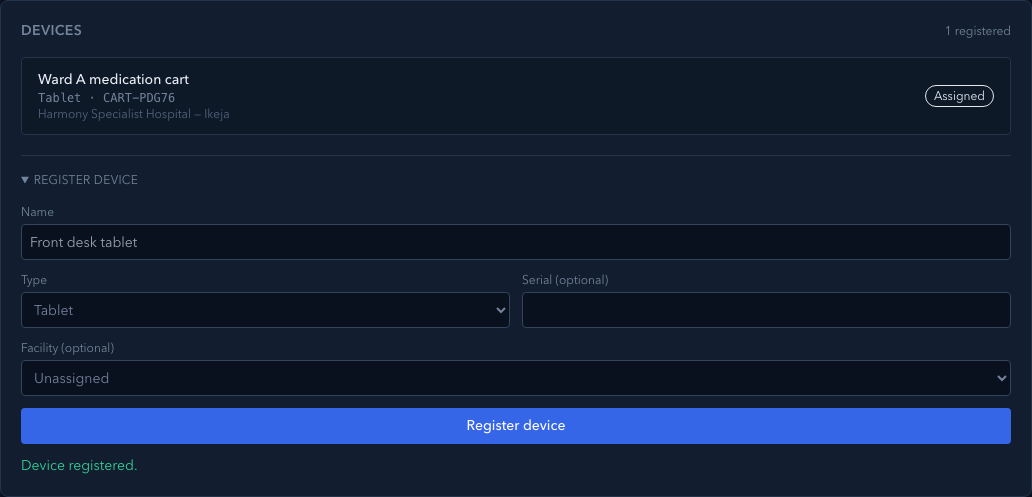
You should see: the device in the list with status Assigned.
2. Read the device page
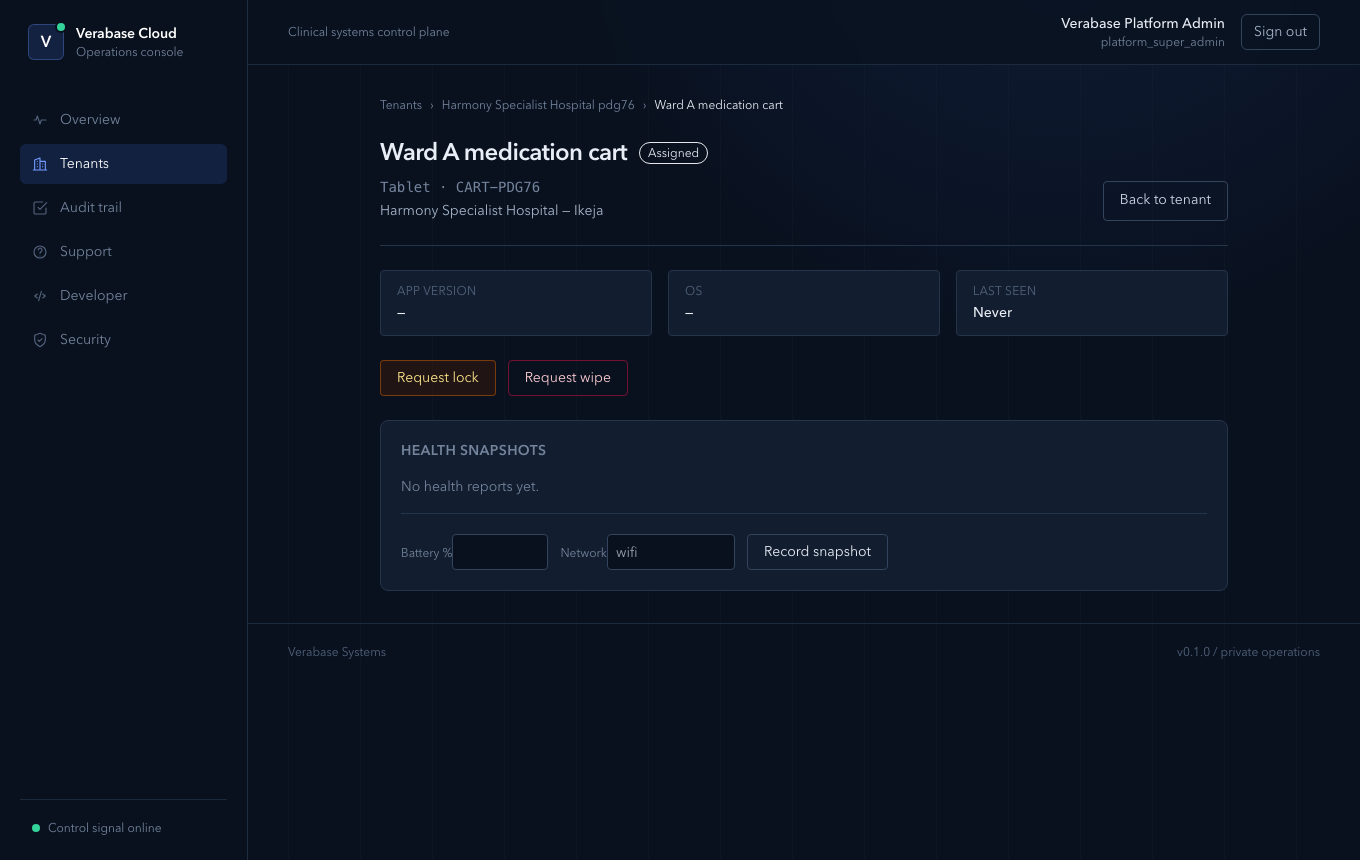
Open the device. The header shows type, serial and facility. The three tiles show App version, OS and Last seen. They stay empty (Never) until the device reports in for the first time.
3. Lost or stolen device
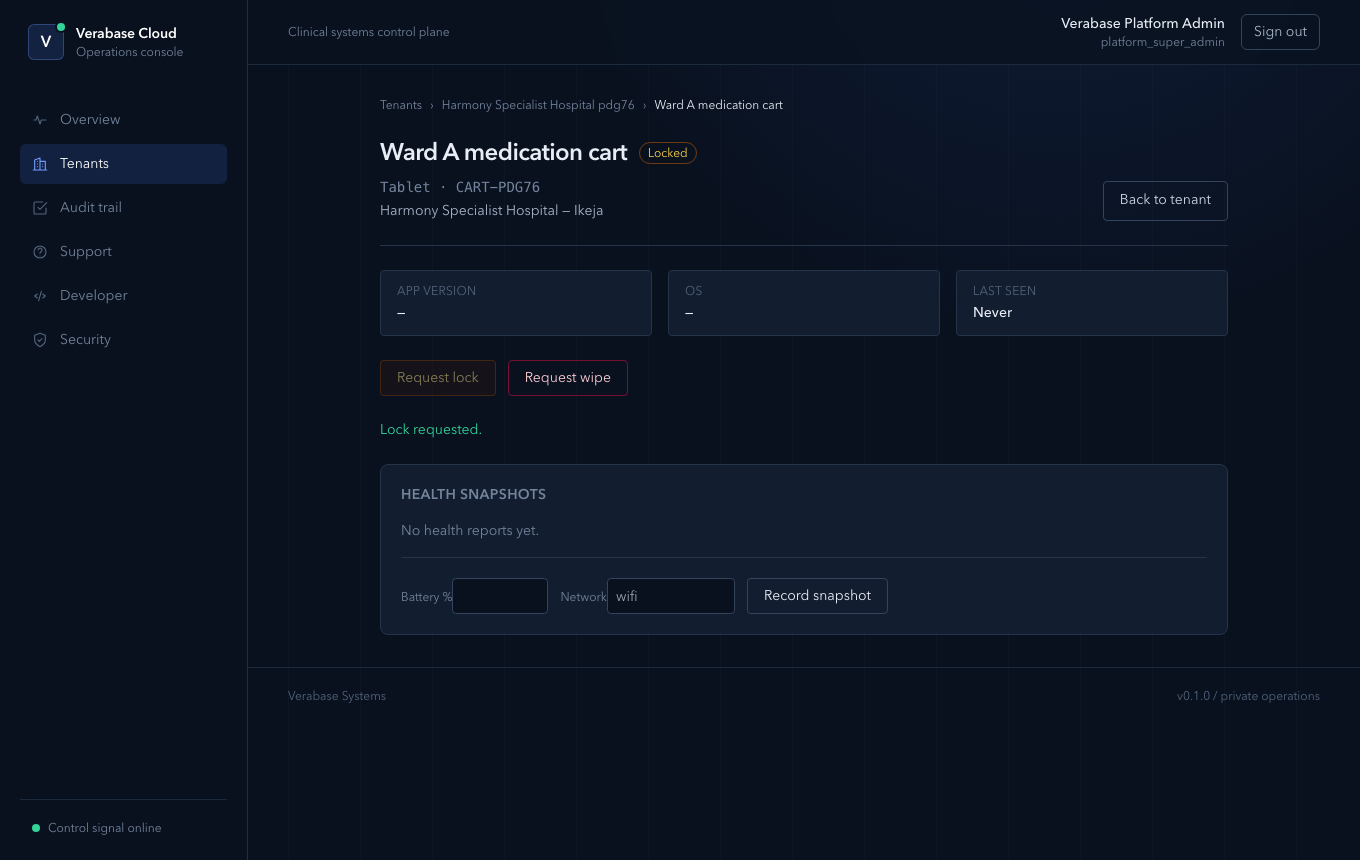
- Request lock. Use it first when a device is missing. Confirm the prompt. The page says "Lock requested.", the status becomes Locked, and Request lock is disabled.
- Request wipe. Use it when the device will not be recovered. Treat it as irreversible and confirm with the hospital's IT lead first.
Both requests are recorded in the audit trail with your name. How and when the device itself acts on a request depends on the device app; this guide has not verified that side.
You're done when…
- [ ] Every device on the hospital's asset list is registered and assigned to its facility.
- [ ] After go-live, each device shows a recent Last seen.
Practice task
Register "Front desk tablet 1" (Tablet) to your practice facility, open it, and find its device.registered event in the audit trail (CP-05).
Related journeys
CP-04 Support a hospital (devices offline appear there)