Appearance
FAC-OPD-02 · Book, confirm, remind and check in an appointment
The front desk runs the clinic's diary from Schedule: book the visit, confirm it when the patient rings back, send a reminder the day before, and check the patient in when they arrive. Check-in is the step that puts the patient in front of the nurse; everything before it only plans the day.
Why this matters
A booked appointment that nobody confirms or reminds is a no-show waiting to happen, and a slot given to two patients is a morning of apologies. Verabase refuses the double booking and keeps reminders in an outbox you can see, so the diary stays trustworthy.
Before you start
- Front Desk:
frontdesk@demo-clinic.test/Verabase-2026. - A returning patient. Walk-ins who have never been here are registered first (FAC-OPD-01 step 1), or booked with Patient flow → New patient, which checks for duplicates before creating the chart.
- The patient's consent to be contacted by SMS or WhatsApp, if you will send a reminder.
Steps
1. Open the schedule — as Front Desk
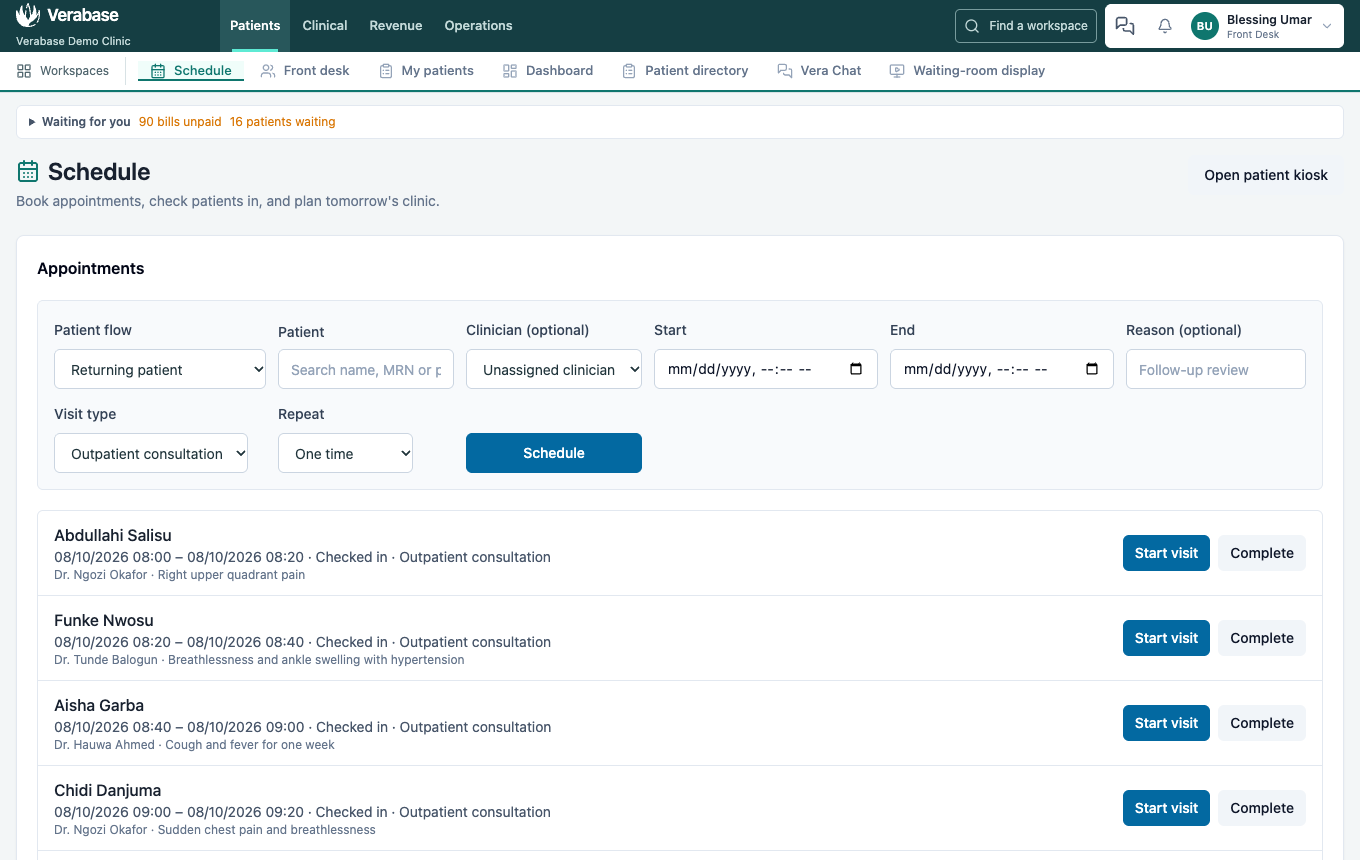
Choose Schedule in the Patients area. The booking form is at the top; below it is every upcoming appointment, earliest first, with its status: Scheduled, Confirmed, Checked in.
2. Book the follow-up
- Patient flow: Returning patient. In Patient, type part of the name, MRN or phone, then choose the patient from the list.
- Clinician: the doctor or nurse the patient should see. The list holds only people who see patients (doctors and nurses), not the cashier or the pharmacist.
- Start and End. Times are always the clinic's time, even if your computer's clock is set to another timezone.
- Reason (what the clinician should know before the patient walks in) and Visit type (Follow-up here). Repeat books a weekly, fortnightly or monthly series in one go.
- Choose Schedule.
The appointment appears in the list as Scheduled:

3. When the slot is already taken
Booking another patient with the same doctor at the same time is refused:
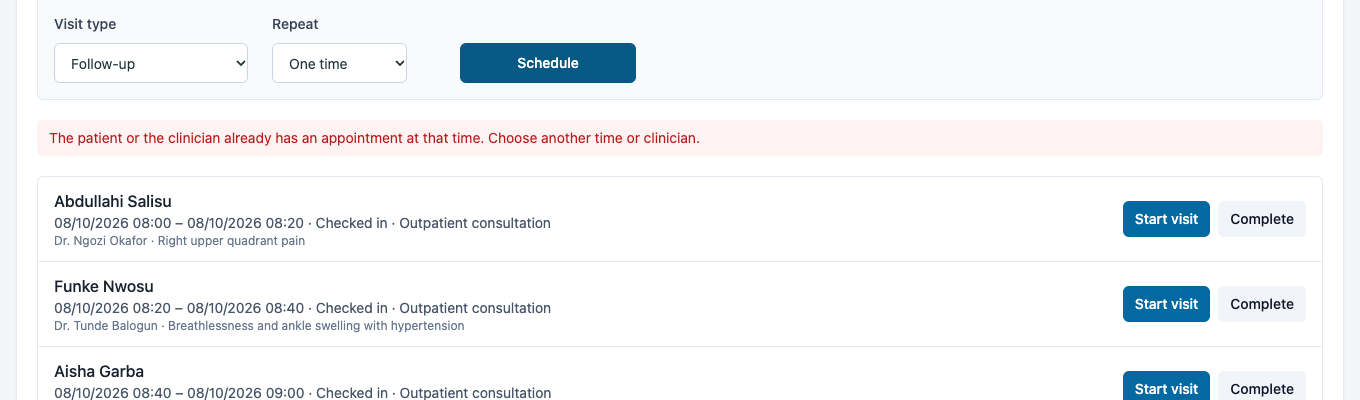
The same applies if the patient already has an appointment at that time. Choose another time, or another clinician.
4. Confirm it
When the patient confirms (by phone, or by replying to a reminder), choose Confirm on their row. The status changes to Confirmed. Cancel frees the slot.
5. Queue a reminder
In Appointment reminders:
- Choose the Appointment and the Channel (SMS or WhatsApp).
- Leave Send after empty to send it the day before, or pick a time. Add a Message, or leave it empty for the standard wording.
- Tick Patient consent captured (and note the Source, e.g. PHONE), then choose Queue reminder.
Without the consent tick, Verabase refuses: "Confirm the patient's consent before scheduling."
The reminder waits in the outbox as Waiting to send, with its send time and the number it will go to. Dispatch due sends everything whose time has come. A reminder for Monday queued on Friday is not due yet, and Verabase says so:
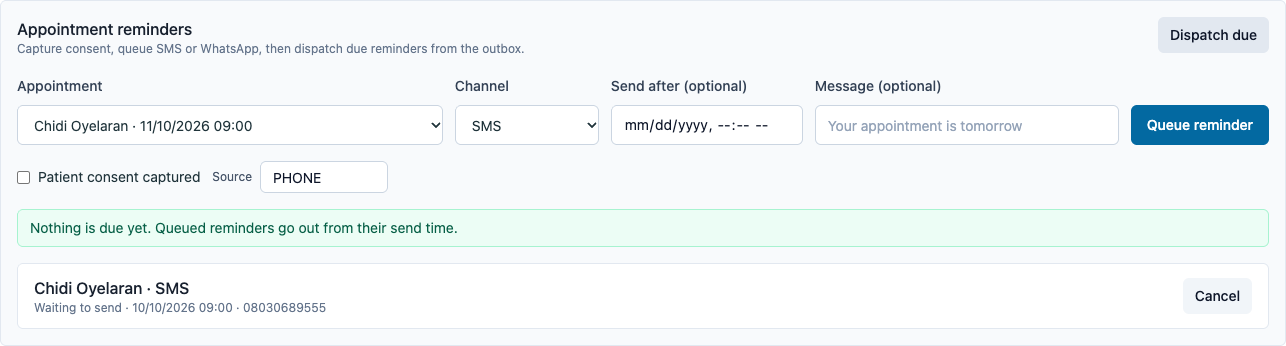
A reminder that failed shows the reason on its row. Cancel takes it out of the outbox.
6. Check the patient in on arrival
When the patient arrives, choose Check in on their row. The status becomes Checked in…

…and the patient joins the front desk queue as Waiting, where the nurse takes them for observations (FAC-OPD-01 step 2).
What Verabase will refuse and why
| You try to… | Verabase says | Why |
|---|---|---|
| Book a clinician or patient who already has an appointment at that time | The patient or the clinician already has an appointment at that time. Choose another time or clinician. | One person can't be in two consulting rooms |
| Book on a closure day, or outside clinic hours when the hospital enforces them | e.g. The facility is closed on 2026-10-01 (Independence Day). | Set in IMP-07 |
| Queue a reminder without consent | Confirm the patient's consent before scheduling. | Patients must agree to be messaged; the source of consent is recorded |
| Book a New patient who already has a chart | The duplicate guard | Every duplicate chart is a future safety incident |
Not covered here
Patient messages (result ready, balance due), the Waitlist, and Patient portal requests sit on the same page and work the same way: pick the patient, record consent, queue. They will get their own journeys. The patient kiosk is in FAC-PAT-01.
You're done when…
- [ ] The follow-up is in the list, with the right clinician, at the clinic's time.
- [ ] It shows Confirmed, and a reminder is Waiting to send for the day before.
- [ ] An arriving patient is Checked in and appears in the queue as Waiting.
Practice task
Book a returning patient for a follow-up with Dr. Okafor next week, try to book a second patient in the same slot, confirm the first, queue an SMS reminder with consent, then check in one of today's scheduled patients. Check: the trainer sees the refusal on the second booking, the reminder as Waiting to send, and the checked-in patient in the queue.
Related journeys
FAC-OPD-01 Outpatient visit · IMP-07 General settings (hours and closures)