Appearance
CP-02 · Onboard a new hospital
A hospital becomes a Verabase customer in four moves, all on one page of platform-admin: create the tenant → add facilities → licence and grant modules → activate. Until activation nothing exists on the hospital side. After activation the hospital's own Facility Admin takes over inside facility-web.
Why this matters
Everything a hospital can do is decided here. If Lab is not granted, no lab screen will ever appear for the hospital, however their staff are configured. If the timezone is wrong, every "due at 08:00" dose on the ward is wrong. Get this page right and the hospital's first day works; get it wrong and support hears about it.
Before you start
- You are signed in to platform-admin (CP-01).
- From the signed order form: the hospital's legal name, a short slug (lower case, hyphens), primary contact, the facilities (with city, state and timezone) and the modules they bought.
- The contact email you enter becomes the first Facility Admin login, so use a mailbox the hospital's IT lead controls.
Steps
1. Create the draft tenant
- Overview → Provision tenant (or Tenants → New).
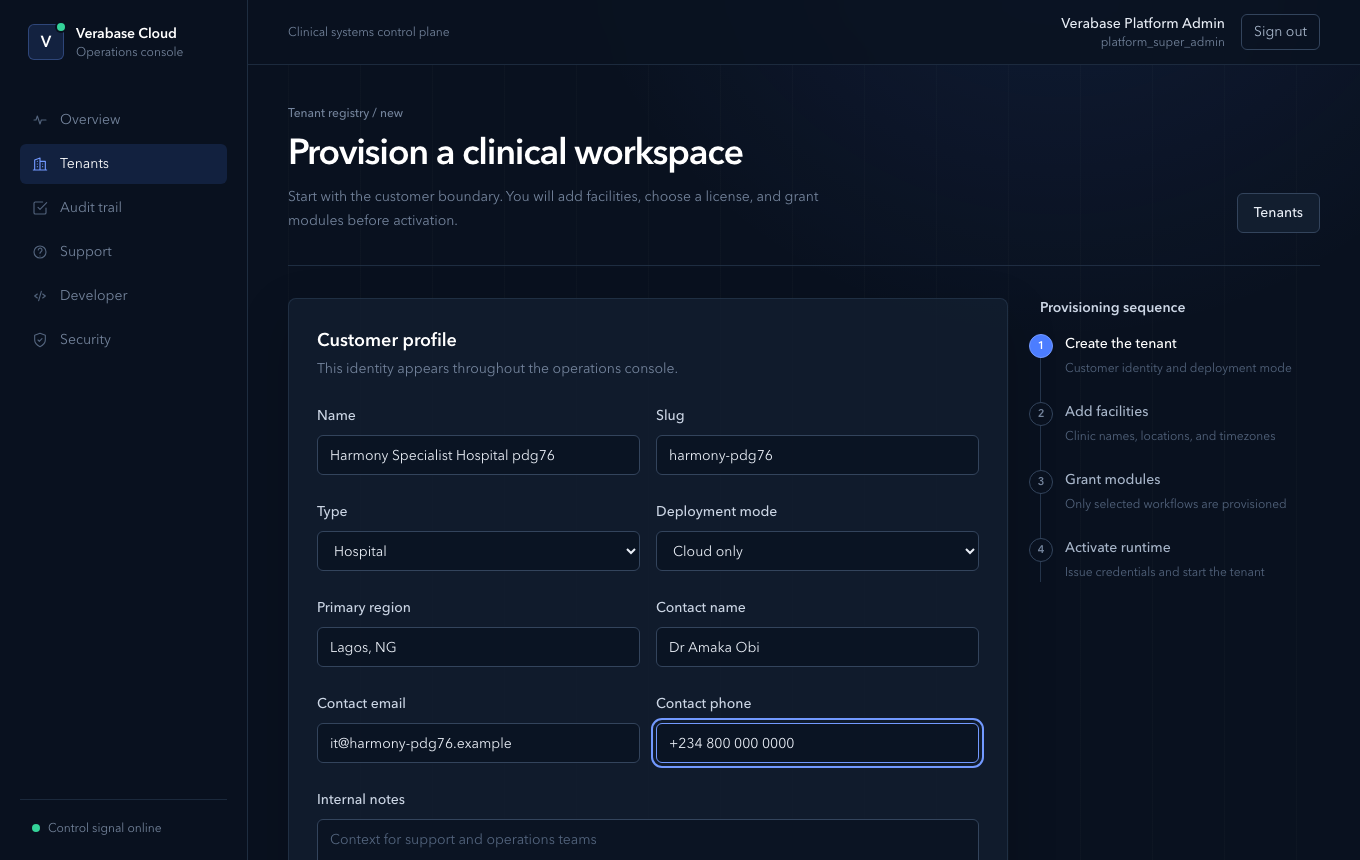
- Fill in the Customer profile:
- Name. The customer's name as staff will see it.
- Slug. Permanent. It identifies the tenant everywhere (support, audit, URLs).
- Type. Hospital, Clinic, etc.
- Deployment mode. Cloud only for the MVP. Every hospital is hosted.
- Primary region, Contact name / email / phone.
- Create draft tenant.
The right-hand panel shows the provisioning sequence you are following: Create the tenant → Add facilities → Grant modules → Activate runtime.
You should see: the tenant page with a Draft badge, 0/22 modules and no facilities. Nothing has been provisioned yet. A draft can be edited freely.
2. Add the organisation, then the facility
A tenant is the customer. An organisation is a legal or management group inside it. A facility is a physical site where care happens.
- Under Organizations, enter the organisation name and slug and choose Add.
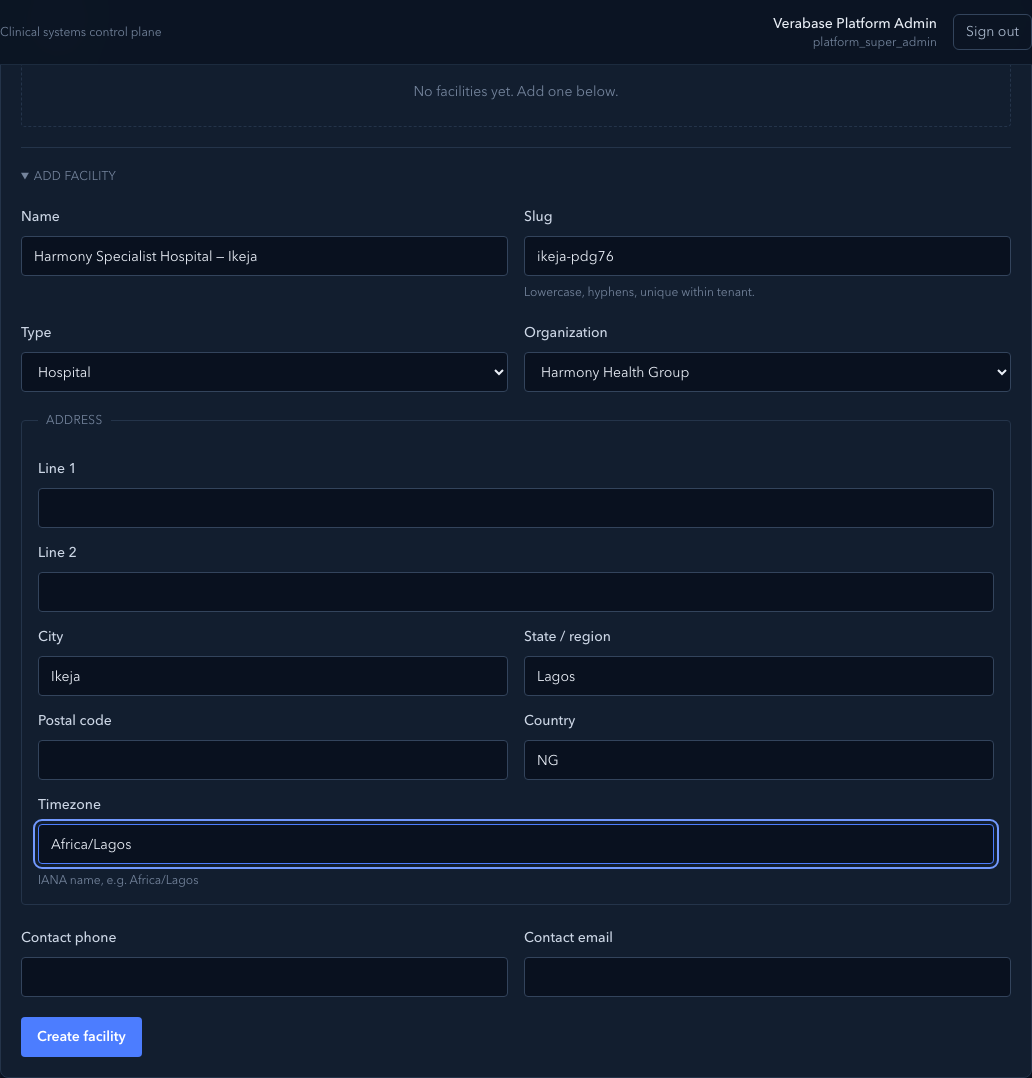
- Under Facilities, open Add facility and fill in:
- Name, Slug (permanent) and Type (Hospital).
- Organization. Pick the one you just added.
- Address, City, State / region and Country.
- Timezone. An IANA name, e.g.
Africa/Lagos. Check this. Medication rounds, appointment slots and shift boundaries all run on facility time.
- Create facility.
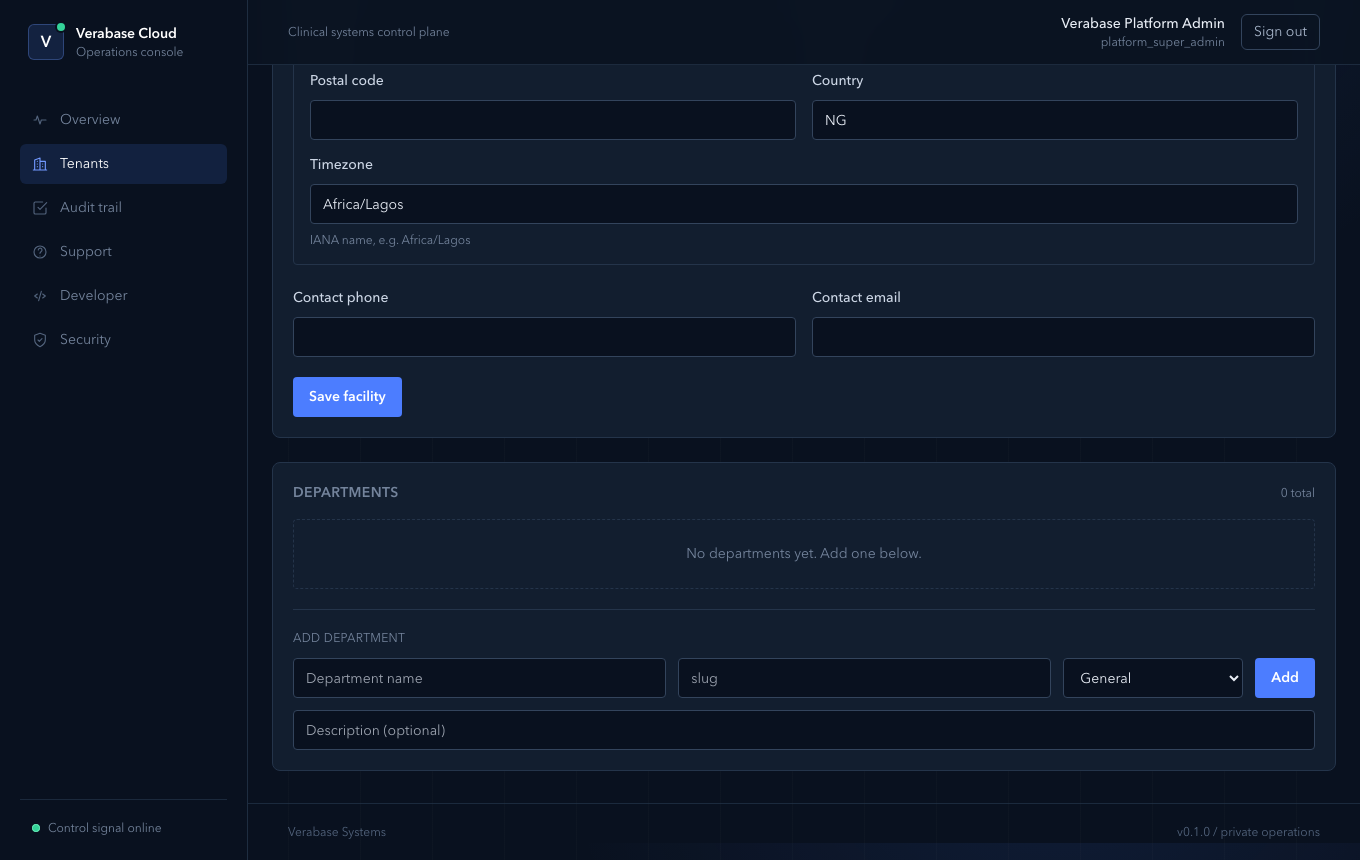
You should see: the facility's own page, with its profile and an empty Departments list. Add departments here if the order form lists them. Then choose Back to tenant.
3. Assign the licence
The licence plan sets the ceiling on what can be granted. Pick the plan on the signed order.
| Plan | Includes | Facilities |
|---|---|---|
| Starter | core, access, billing, reporting | 1 |
| Standard | + clinical, scheduling, notifications, device management, sync, inventory | 5 |
| Professional | + lab, pharmacy, claims, integrations, inpatient, MAR, sterile processing, transport, laundry, accreditation | 25 |
| Enterprise | + analytics, patient portal | unlimited |
Plans as seeded on 2026-09-23. The source of truth is the License card, which lists each plan's bundle.
A hospital needs Professional
Lab, Pharmacy, Inpatient and the MAR are not in Standard. A hospital on Standard can have clinics and billing but no pharmacy counter, lab bench or wards.
- In the License card, choose the Plan and optionally an end date or trial end.
- Assign license.
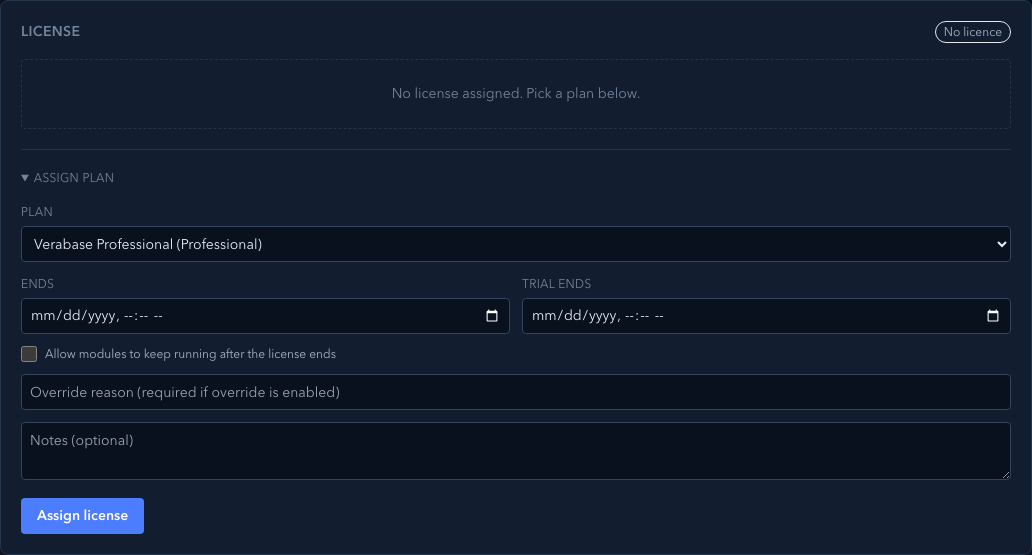
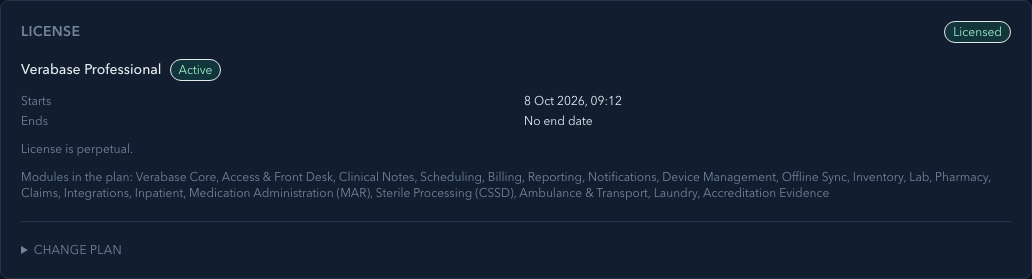
You should see: Plan saved., then the plan with an Active badge, No end date (or your end date, written day first: 8 Oct 2026), the state Licensed, and the modules the plan includes.
4. Grant modules, in dependency order
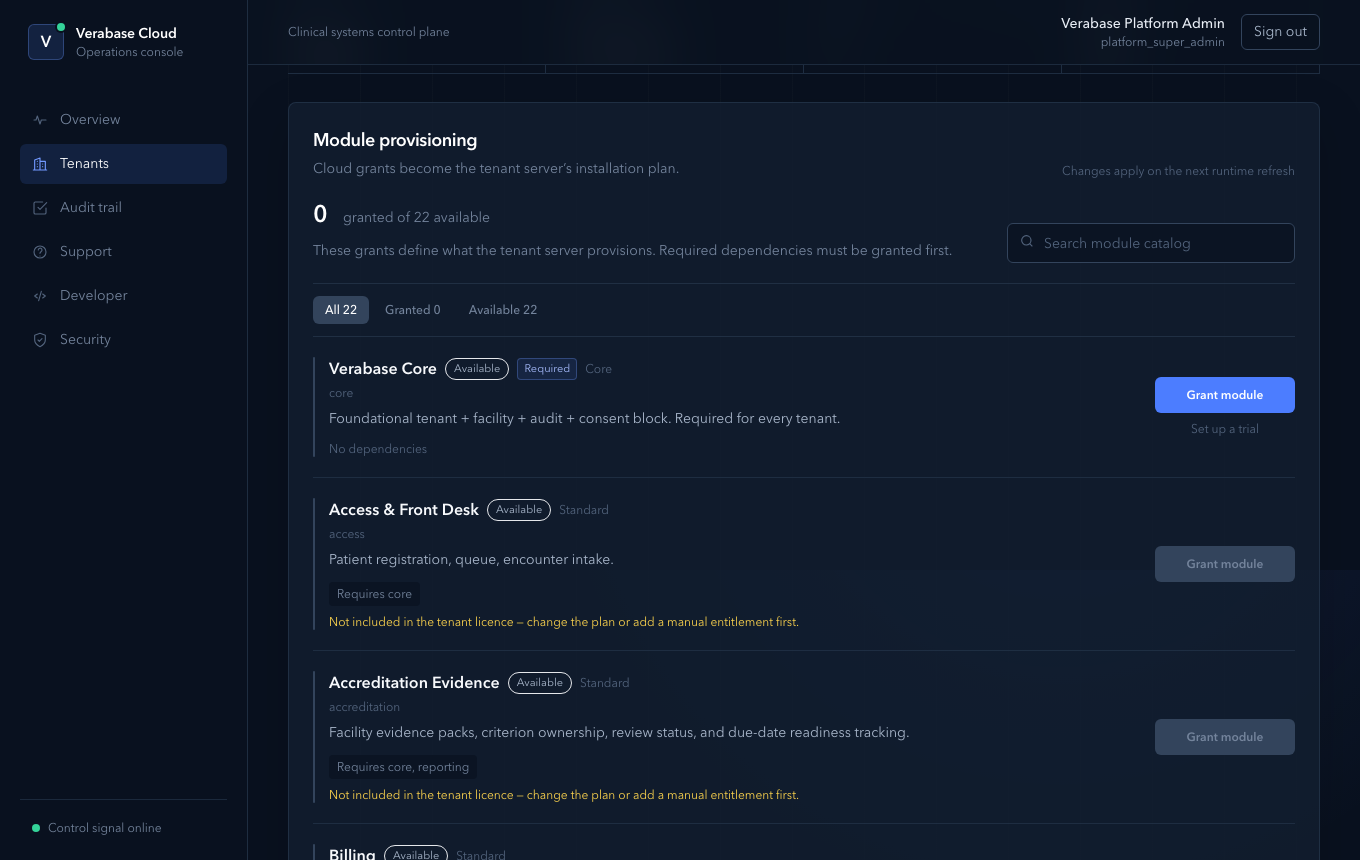
Module provisioning lists all 22 modules. Each shows its tier, its dependencies and a Grant module button. "Cloud grants become the tenant server's installation plan": whatever you grant here is what the hospital system installs.
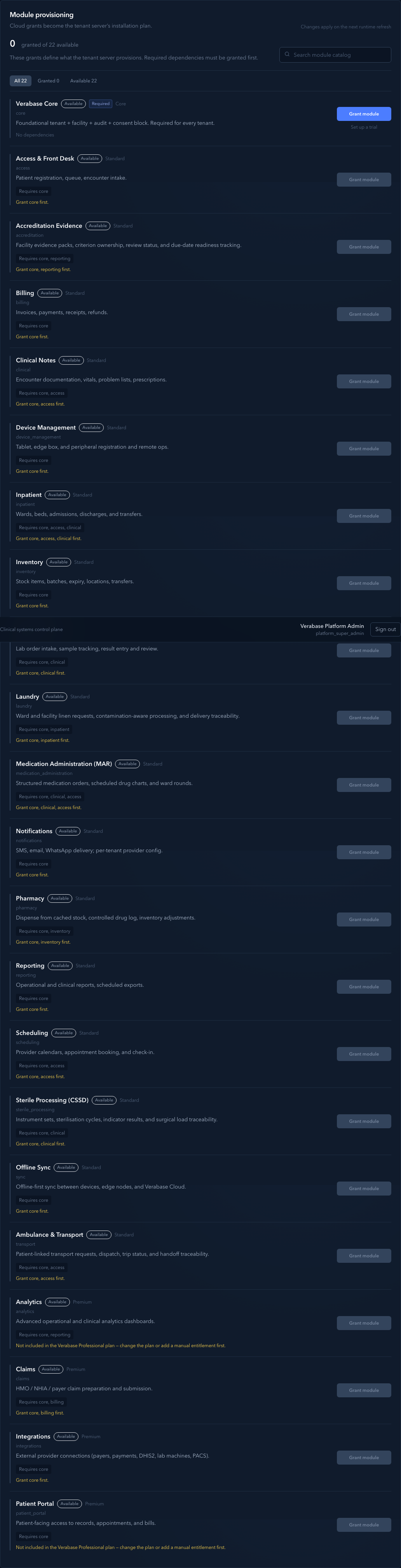
Modules depend on each other. A module whose prerequisites are missing says so and cannot be granted yet:

Grant in this order for a typical hospital:
- Verabase Core. Always first; required by everything.
- Access & Front Desk, then Clinical Notes and Scheduling.
- Billing and Inventory.
- Pharmacy (needs Inventory) and Lab (needs Clinical).
- Inpatient, then Medication Administration (MAR).
- Anything else on the order form (Claims, Reporting, Sterile Processing, …).
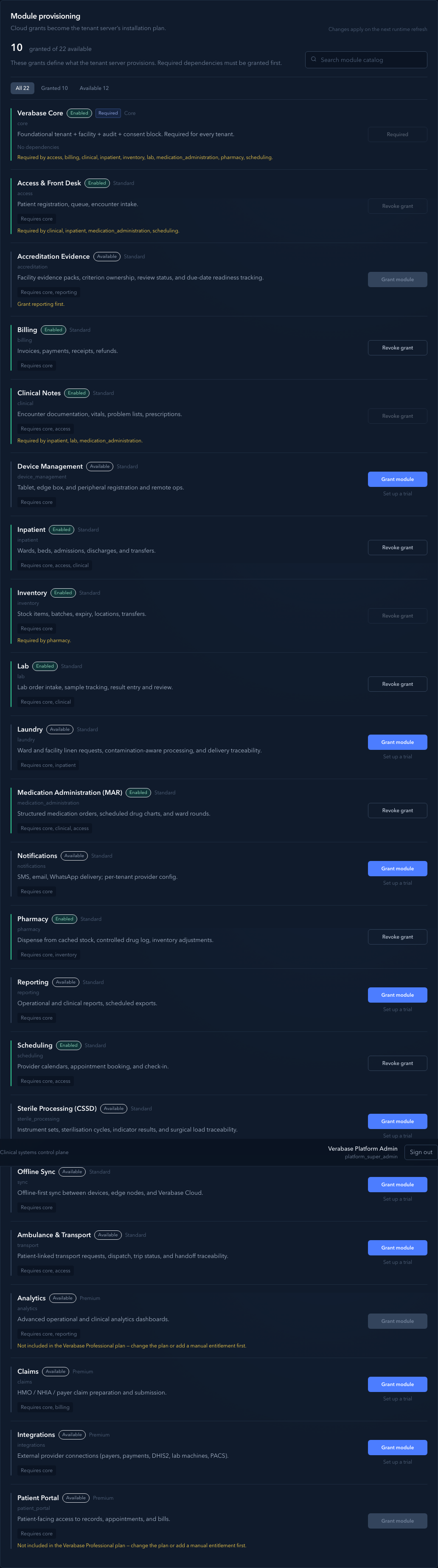
A module the licence doesn't cover says so, and its Grant module button is disabled:

Changes apply on the hospital's next runtime refresh, not instantly.
5. Activate
In Lifecycle, choose Activate.
On activation the control plane:
- provisions the hospital's database,
- creates the first Facility Admin account using the contact email, and
- shows its temporary password once, in an amber Facility admin credentials panel.
Copy both values into the handover note, give them to the hospital's IT lead through a secure channel, and choose I have copied these. The password is stored only encrypted and cannot be shown again. If it is lost, the hospital resets it from inside facility-web.
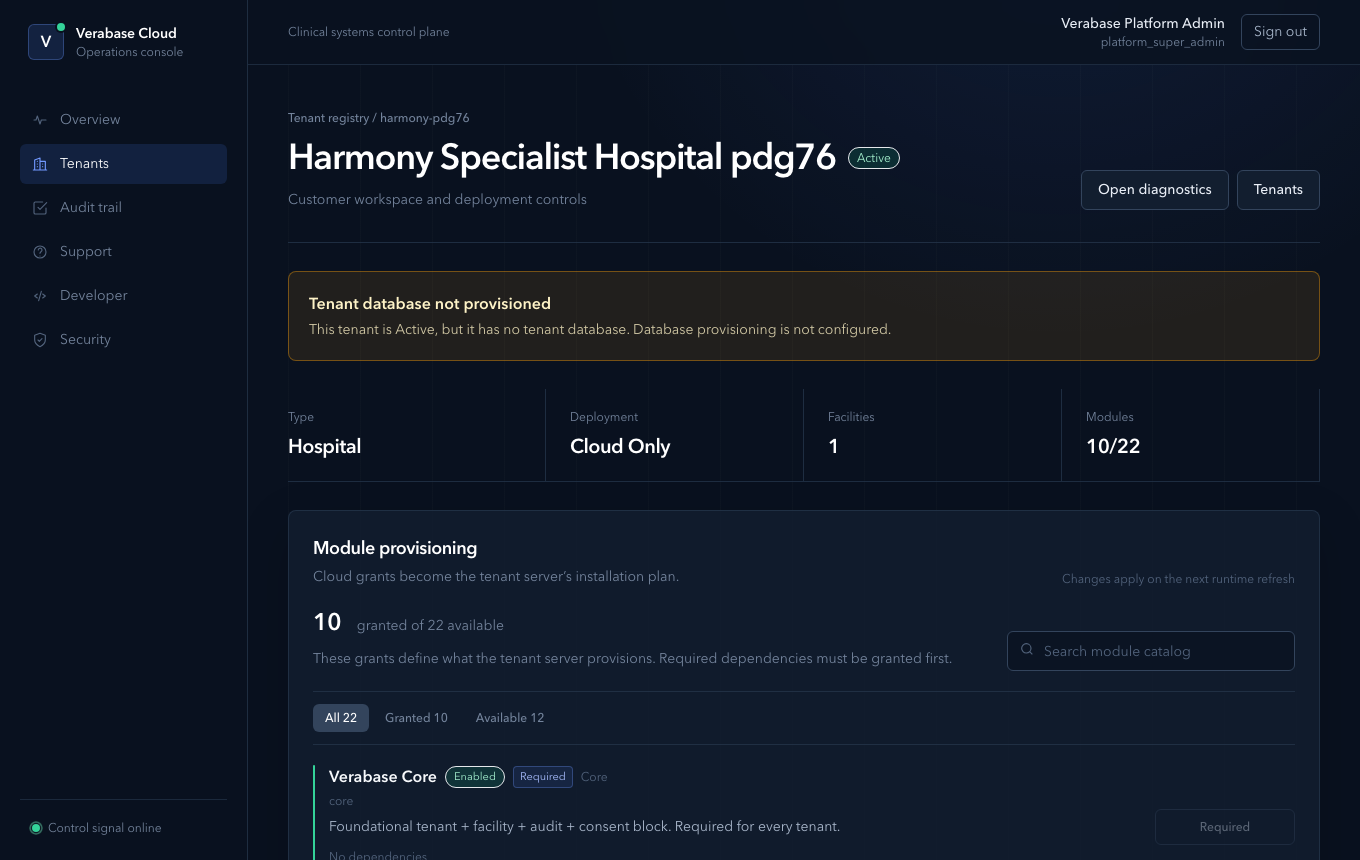
Verification note
In the local capture environment tenant-database provisioning (Turso) is switched off. Activation there marks the tenant Active but provisions no database or Facility Admin credentials. The tenant page shows a warning until provisioning is configured and the tenant is provisioned. In a correctly configured environment, activation provisions the database and shows the one-time credentials panel.
What Verabase will refuse, and why
| You try | Verabase says | What to do |
|---|---|---|
| Grant a module before its prerequisites | Grant core, access first. (button disabled) | Grant the listed modules first |
| Grant a module the plan does not include | Not included in the <plan> plan — change the plan or add a manual entitlement first. (button disabled) | Change the plan, or add a manual entitlement |
| Revoke Core | Button reads Required | Core cannot be revoked |
| Revoke a module others depend on | Required by … | Revoke the dependants first |
| Change a slug | The field is read-only after creation | Slugs are permanent. Archive and recreate if it is truly wrong. |
Lifecycle after go-live
| State | Meaning | From |
|---|---|---|
| Draft | Being set up; nothing provisioned | Create |
| Active | Hospital is live | Activate (from Draft), Reactivate (from Suspended) |
| Suspended | Access paused (e.g. non-payment) | Suspend… (from Active), confirmed |
| Archived | Customer has left | Archive…, confirmed by typing the slug. Final; confirm with the account owner. |
Changing the plan, suspending, reactivating and archiving are walked in CP-06.
You're done when…
- [ ] Tenant is Active with the right type and region.
- [ ] Each facility has the correct timezone.
- [ ] The licence plan matches the order form, and Module provisioning shows every purchased module as Enabled.
- [ ] The Facility Admin credentials are with the hospital's IT lead, and you have confirmed they can sign in to facility-web.
Practice task
Onboard "Practice Hospital <your initials>" with one facility in Africa/Lagos on the Professional plan. Grant exactly the ten modules in step 4. Then try to grant Analytics. Check: the trainer sees 10/22 modules enabled, and you can explain both reasons Analytics was refused (it needs Reporting, and Professional does not include it).
Related journeys
CP-03 Register a device · CP-04 Support a hospital · then, inside the hospital: FAC-OPD-01