Appearance
IMP-02 · Staff accounts, roles and professional licences
Everyone signs in as themselves. What each person sees (navigation, landing page, buttons) comes from their role, so getting roles right is getting the hospital right. Verabase ships 17 preset roles (Front Desk, Nurse, Provider, Pharmacist, Lab Technician, Billing Officer, …); a Facility Admin can add custom ones.
Steps
1. Create a staff member
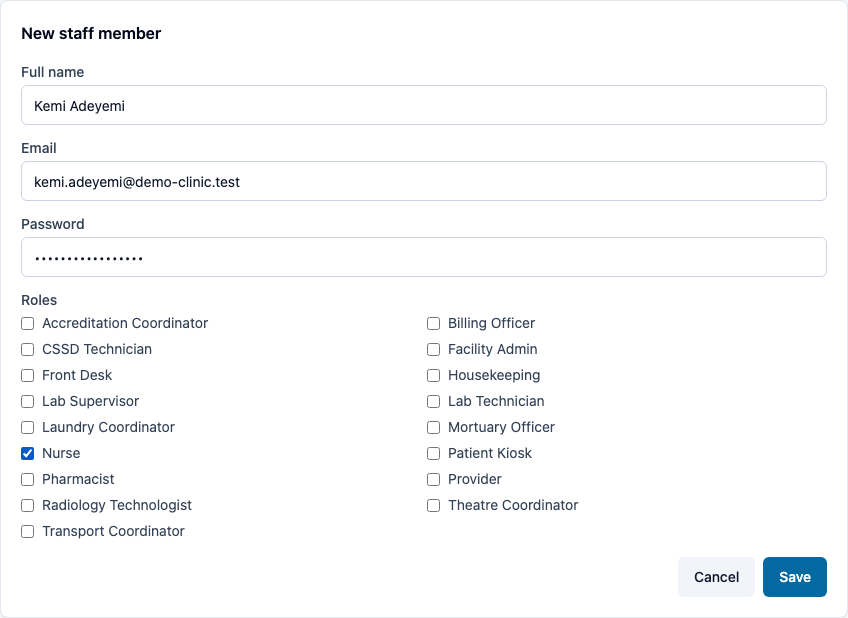
- Administration → Staff → New staff.
- Full name, Email (their sign-in), an initial Password (at least 8 characters, which you give them privately), and tick their Roles.
- Save.
2. Check what they see
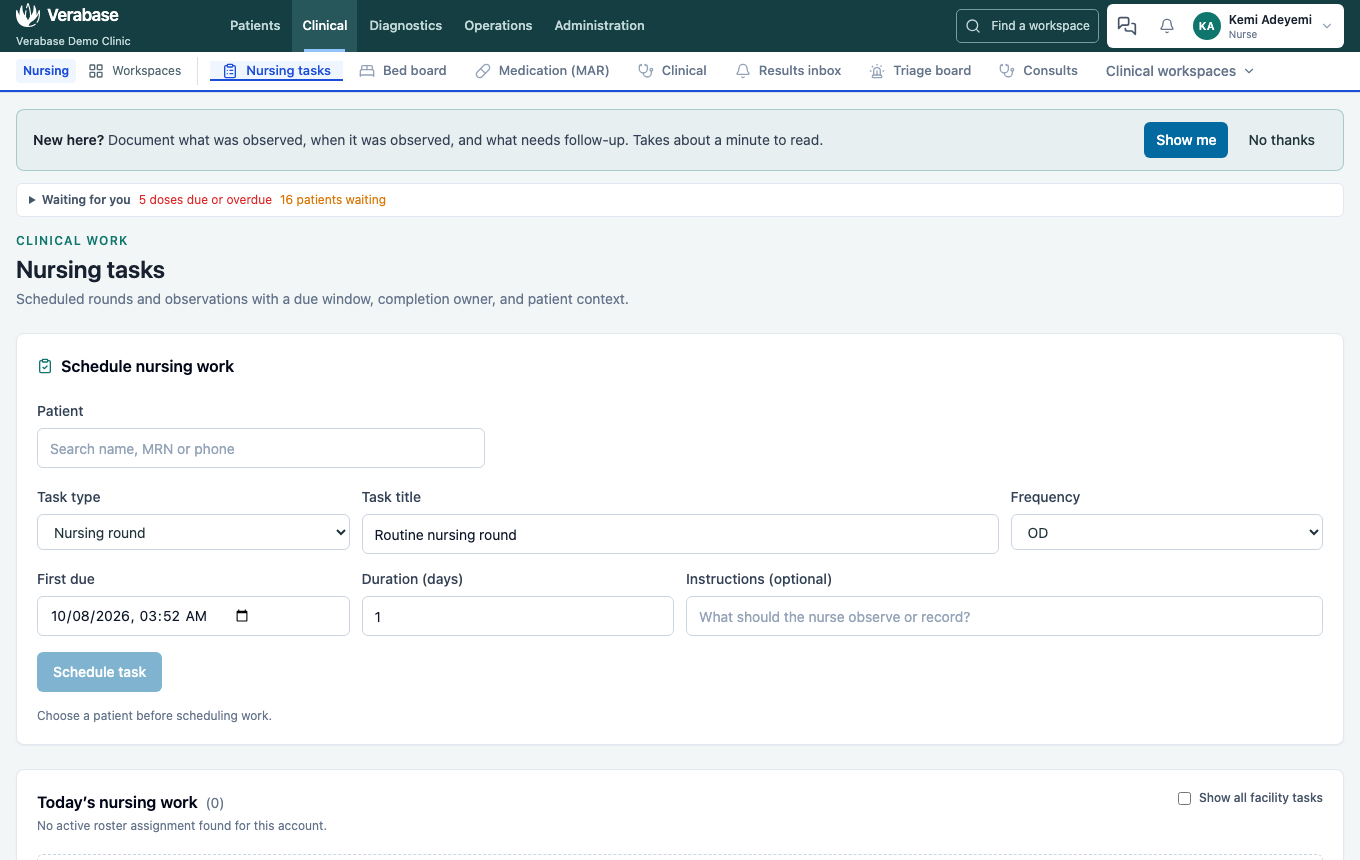
Sign in as them (or ask them to). A nurse lands on Nursing tasks with the nurse's workspaces. Opening Staff says "You do not have access to staff management." Each role reaches its own work and nothing more.
3. Record professional licences
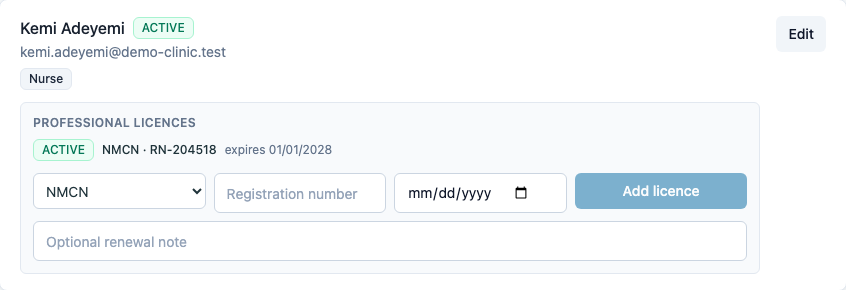
On the staff row, under Professional licences, choose the regulator (MDCN, NMCN, PCN, MLSCN or Other), enter the registration number and expiry date, and choose Add licence.
4. A custom role, when no preset fits
Administration → Roles → New role. Give it a Name and Description. You can start from a preset, then remove access the job does not need. Find permissions by work area or task; each checkbox has a plain-language description. Review the selected count and the full list before saving, especially when starting from Facility Admin, which grants every permission.
Example: start from Housekeeping, remove Manage housekeeping, then add Open the dashboard, View patient records, Manage the patient queue and View ward beds for a Ward Clerk. This keeps the preset's personal notifications, staff messaging, leave requests and housekeeping view access while omitting its housekeeping controls.
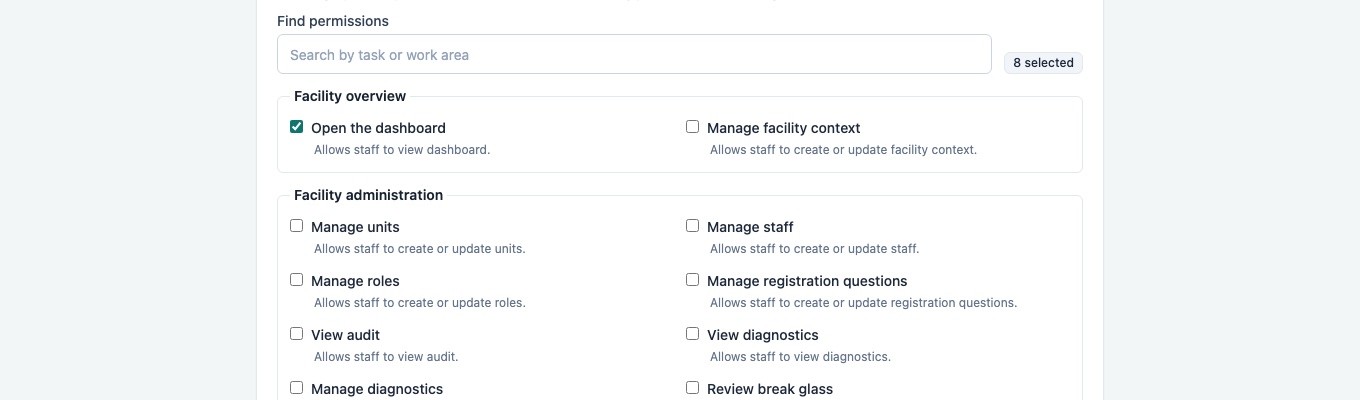
For each permission, the saved role retains the permission required by that page or action. The label and description help you choose; they do not change the access rule.
5. Multi-factor authentication
Every member of staff enrols their own account: their name in the top-right corner → Account & security → Set up MFA (FAC-ACC-01). Ask each of them to do it in their first week.
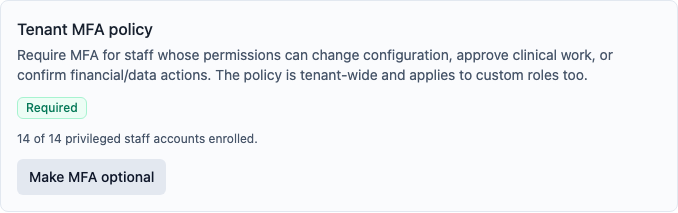
General settings → Account security adds the Tenant MFA policy. The policy covers everyone whose permissions can change configuration, approve clinical work or confirm money, which in practice means nearly every clinical and finance role. It shows how many of them have enrolled, lists who hasn't, and can't be switched on until all of them have. Then choose Require MFA for privileged staff.
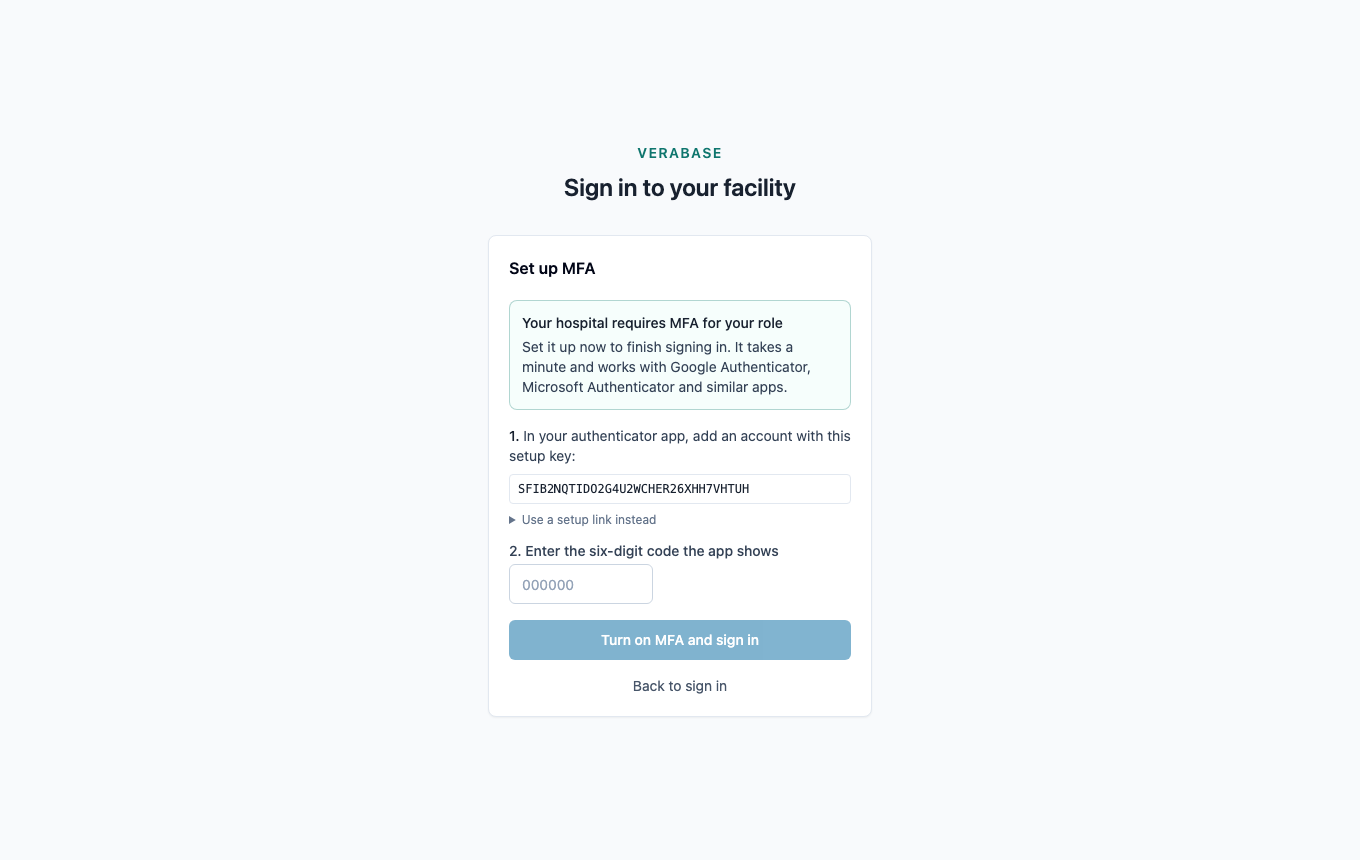
Hiring while the policy is on. Create the account as usual, with its real role. The new person can't open a session without MFA: at their first sign-in, after the password, Verabase asks them to set up their authenticator app there and then.
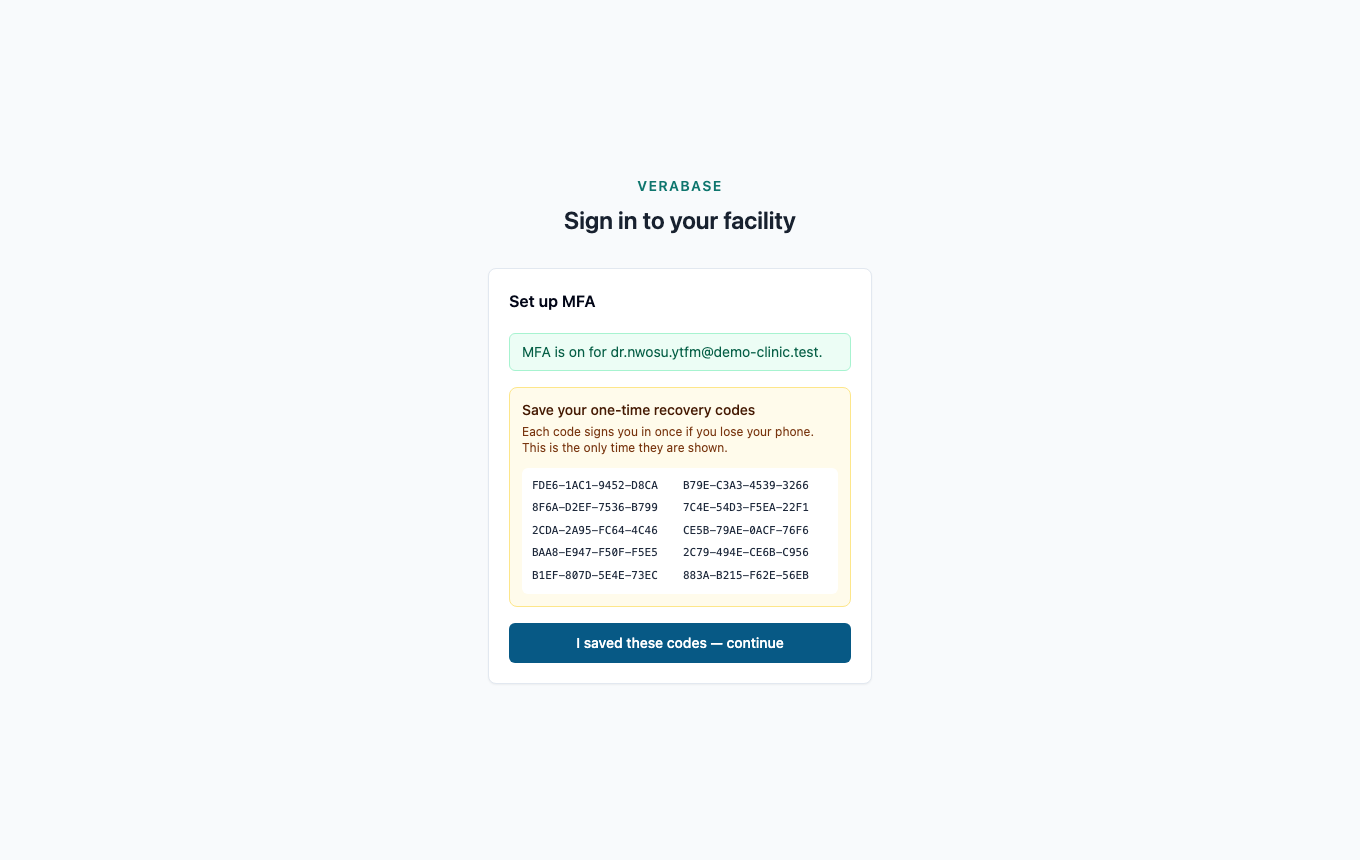
When they enter the first code, their recovery codes appear once. I saved these codes — continue opens their workspace.
The same happens to anyone who turns MFA off while the policy is on, for example to move to a new phone. They set it up again at their next sign-in.
Giving an existing account a privileged role
While the policy is on, Verabase refuses to give a privileged role to someone who hasn't turned on MFA ("This person must turn on MFA before they can be given a privileged role…"). They may already be signed in somewhere, and that session would carry on without MFA. Ask them to use Account & security → Set up MFA first, then assign the role. The same rule applies when you add privileged permissions to a role whose holders haven't enrolled.
6. When someone leaves
Staff → Edit → untick Active. Deactivating revokes their existing sessions immediately. Their name stays on everything they did.
You're done when…
- [ ] Every person has their own account with the right role, and nobody shares a login.
- [ ] Clinicians' licences are recorded with expiry dates.
- [ ] There are at least two Facility Admins.
Practice task
Create a Pharmacist and a Lab Technician. Sign in as each and write down where they land and one thing they cannot open. Check: the pharmacist lands on Pharmacy, the lab technician on Lab, and neither can open Staff.