Appearance
FAC-REC-01 · Review and transfer patient records
Waitlist work is outside this journey. These workflows use the existing patient record; a new visit is not needed to read history, receive a document, or prepare a release.
Steps
Read a prior visit
As a Provider, open Patient directory, use Find a patient, select the patient's name, then Open chart. This path reviews an existing chart without starting a visit. Select the earlier visit under Visits. A closed visit displays Closed visit — read-only. Select Note to read the saved note, its author, signature, and any earlier versions. Historical notes using the older provider-note name remain visible.
Select Add addendum on a signed note for a clarification. Include the reason and the time the care occurred. Save addendum records the current author and entry time without replacing the signed text. Draft notes remain labelled drafts; this screen does not offer ordinary edits or a new signature on a closed visit.
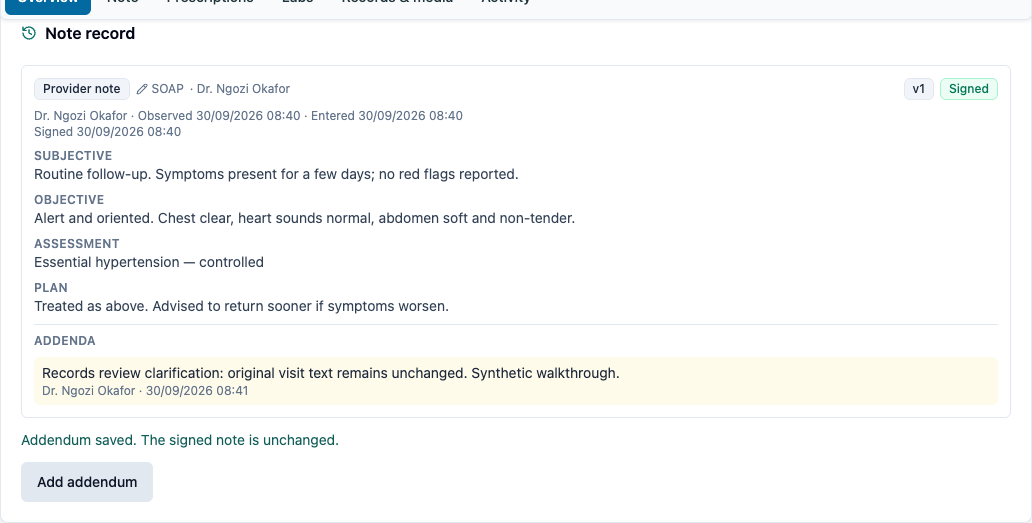
New notes, vital signs, and new medication, lab, imaging, procedure, diet, and consult orders addressed to a closed visit are refused by the API. Existing orders can still receive late results. An active inpatient admission remains a separate care episode after its source visit closes at handoff; ward work must address the admission or use the appropriate patient-level workflow.
Request an outside document
A Provider uses Chart → Records & media → Outside records. Front Desk uses Patient profile → Outside records.
- Confirm the patient's name, number, and date of birth. The date of birth must be recorded before issuing an upload link.
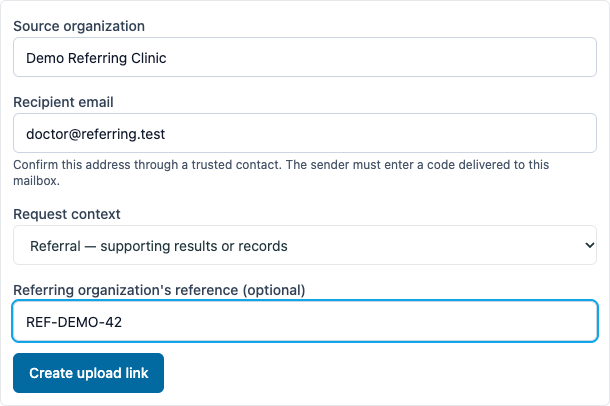
- Enter Source organization and Recipient email. Confirm the email through a trusted contact at that organization. Under Request context, choose Non-referral — results or records or Referral — supporting results or records. For a referral, optionally enter the referring organization's reference number.
- Select Create upload link, then Copy upload link, and share it with that organization through your established secure channel. The app does not send it automatically.
- The link permits one submission, expires after 72 hours, and grants no access to the chart. A clinician can revoke an unused link with a reason. The sender also needs a code delivered to the staff-selected recipient email; the upload page cannot change that address.
Both paths support lab results, other test reports (including imaging), medical records, referral letters and other records. Neither requires an open visit or an existing referral. The patient must already be registered with a date of birth. The optional reference records the sending organization's reference; it does not create or automatically link an internal referral. Earlier invitations retain Referral context not recorded rather than being classified retrospectively.
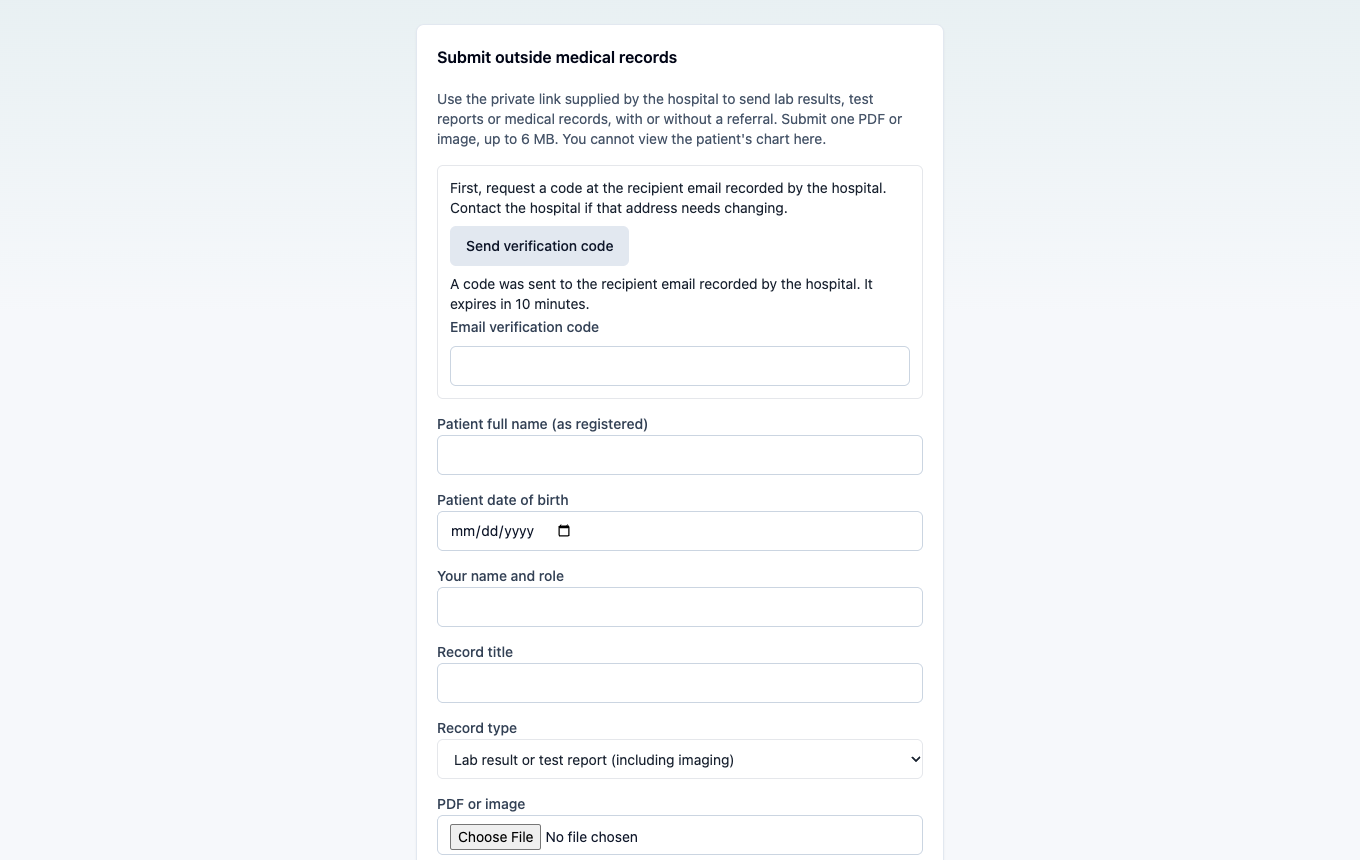
The sender opens the link without a staff login and selects Send verification code. They read the six-digit code in their email and enter it on the upload page. Codes expire after ten minutes. Resends require a one-minute wait, with at most five code requests per link. Five incorrect code attempts lock that link, including after a server restart; the hospital must issue a new one.
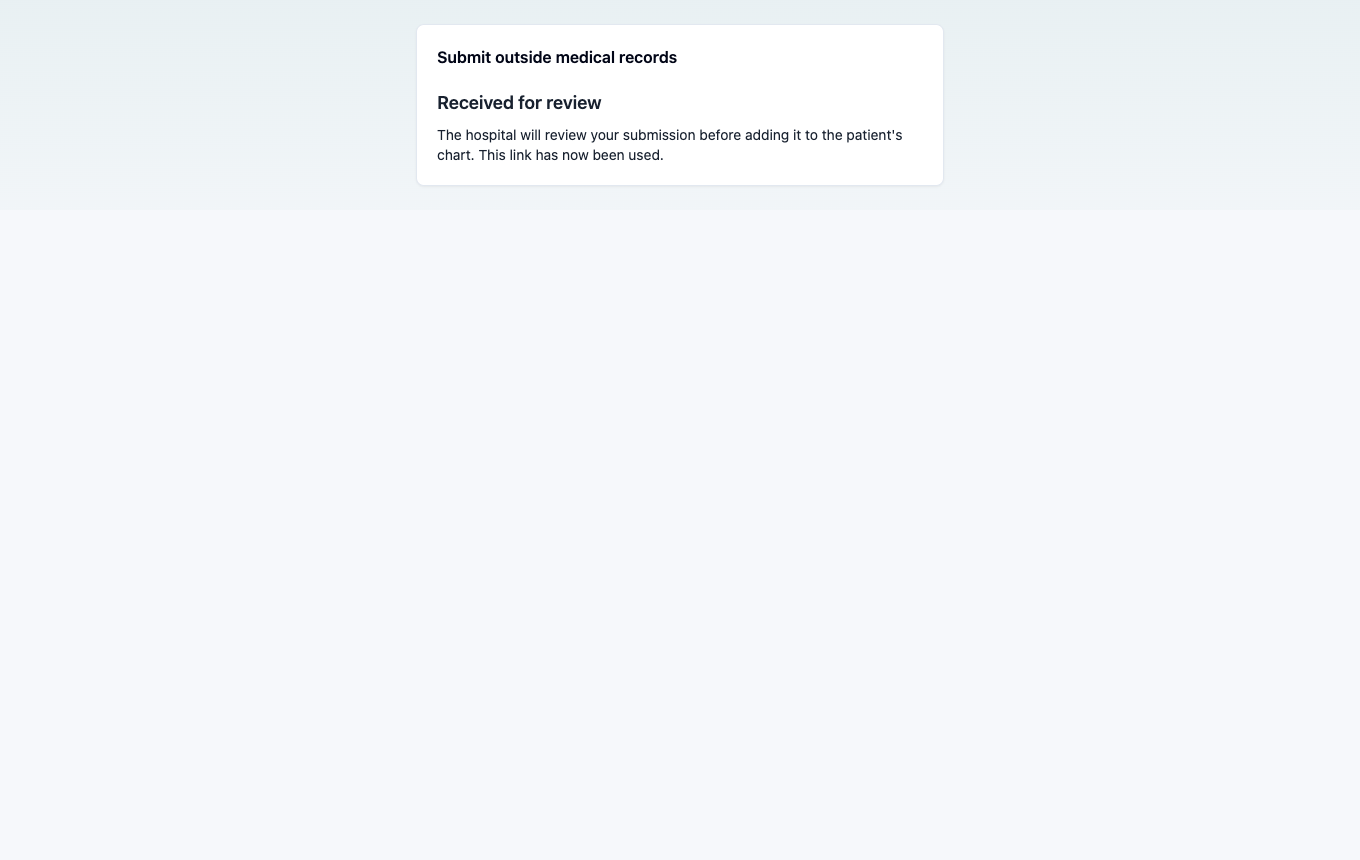
The sender enters the patient's registered full name and date of birth, their own name and role, a record title and type, and selects a PDF, JPEG, PNG, or WebP up to 6 MB. They select Submit for review. The server verifies the code and patient details and scans the file before saving a reviewable submission. A receipt confirms submission; it does not mean the document has been clinically accepted.
If scanning is unavailable, the file is not accepted and the sender can retry with the still-valid link and code. If malware is detected, the file contents are discarded and the invitation is closed; the hospital must issue a new link. Staff cannot download or accept a blocked or uncleared submission. Email delivery and scanning run outside the clinical write queue, so they do not hold up ordinary chart saves.
Review the submission
A Provider opens Results inbox → Incoming outside records. This queue contains pending submissions for patients within the clinician's existing access scope, oldest first, with an exact count and paginated results. Waiting for you also links to this queue. Waiting over 24 hours shows elapsed time; it is not a clinical urgency assessment or a configured response deadline.
Select Claim review to identify yourself as the reviewer. Filter Reviewer to Claimed by me, Unassigned, or All awaiting review. The assigned reviewer can release their claim or decide the submission. Other reviewers cannot decide it while that claim is held. Claims do not extend patient access. Use Release claim to return it to the unassigned queue, or ask a supervisor to arrange a named handover.
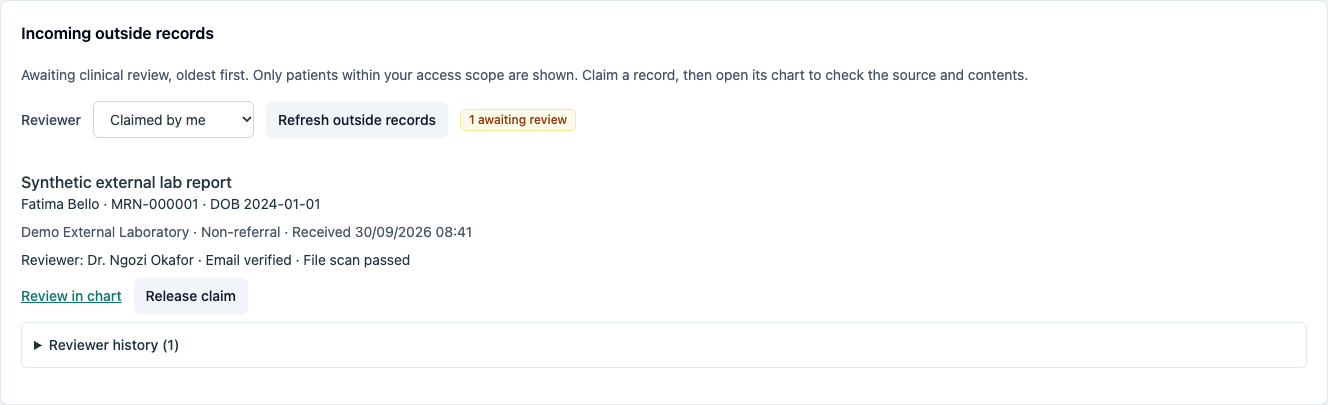
Select Review in chart to open Records & media for that patient. Confirm Awaiting review, Email verified and File scan passed. Download submitted file retrieves the original bytes; the server checks that they match the scanned file. Check patient identity, the source, and the document's relevance; enter the review reason, then Accept into chart or Reject submission.
Acceptance adds the file to Attached chart documents & media, with the source, sender, receipt time, reviewer, and review note. Rejection keeps it outside the chart. Both decisions are retained, and decided submissions leave the pending queue. Unclaimed submissions can also be reviewed directly from the chart. Front Desk can request records and see status but cannot download the pending submission or make the clinical review decision.
Referral/non-referral context and the optional referral reference remain visible to the reviewer, are included in the accepted document's provenance, and travel with it in the chart export. The sender cannot change this staff-selected context.
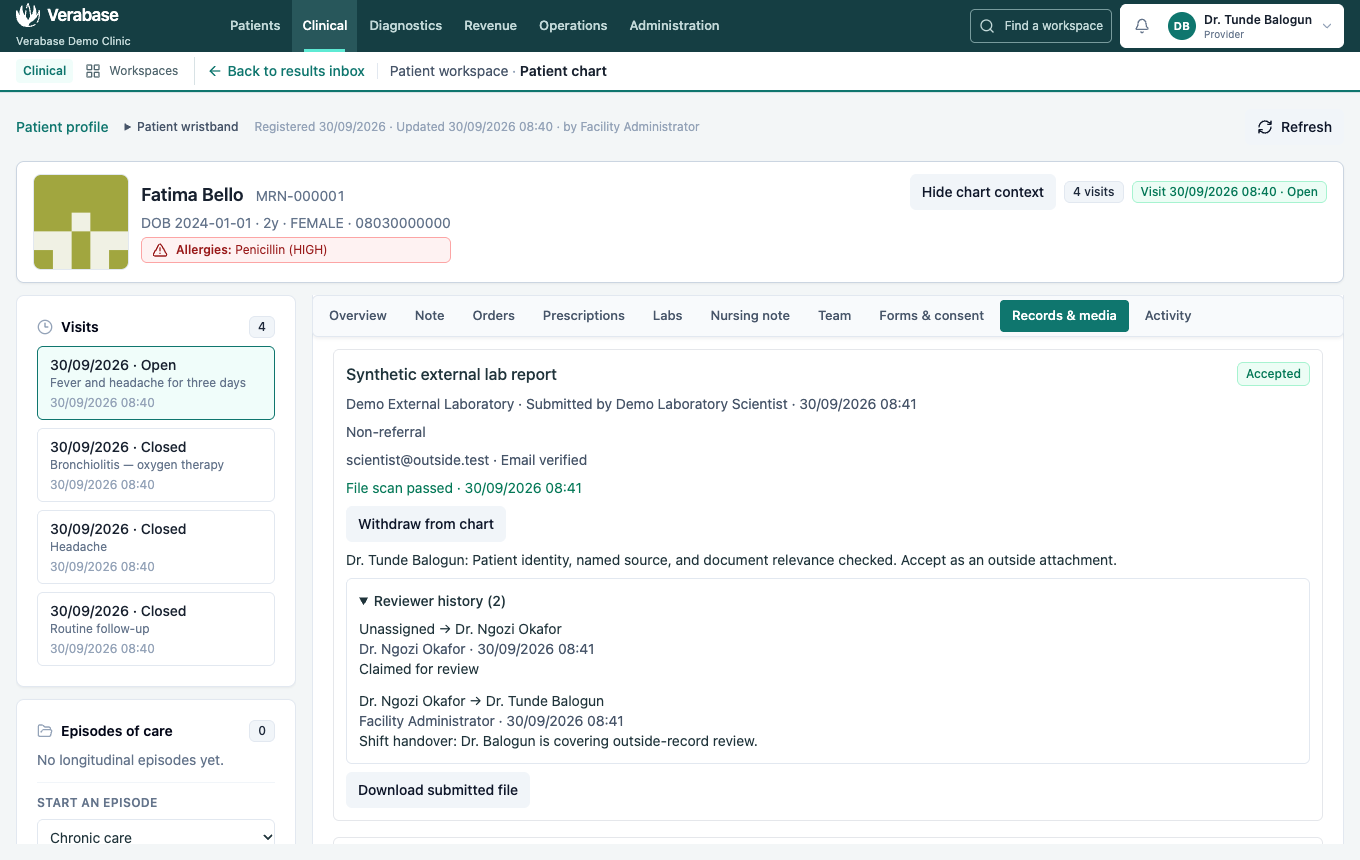
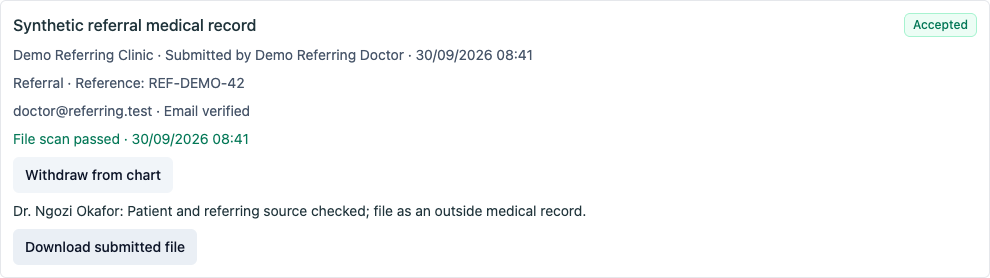
A lab-report PDF is an outside attachment. Acceptance does not create verified lab analytes, modify medications or allergies, or establish that the purported sender is a verified organization. Email verification confirms mailbox access. Staff still establish the organization's identity through a trusted contact and review the clinical contents. The accepted attachment records the verified recipient mailbox and scan time with its source and reviewer provenance.
Older links lacking a recipient email must be replaced. Older pending files are not retrospectively marked scanned or verified: request a new upload before opening or accepting them. Already-filed historical chart attachments are preserved.
Hand over a review and follow up
A review supervisor (the demo Facility Admin, holding both clinical note-writing and staff-management permissions) opens Results inbox → Incoming outside records, selects Reassign review, chooses New reviewer, and enters a Reassignment reason. Return to unassigned removes the claim when a named handover is not yet possible. Save reassignment retains the previous reviewer, new reviewer, reason, supervisor and time. A stale form is refused: refresh and check the current ownership before trying again.
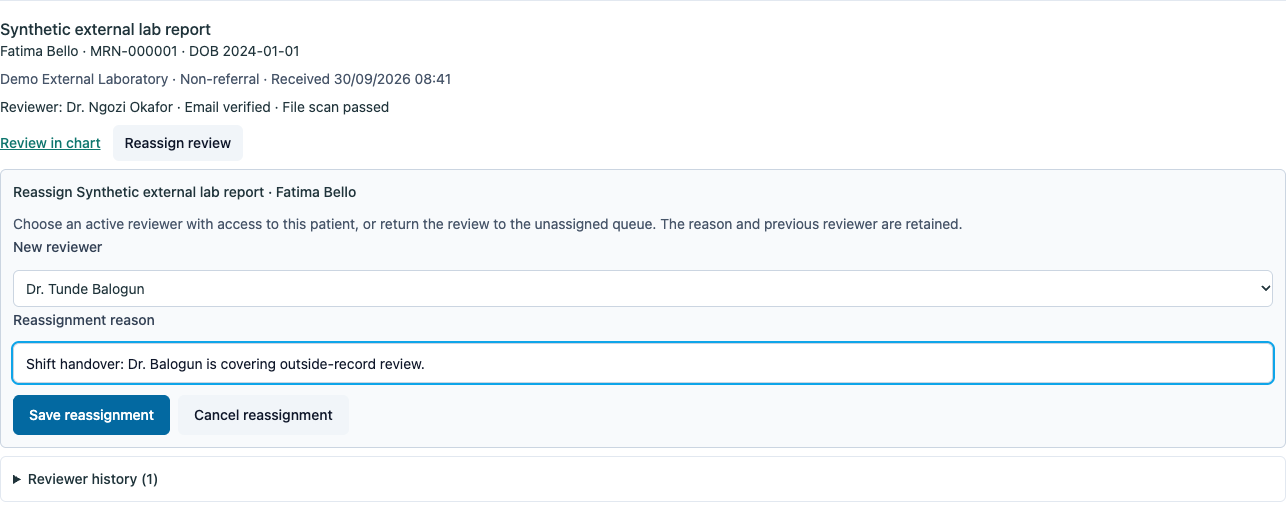
The picker includes only active staff with clinical review permission and current access to this patient. Reassignment cannot grant patient access. A clinician whose account is inactive, whose review permission is removed, or whose patient coverage ends is shown as Assigned reviewer unavailable. Supervisors can still release or reassign that pending review. Ordinary reviewers and Front Desk cannot use the supervisor action.
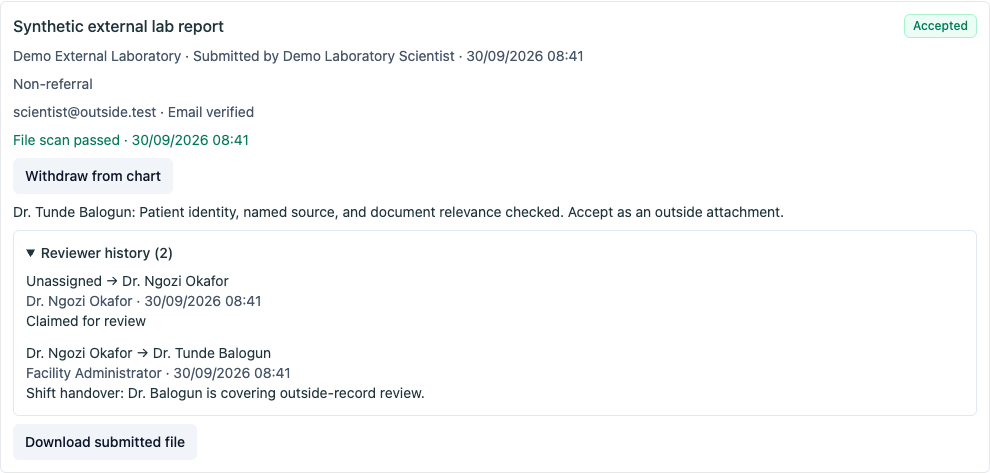
Reviewer history records handovers in the queue and the patient's Outside records entry, including after acceptance or withdrawal. Existing claims from before the upgrade remain assigned without invented historical events.
The notification bell and Results inbox refresh in-app follow-up alerts. An assigned reviewer receives an assignment alert; after 24 hours of waiting, they receive a daily review reminder. Supervisors with access to the patient receive a daily escalation after 24 hours and an immediate-on-refresh escalation when the assigned reviewer is unavailable. These are routine review reminders, not a configured clinical urgency deadline.

Alerts are generated on notification polling, not by an independent background scheduler. They do not send email or SMS. Concurrent polls and server restarts preserve deduplication and read state. A new waiting day or assignment can produce a new reminder. A newly unavailable reviewer produces a separate escalation even if today's waiting reminder was read. Obsolete alerts disappear from the active notification list and unread count after reassignment, a review decision, a loss of patient access, or disabling the relevant module. The assignment history remains available separately.
Correct a filed outside record
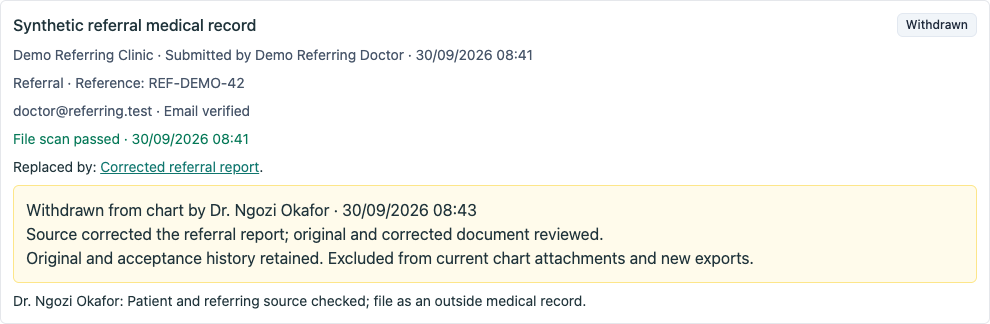
A Provider opens the accepted entry under Outside records, selects Withdraw from chart, and enters a Withdrawal reason. The confirmation explains that the file will leave current chart attachments and future exports, while the original and acceptance history are retained. Select Confirm withdrawal, or Cancel withdrawal to leave it unchanged.
The entry shows Withdrawn, who withdrew it, when, and why, alongside the original acceptance. Its original bytes remain stored, but ordinary chart and outside-record downloads no longer serve them. Accepted outside files cannot be destroyed with the generic attachment Remove action; Front Desk cannot withdraw them. Existing accepted outside attachments acquire this protection during the database upgrade.
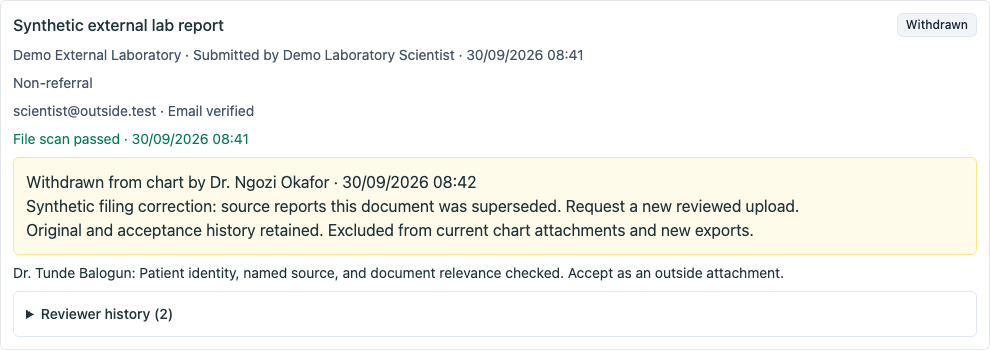
Withdrawal does not move a document to another patient. Request a new upload for the correct patient or amended report and review it separately. Previously downloaded or delivered copies cannot be recalled here: contact affected recipients through the established correction process. Automated recipient correction notices remain a gap. Historical originals currently require an authorized administrative retrieval process; there is no dedicated historical-file viewer in this screen.
Check duplicates and file a replacement
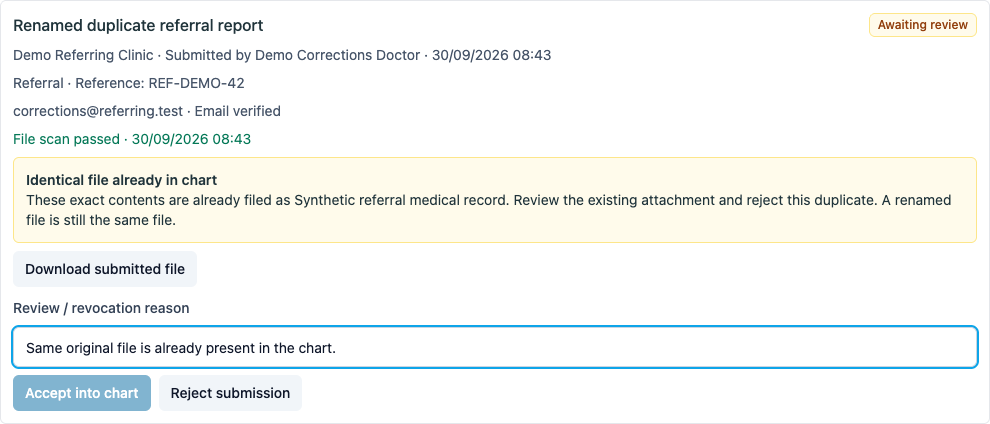
An upload containing the same bytes as a current chart attachment shows Identical file already in chart, naming the existing document. Renaming the upload does not avoid this check. Accept into chart is disabled, and the server also refuses duplicate acceptance. Review the existing attachment, record the reason, and Reject submission. The check uses checksums within this patient's facility and includes ordinary staff-uploaded chart attachments. Available legacy inline files acquire checksums during upgrade; unavailable historical files cannot be compared. This is exact-file detection, not comparison of clinical meaning, rescanned pages or changed PDF metadata. Concurrent outside-record acceptance is checked again inside the filing transaction.
For a corrected document, request a fresh upload and complete the usual email verification, scan and clinical review. Under Replace an earlier outside record (optional), select the earlier accepted or withdrawn record. Explain the correction in Review / revocation reason, check I reviewed the earlier record and confirm replacement, then select Accept replacement. Leave File as a separate record selected when this is independent information. Only outside records for this patient can be linked; a previously replaced version cannot acquire a second replacement. Select the latest filed version for a subsequent correction.
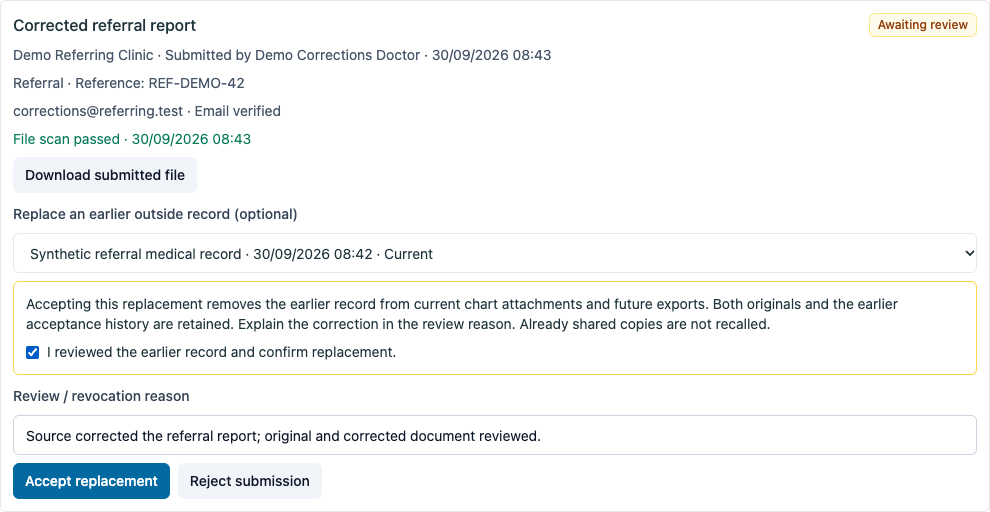
Acceptance files the corrected document and withdraws the earlier current attachment in one transaction. Failure leaves the earlier record unchanged. Both original files and the earlier acceptance remain stored. If the earlier record was already withdrawn, its original withdrawal reason and time remain unchanged. Replaces and Replaced by link the history entries. Current attachment lists and new exports include the replacement and exclude the earlier file; the replacement's exported provenance identifies the earlier record and document. No document is silently overwritten or automatically accepted. Front Desk cannot file replacements.
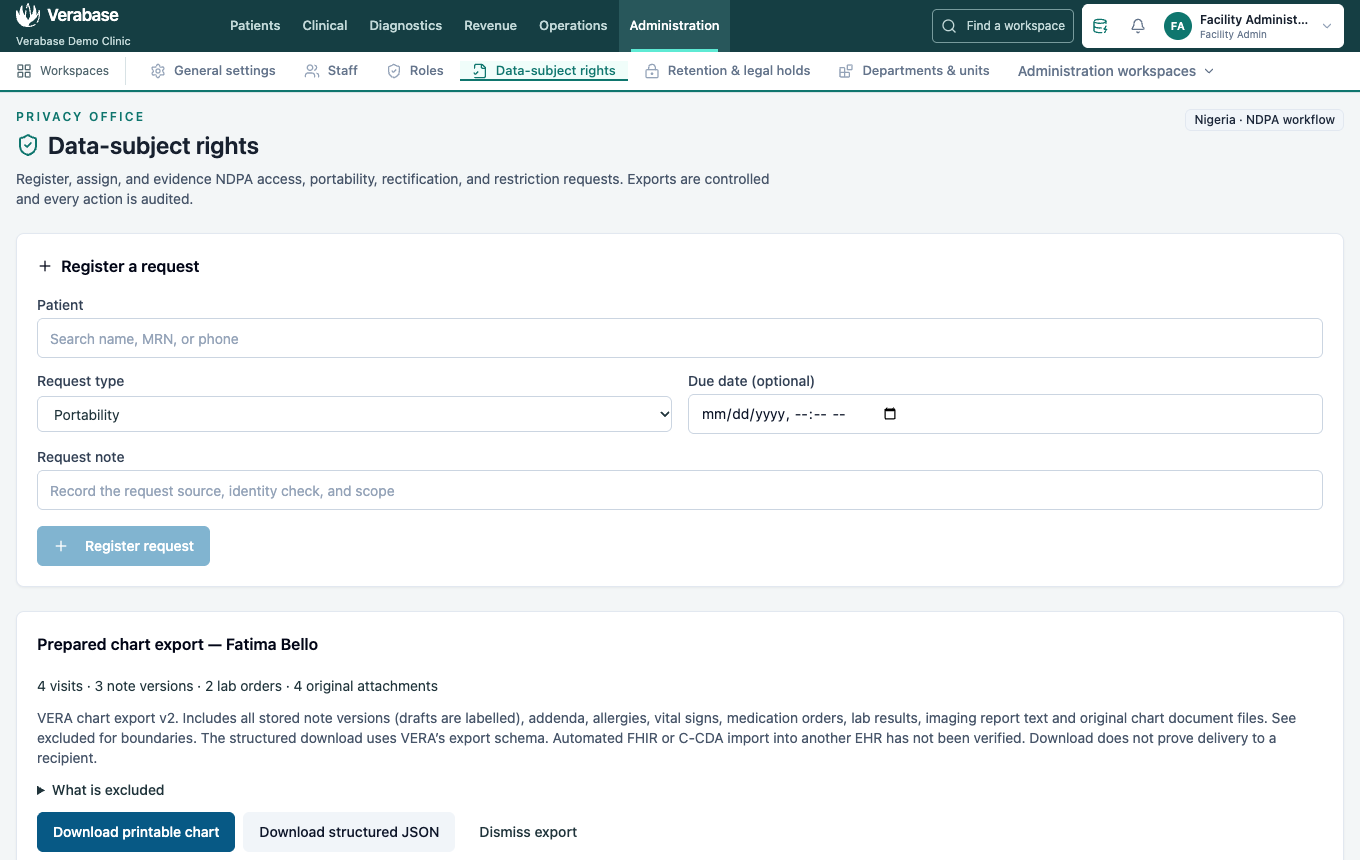
Prepare the patient's chart export
A staff member with the manage data-subject requests permission (the demo Facility Admin) opens Administration → Data-subject rights.
- Find the patient by name or MRN and confirm identity.
- Register an Access or Portability request. Record the identity check, request source, release scope, and intended recipient in the notes.
- Select Start review, then Prepare chart export. Open requests, rejected requests, and closed requests cannot generate a new export.
- Inspect the section counts and What is excluded.
- Choose Download printable chart for an offline HTML document, or Download structured JSON for the VERA data package.
- Record the recipient and delivery outcome in the response note before marking the request fulfilled. Downloading a file does not establish delivery or automatically fulfil the request.
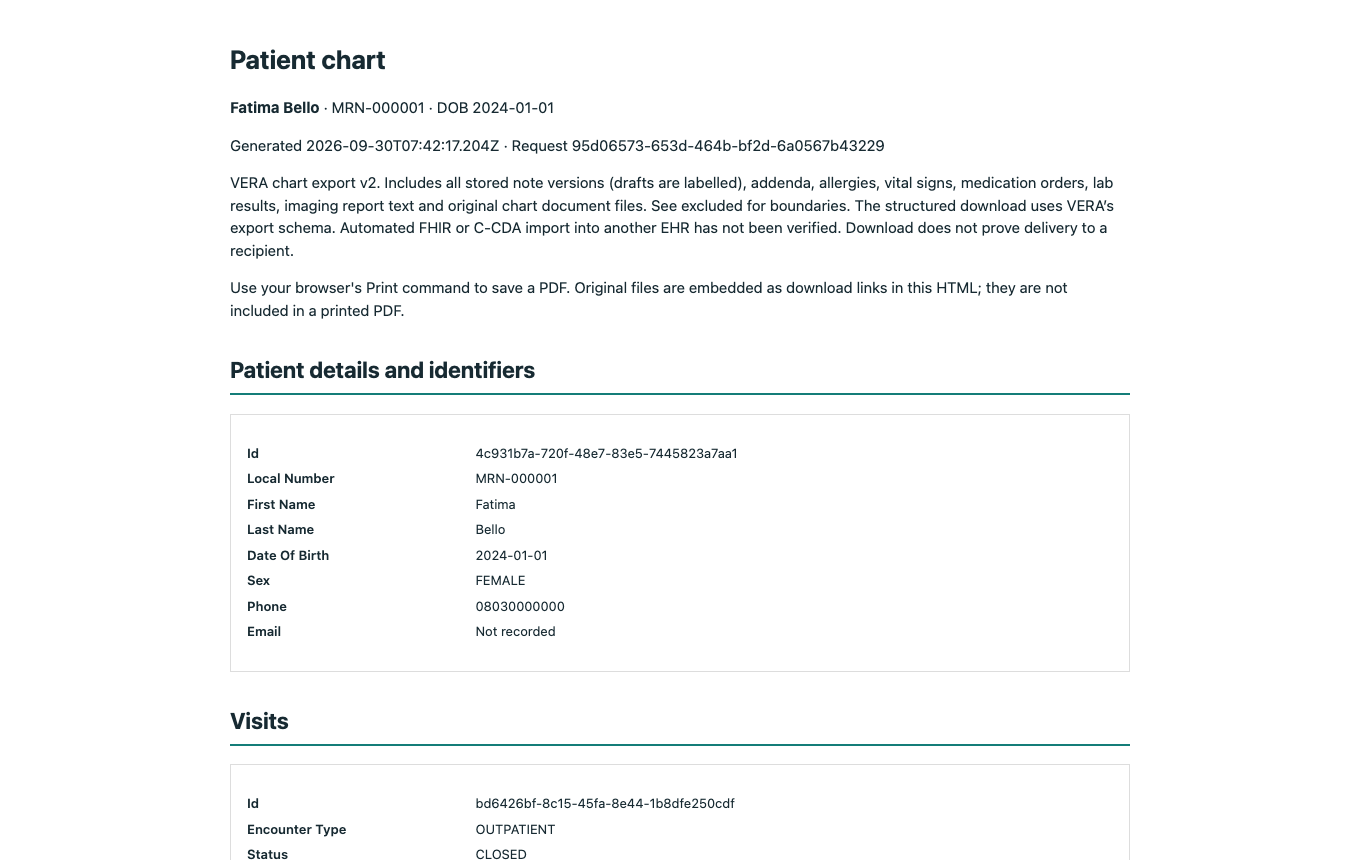
The printable chart opens without a server connection. Use the browser's Print command to save a PDF. Original files are embedded as download links in the HTML and as data URLs in JSON; printing to PDF does not include those original attachments.
What the export contains
Demographics and identifiers; all non-deleted visits without the old 200-visit cap; admissions; stored note versions, authors, signatures and addenda; problems; allergy status and entries; vital signs; medication orders; current lab results and their verification status; imaging report text; and original chart-document files. Drafts remain labelled. Prior lab-result versions are not included.
The export explicitly excludes billing/audit history, deleted records, PACS/DICOM images and imaging report attachments, specialty forms and nursing flowsheets, medication administrations, disabled-module records, and pending/rejected/withdrawn outside submissions. More than 50 MB of chart attachments causes an explicit failure instead of a partial download. It is a defined chart package, not a complete export of every database record.
Epic as a case study, compatibility and remaining work
The JSON format is VERA-specific. A printable copy helps a recipient read the history, but automated import into another EHR has not been verified. Epic is a case study for these workflows, rather than a selected integration target.
Epic documents separate exchange paths: CDA/C-CDA for patient summaries, Direct or XCA/XDS for clinical-document exchange, and incoming ancillary interfaces for laboratory results. Patient matching and a trusted connection are part of that exchange. See Epic's EHR-to-EHR documentation and laboratory/results interfaces.
The next interoperability increment should validate a C-CDA or agreed FHIR profile against the receiving system’s agreed interface, preserve identifiers/codes/units/provenance, reconcile duplicates and amendments, and record delivery acknowledgements. Structured incoming labs need order/specimen matching and a result-verification workflow distinct from document acceptance. The existing analyser import is not proof of a complete third-party LIS connection.
Malware scanning and recipient-email verification are implemented with fail-closed behavior. Before exposing uploads publicly, configure HTTPS, private scanner connectivity and signature updates, authenticated email delivery, organization verification as required, operational retention, storage handling for pending files, and ingress abuse controls. Code-send and wrong-code limits are stored durably per invitation; they do not replace deployment-level rate and traffic controls. Pending clean payloads currently reside in the tenant database. Granular release selection, structured recipient authorization, patient self-service release, and automated secure delivery remain gaps. See the upload-security operator setup.
Verification
The repeatable browser walk is capture/records.spec.ts: Provider review/addendum, a separate signed-out sender, Provider acceptance, Facility Admin export and local-file inspection, and Front Desk permission boundaries. It uses a fresh demo reset and seed ending Nothing skipped. API checks cover expired/reused/revoked links, wrong patient/tenant, rejected documents, role denial, closed-visit writes, continuing admission care, late results, atomic acceptance and a 206-visit export. The file downloaded from the offline HTML must match the submitted original byte for byte.
Local check, 25 September 2026 (America/Chicago): Chromium passed the original walkthrough, along with the original API/regression tests, HTML escaping test, server/web typechecks and guide validation/build.
Referral extension, 26 September 2026: Chromium passed both referral and non-referral intake on freshly seeded synthetic demo data ending Nothing skipped. Front Desk requested referral records, a separate signed-out sender uploaded them, and a Provider accepted them. Facility Admin downloaded a chart retaining the source reference. The 14 patient-record tests, 29 migration tests and migration-immutability check passed, as did server/web typechecks. They cover concurrent link reuse, sender attempts to change the request context, no-visit intake and preservation of existing records through the database upgrade. Logs and synthetic downloads are retained under output/playwright/patient-records-review/ in the repository root.
Upload-security extension, 26 September 2026: the fresh-seed Chromium walkthrough passed both request contexts with recipient-email codes delivered to the local email catcher and files scanned by a real ClamAV daemon. Provider and Front Desk issued requests, separate signed-out senders submitted files, Provider reviewed and accepted them, and Facility Admin exported the original attachments with verification and scan provenance. All 63 focused tests passed (22 patient-record, 30 migration, one migration-immutability, seven scanner and three email-delivery tests), along with server/web typechecks. An independent real-daemon check returned CLEAN for synthetic text and INFECTED for the harmless EICAR test string.
The eight upload-security screenshots were opened and inspected. The referral request form was captured with the sticky header temporarily unpinned so every field is visible; the repeatable capture uses the same treatment. Verification logs and synthetic downloads are retained under output/playwright/patient-records-review/.
Inbox and correction extension, 26 September 2026 (America/Chicago): the fresh-seed Chromium walk passed claiming an incoming record, filtering to the current reviewer, opening the chart from the queue, acceptance removing it from the queue, withdrawal with original acceptance history retained, and a newly generated export excluding only the withdrawn attachment. Provider, Front Desk and Facility Admin boundaries were checked through the UI. All ten current screenshots were opened and inspected. The 26 patient-record tests, 31 migration tests and migration-immutability check passed (58 total), as did server/web typechecks. The queue tests include 52 submissions across three pages, patient-scope filtering before counts, metadata-only responses and competing reviewer claims. Correction tests cover preserved original bytes, role denial, repeat decisions, ordinary-download denial, protected deletion and export exclusion. Evidence is retained as inbox-*.log and corrected-export.json under the same output directory.
Review handover and follow-up extension, 29 September 2026 (America/Chicago): the fresh-seed Chromium walk passed as Providers Dr. Okafor and Dr. Balogun, Front Desk, Facility Admin and separate signed-out senders. Patient directory → patient profile → chart preserved the four seeded visits, with the same count asserted in both exports. The supervisor reassigned a claimed review with a reason; the earlier reviewer could no longer accept it, and the covering clinician saw assignment and overdue reminders. Reading a reminder removed it from the unread list; deciding the records cleared the obsolete alerts. Handover history remained visible after acceptance and withdrawal. Both referral and non-referral uploads used recipient-email verification and real ClamAV scanning. A separate synthetic 25-hour legacy fixture had no file bytes or clearance and was rejected, not accepted. All 13 current screenshots were opened and inspected.
The 30 patient-record tests, 32 migration tests, migration-immutability check and three notification tests passed (66 total), along with 11 notification-label tests and server/web typechecks. After refining escalation deduplication, the four reassignment/follow-up tests passed again. They cover permission denial, unavailable and out-of-scope reviewers, stale versions, concurrent polls, server restart, preserved read state, a new waiting day, and removal of obsolete alerts. Evidence is retained as followup-*.log and followup-verification.md under output/playwright/patient-records-review/.
Duplicate and replacement extension, 30 September 2026 (America/Chicago): installed Google Chrome passed the existing walkthrough and the expanded duplicate/replacement workflow. The records run uses its own fresh synthetic database and ports so other demo resets cannot interfere. The seed ended Nothing skipped. A renamed copy of the same referral PDF was flagged and could not be accepted; the Provider rejected it. A different corrected report required selection of the earlier record, a reason and confirmation. Acceptance retained the earlier history and linked both versions; Front Desk had no replacement controls. A new export included the correction and excluded both the superseded file and rejected duplicate. All three exports still contained exactly four visits.
All 73 API/migration/notification checks passed (36 patient-record, 33 migration, one immutability and three notification tests), plus eight media/backfill tests and both typechecks. Coverage includes concurrent duplicate filings, competing corrections, rollback after a failed replacement, same-patient boundaries, role denial, uncleared files, retained withdrawal attribution and backfilling legacy inline checksums without changing bytes. All 16 final screenshots were opened and inspected; the replacement confirmation uses a taller viewport to show the action buttons in full. The final fresh-seed Chrome run passed in 3.3 minutes. Evidence is retained as replacement-*.log, replacement-verification.md and replacement-export.json in the same output directory.
Firefox could not launch on this Mac: agent and normal-Terminal checks on 29 September failed with plugin-container sandbox-extension and compositor errors. On 30 September the user explicitly approved Chrome as the fallback, and the installed Chrome pass satisfies this journey's browser verification. Firefox itself remains unverified. Changes remain local and have not been deployed; no records have been delivered to an external EHR.
You're done when
The original signed note is visible with its attributed addendum; the outside file has a documented review decision; and the downloaded chart opens locally with the expected clinical sections and original files. A transfer is delivered only after the recipient confirms receipt through the agreed channel.
Practice task
Using only synthetic demo data, request one outside lab report for Fatima Bello, submit it from a separate signed-out browser, accept it as a Provider, and export the chart as Facility Admin. Confirm that the report remains an attachment and has not become a verified lab result. Front Desk must be unable to accept submissions or export the chart through the privacy office.