Appearance
CP-01 · Sign in and secure your account
Every Verabase operator signs in to platform-admin with a personal account, and every sign-in is recorded in the platform audit trail. Your account can create hospitals and change what they are licensed to use, so turn on MFA before doing anything else.
Before you start
- A platform account created by a Verabase administrator. On a fresh local environment the seed creates
admin@verabase.local(passwordverabase-admin, local only; production refuses to seed with the default). - An authenticator app (Google Authenticator, 1Password, Authy…) for MFA.
Steps
1. Sign in
- Open platform-admin (production URL from the ops runbook;
http://localhost:3000locally). - Enter your email and password and choose Sign in.
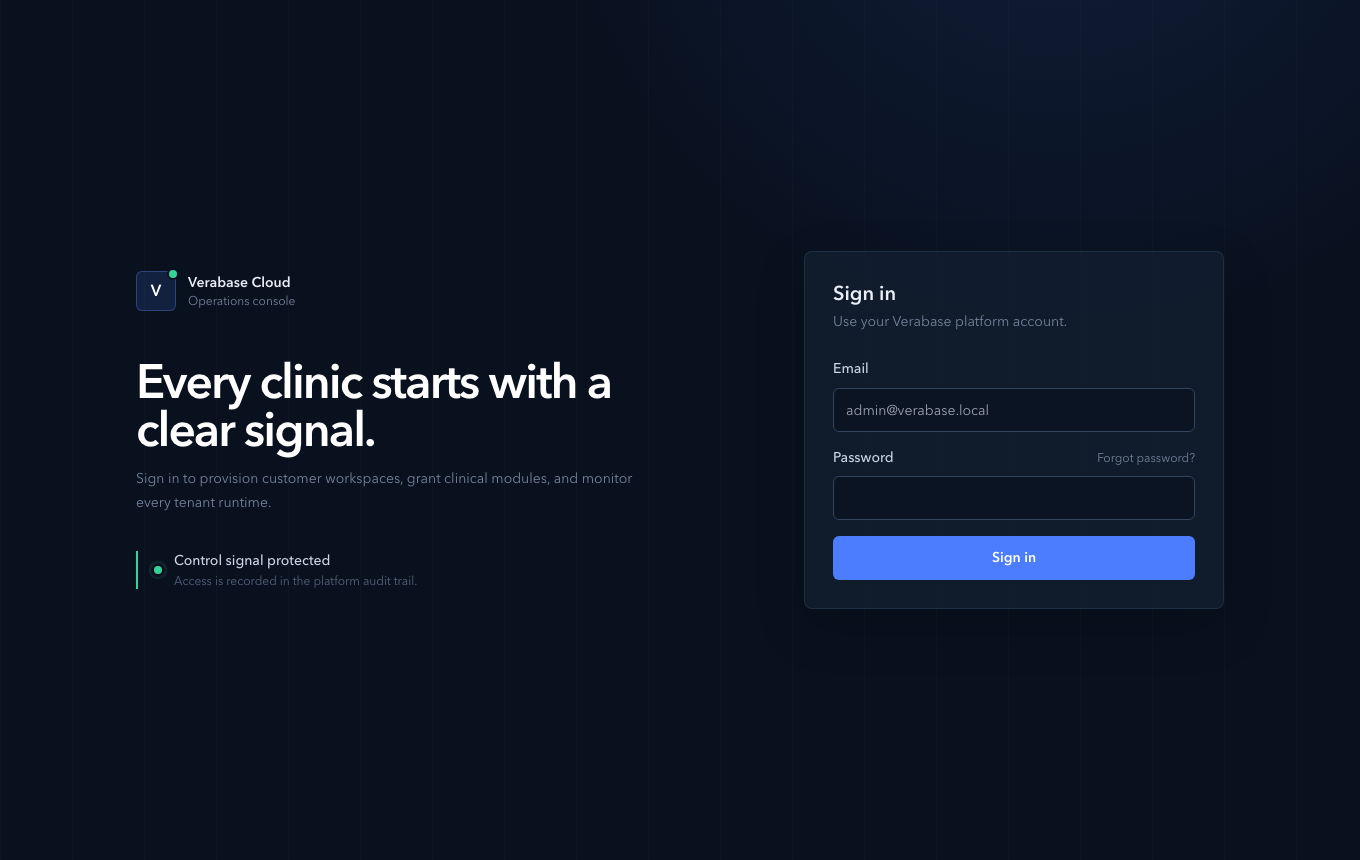
A wrong password gets the same message whether the email exists or not: "Email or password is incorrect." This is deliberate, so the page can't be used to discover which operator emails exist.
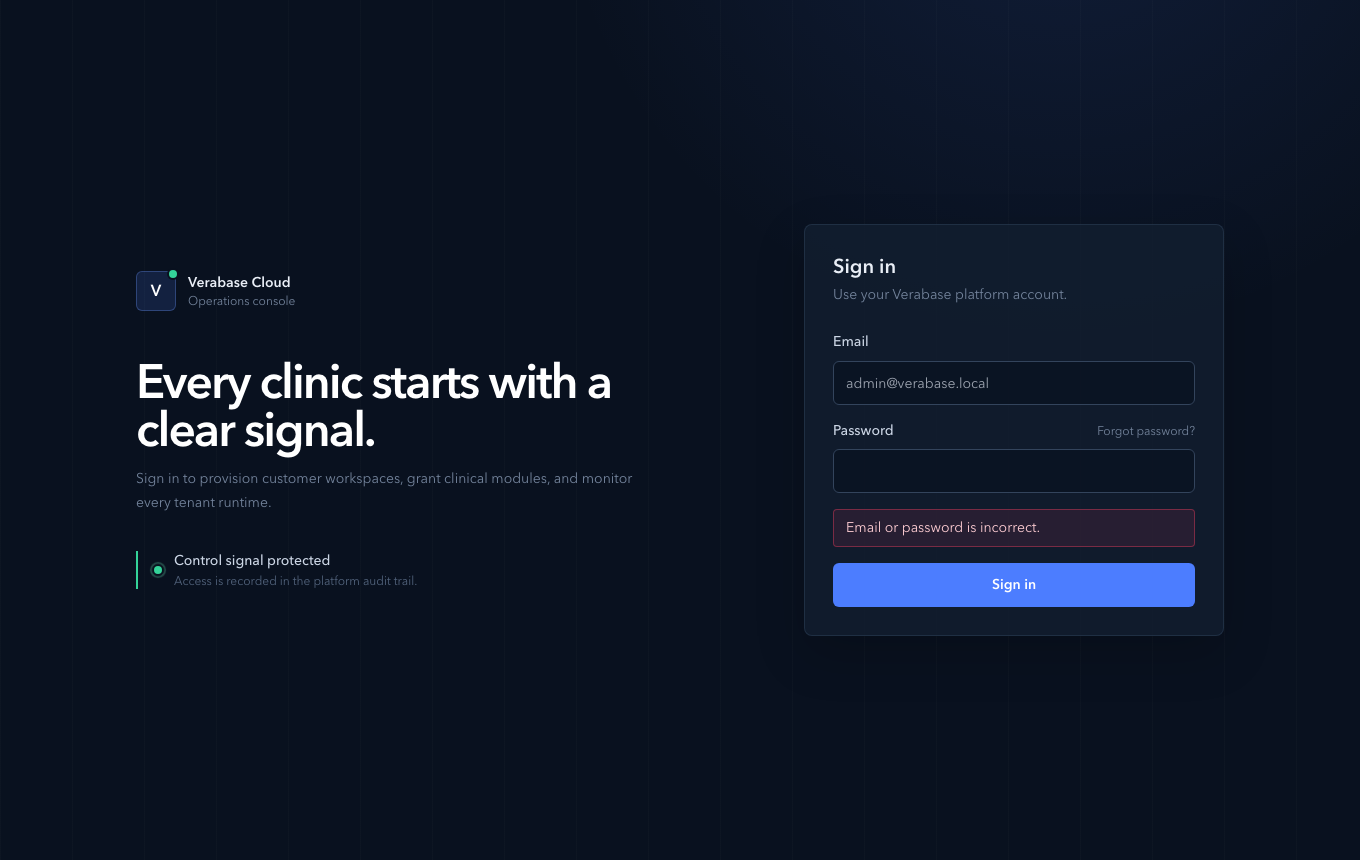
You should see: the Overview, with the control signal, the number of active tenants, tenants needing attention (suspended), database latency and the five most recently updated tenants.
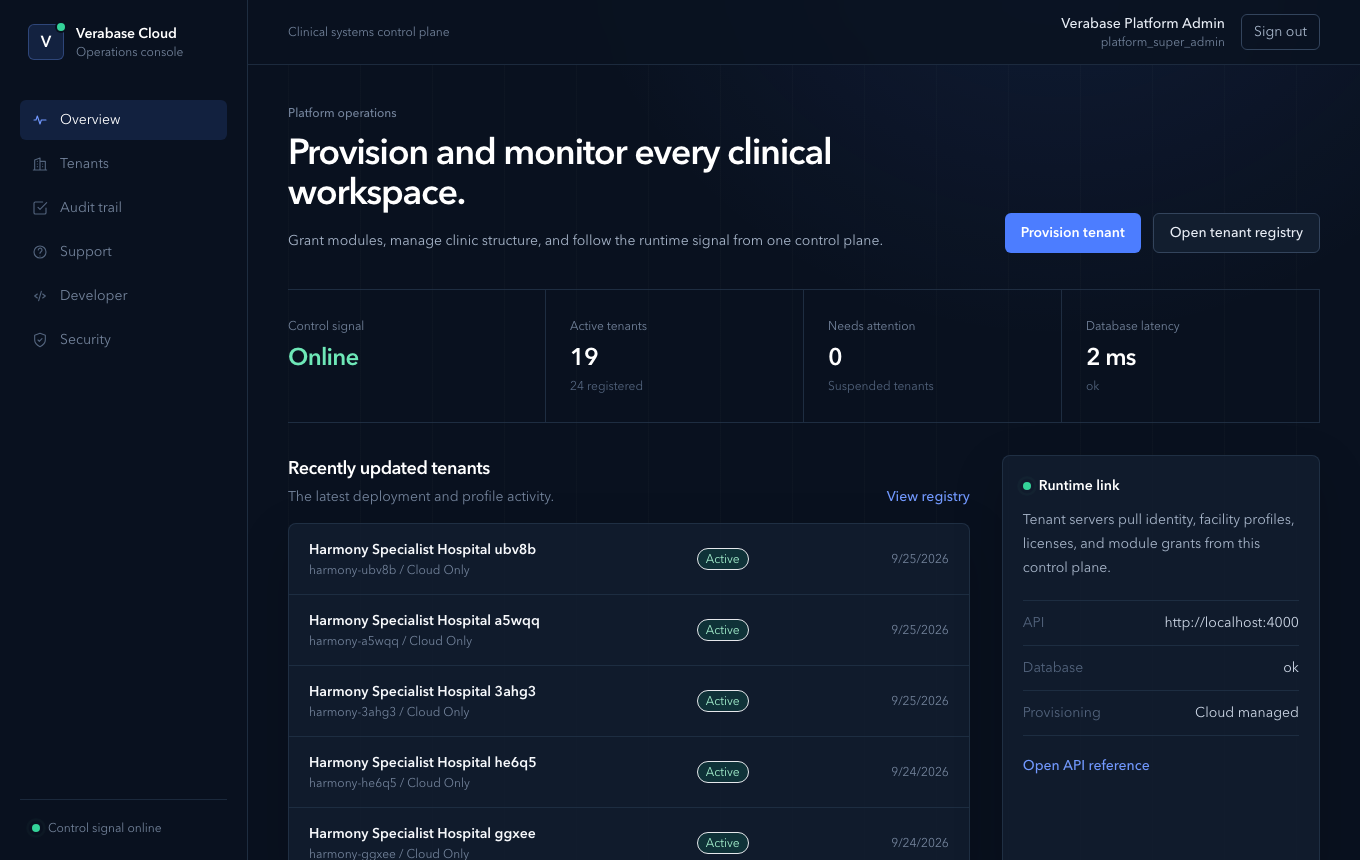
2. Turn on MFA
- Choose Security in the left navigation. The badge says MFA not enabled until you enrol.
- Choose Set up authenticator. Verabase shows a Manual secret (base32) and an Authenticator URI. There is no QR code: paste the URI into your authenticator app, or type the secret in manually. Keep the secret private.
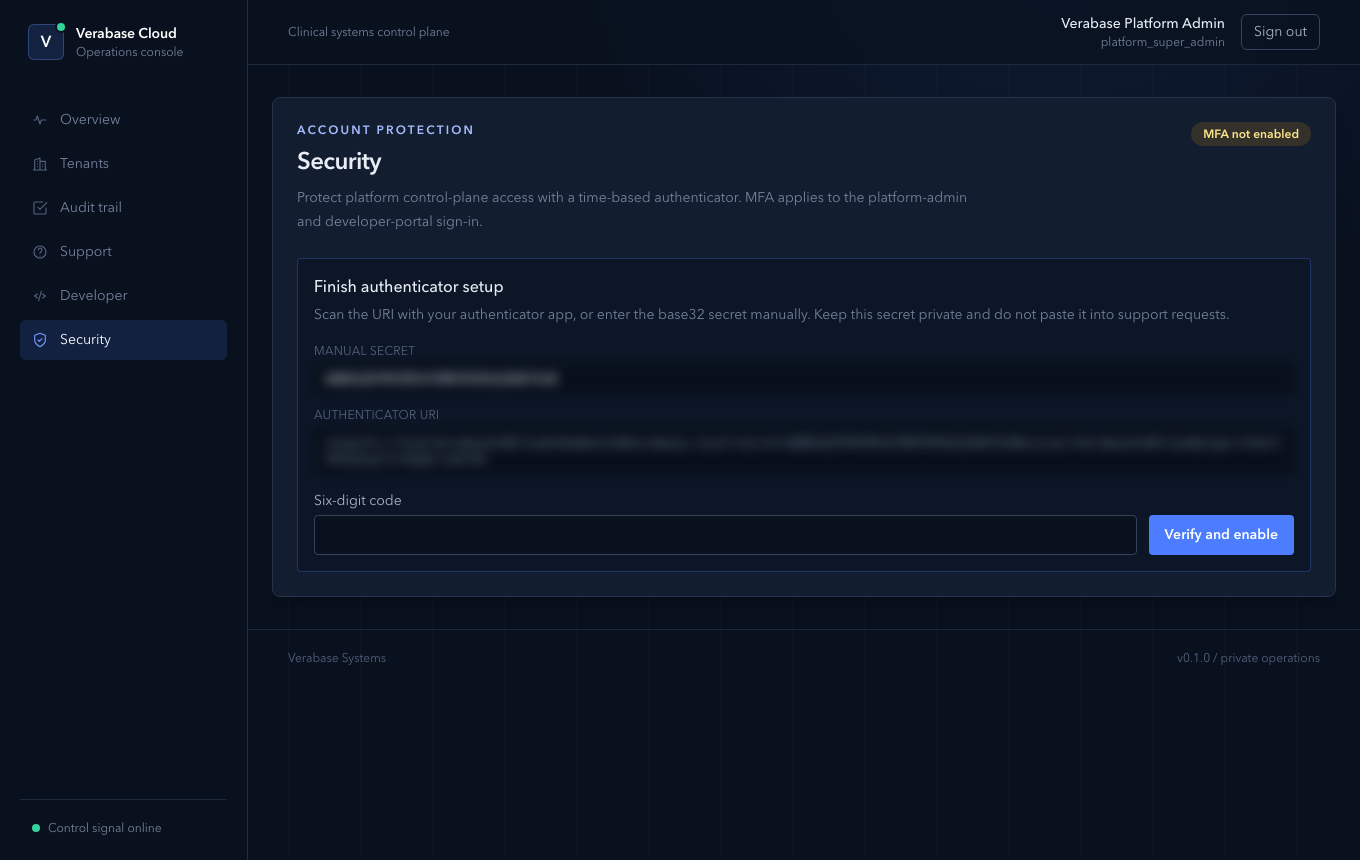
- Enter the Six-digit code your app now shows and choose Verify and enable.
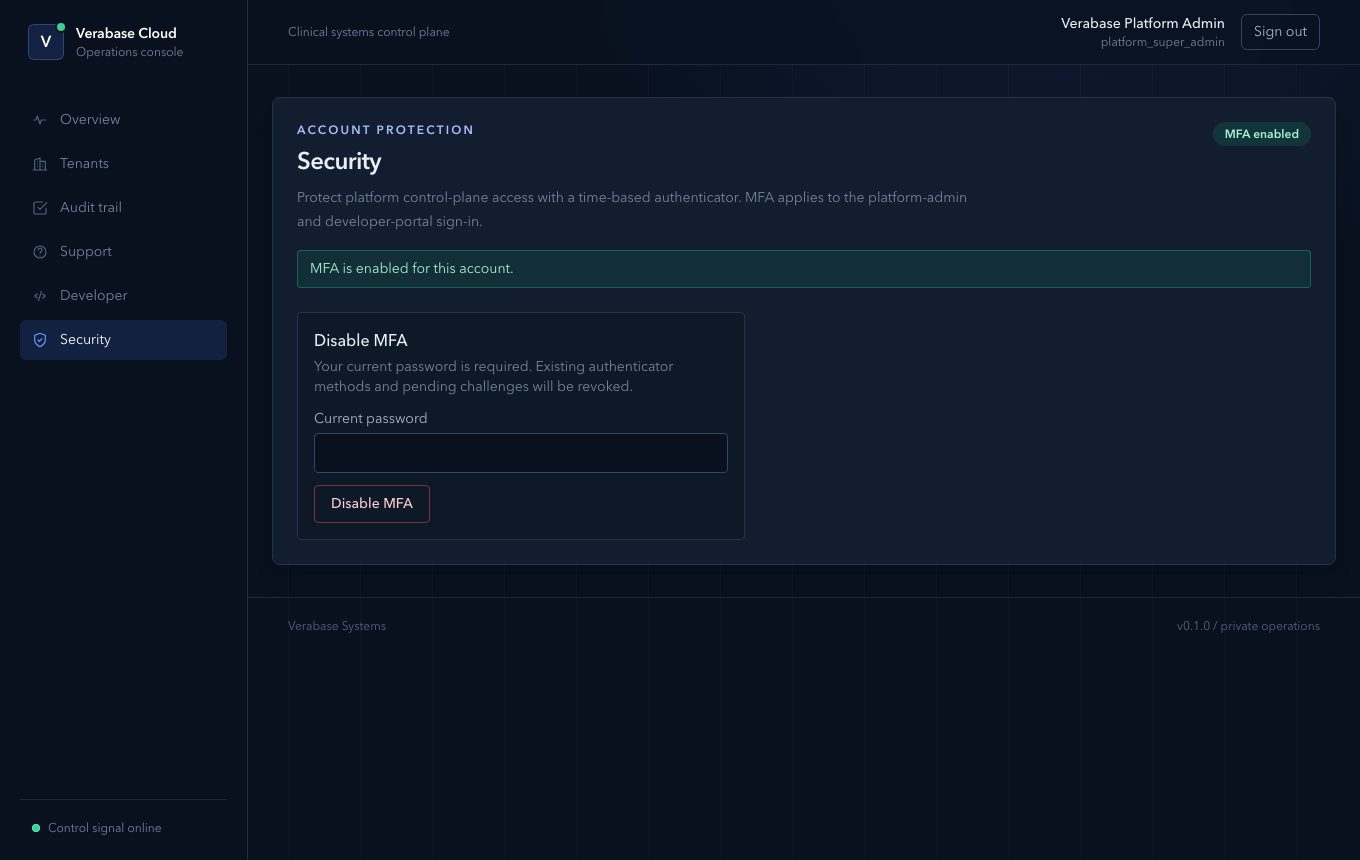
From now on, after your password, sign-in asks for a code at /login/mfa. Enter it and choose Verify and continue. The same second step protects the developer portal.
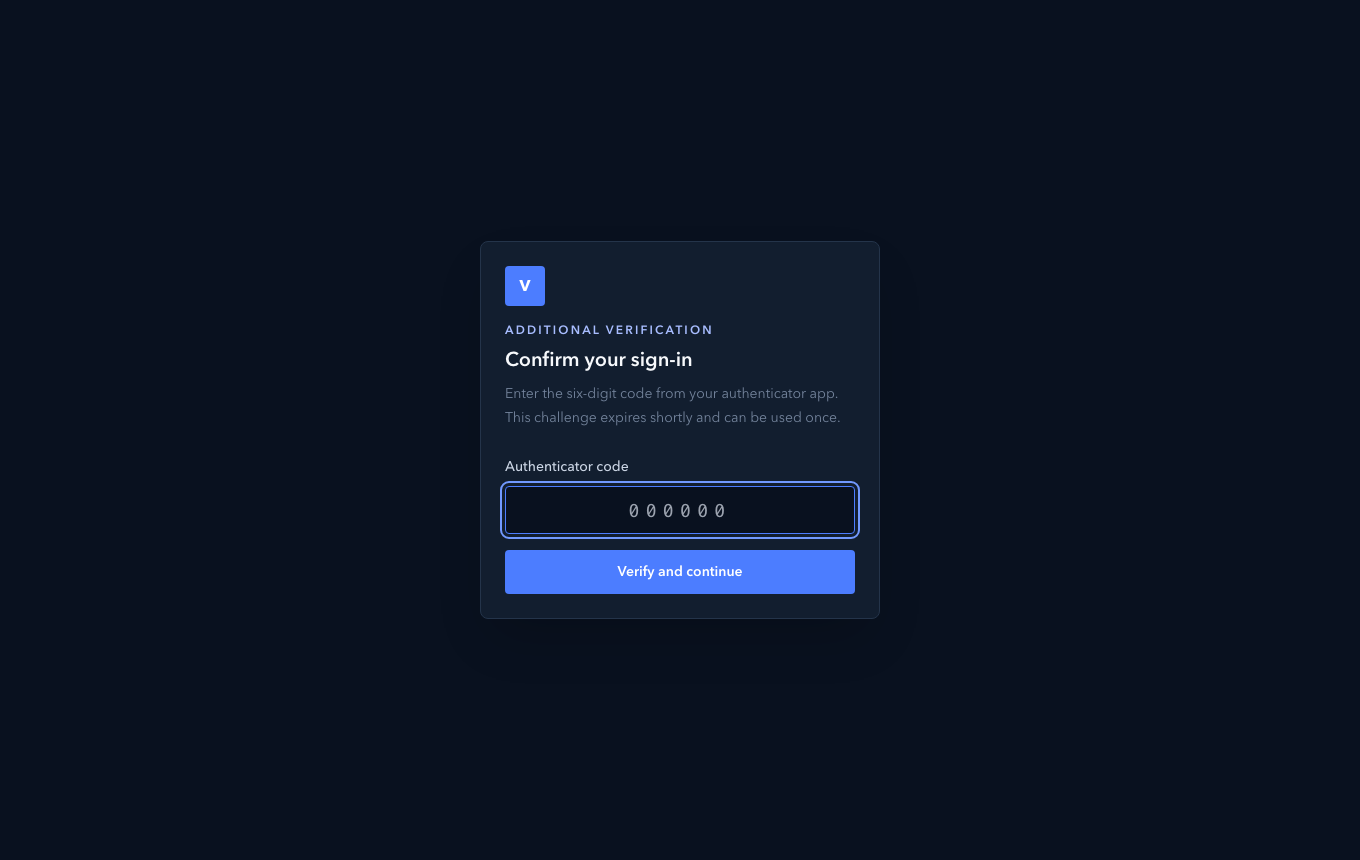
To turn MFA off (e.g. a replaced phone): Security → Disable MFA, confirmed with your current password.
3. If you forget your password
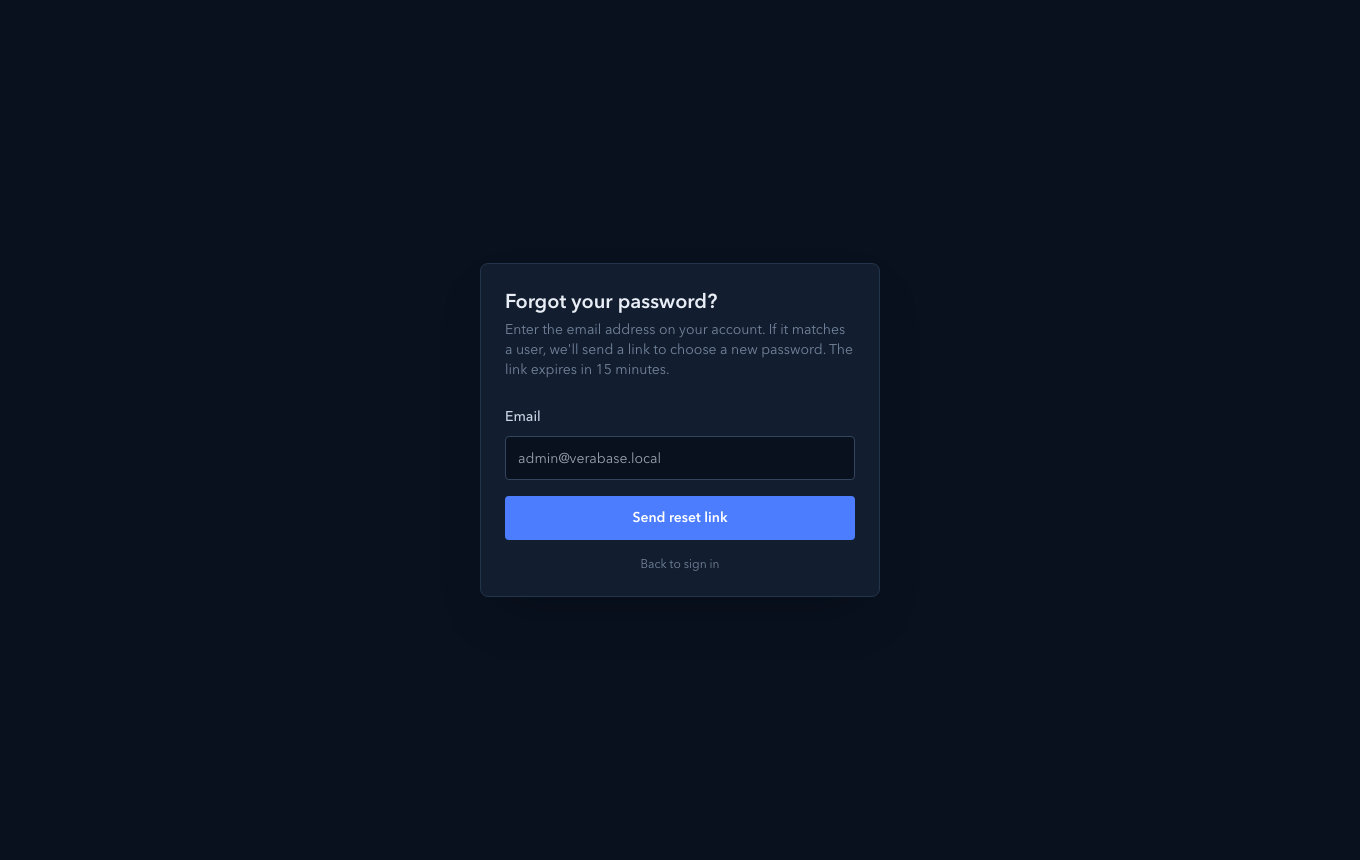
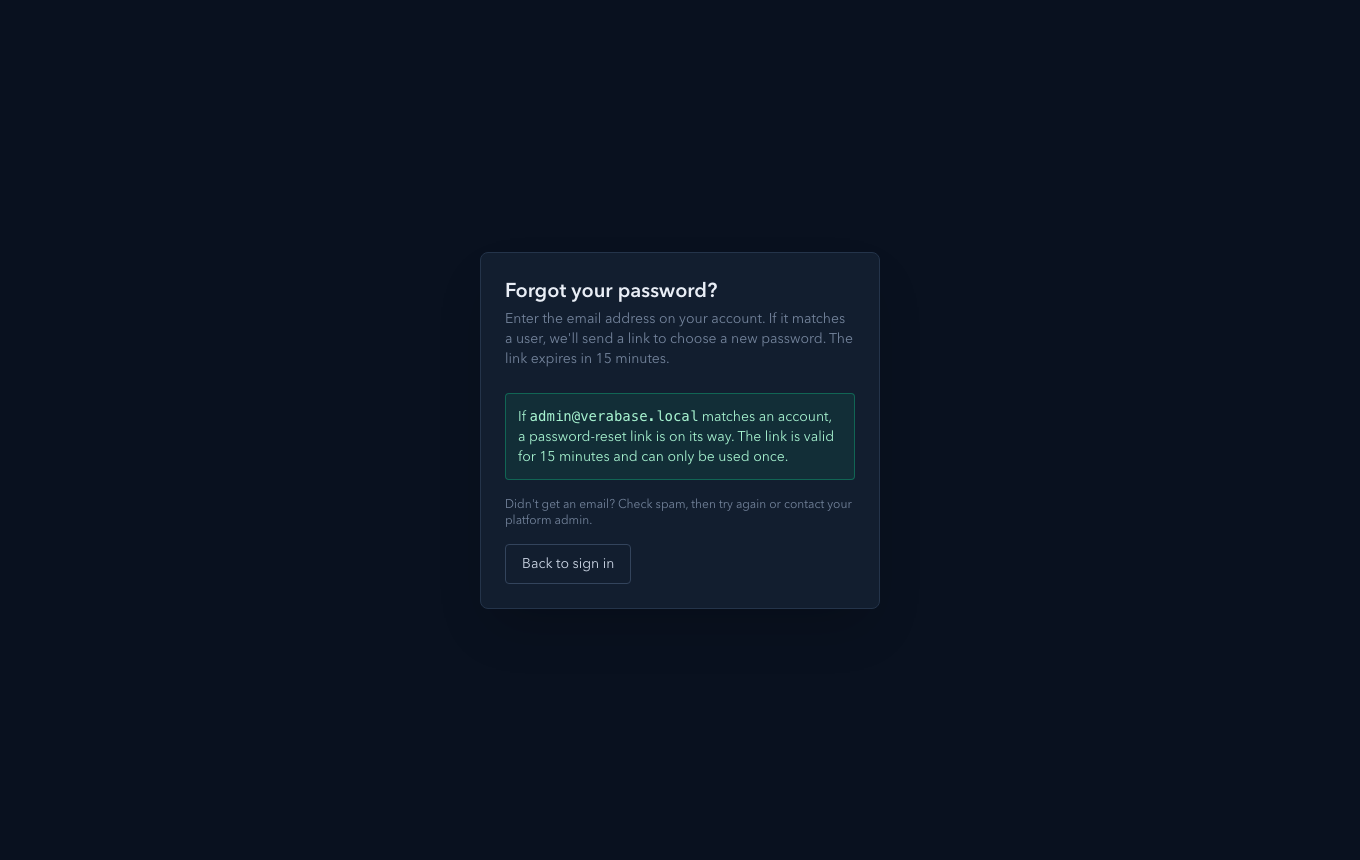
Choose Forgot password? on the sign-in page, enter your email and choose Send reset link. The email "Reset your Verabase Cloud password" arrives with a link that is valid for 15 minutes and works once. Locally it lands in MailHog at http://localhost:8025.
What Verabase will refuse, and why
| You try | Verabase says | What to do |
|---|---|---|
| Sign in with a wrong password | Email or password is incorrect. | Check the address; use Forgot password? |
| Sign in with MFA enrolled | The second step at /login/mfa | Enter the current code from your authenticator, then Verify and continue |
| Disable MFA without your password | The form requires current password | Re-enter your password |
You're done when…
- [ ] You can sign in and read the four Overview signals.
- [ ] Security shows MFA as enabled for your account.
Practice task
Sign out, sign back in with MFA, then open Audit trail and find your own sign-in events. Check: the trainer sees two events with your name as actor.
Related journeys
CP-02 Onboard a new hospital · CP-05 Investigate an audit event