Appearance
FAC-ACC-01 · Your own account: password, MFA and a forgotten password
Every member of staff, whatever their role, can reach Account & security from their name in the top-right corner. It lets you change your password, turn on multi-factor authentication (MFA) and see where you are signed in. If you forget your password, Forgot password? on the sign-in page emails you a one-time link. None of this needs an administrator.
Why this matters
A password an administrator typed for you is not yours yet. Change it on your first day. In a hospital, workstations are shared and phones get lost. MFA means a stolen password alone can't open patient records, and the hospital can require it for everyone whose work is sensitive (IMP-02).
Before you start
- Any staff account. The walk-through uses Dr. Tunde Balogun (
dr.balogun@demo-clinic.test/Verabase-2026). - For MFA: an authenticator app on your phone (Google Authenticator, Microsoft Authenticator, 1Password, Authy…).
- For a forgotten password: your hospital's email must be connected. Verabase support sets this up at go-live (IMP-09).
Steps
1. Open Account & security
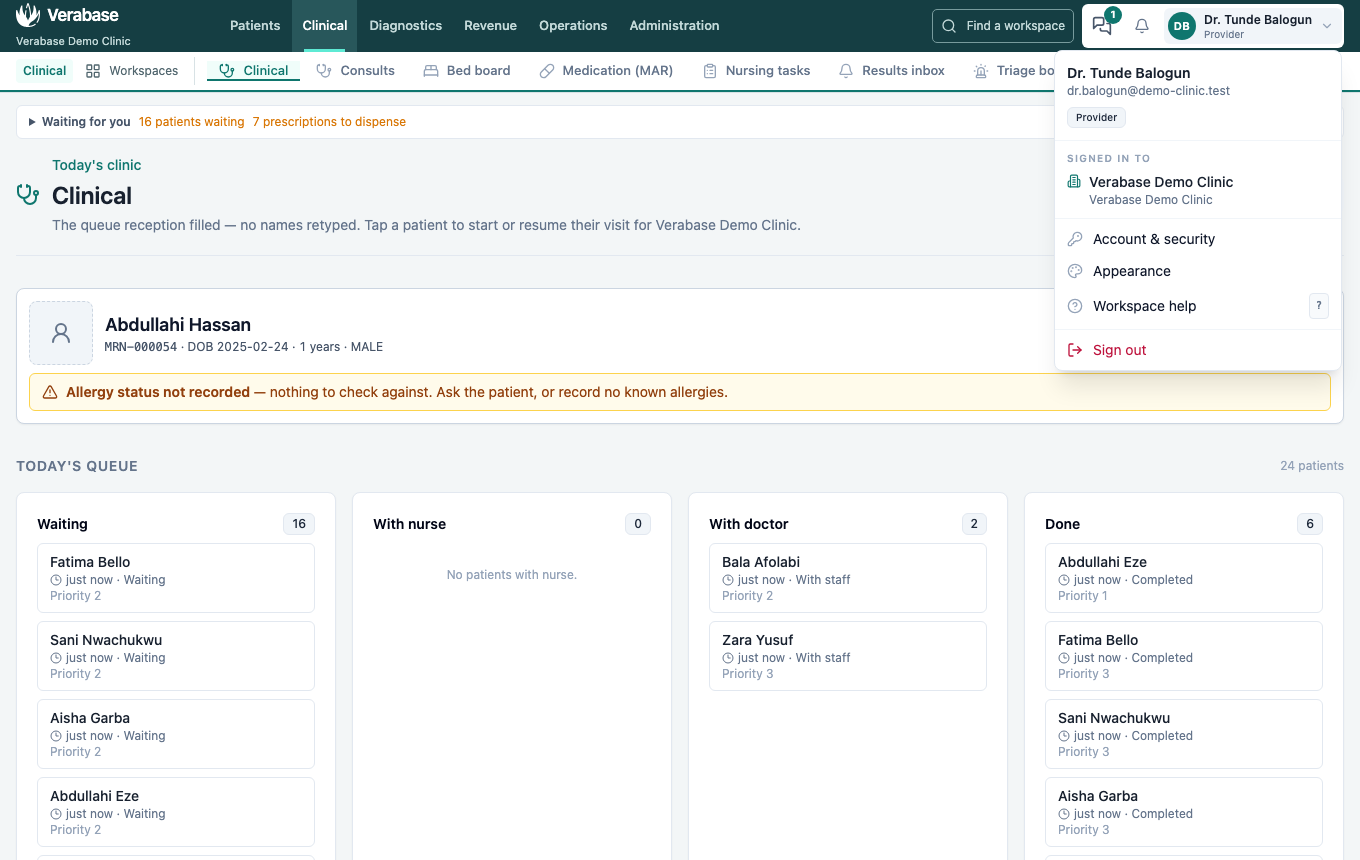
Choose your name in the top-right corner, then Account & security.
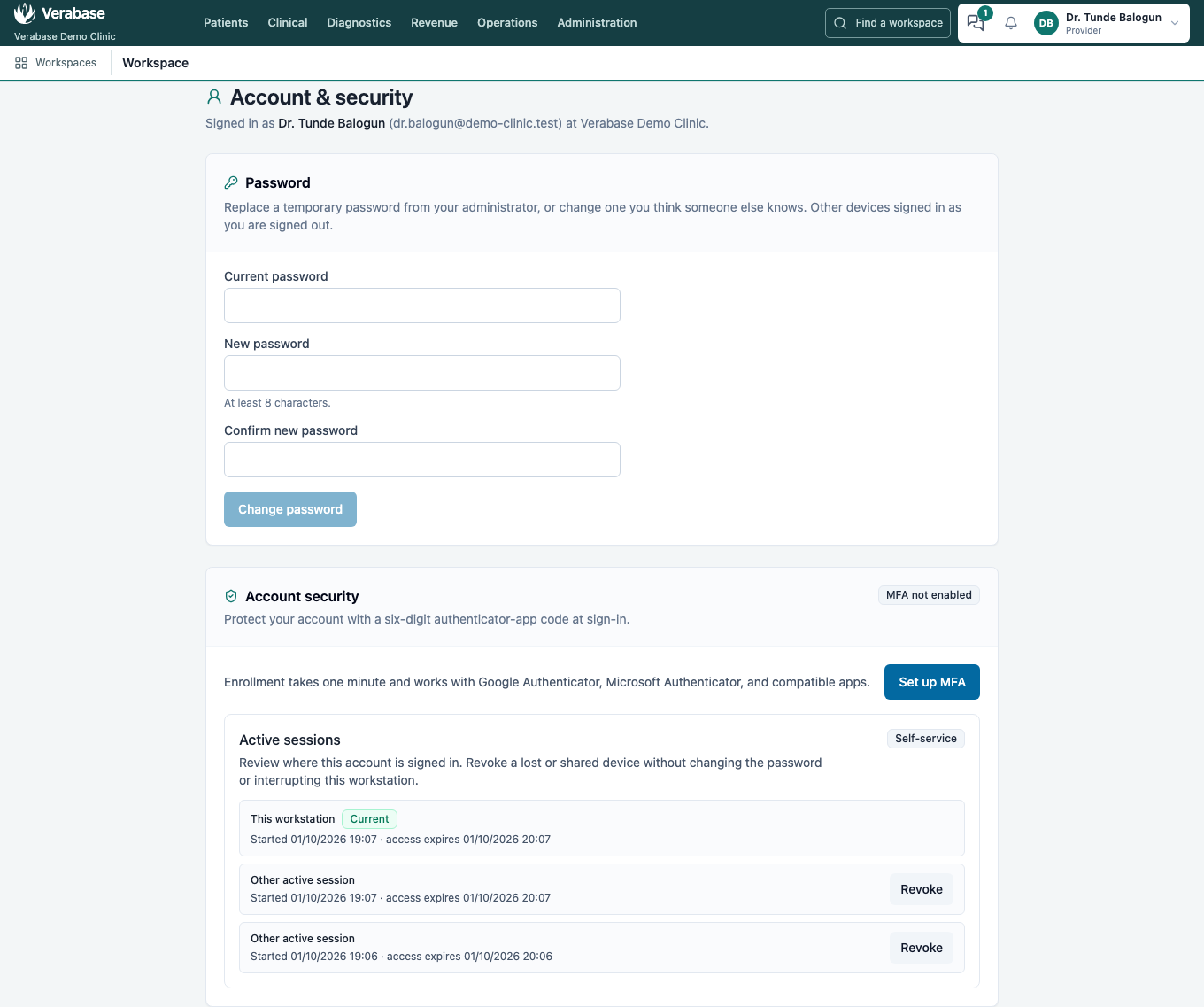
The page has three parts: Password, Account security (MFA) and Active sessions, which lists every device signed in as you.
2. Change your password
- Enter your Current password.
- Enter the New password twice (at least 8 characters). Change password stays disabled until the two match.
- Choose Change password.
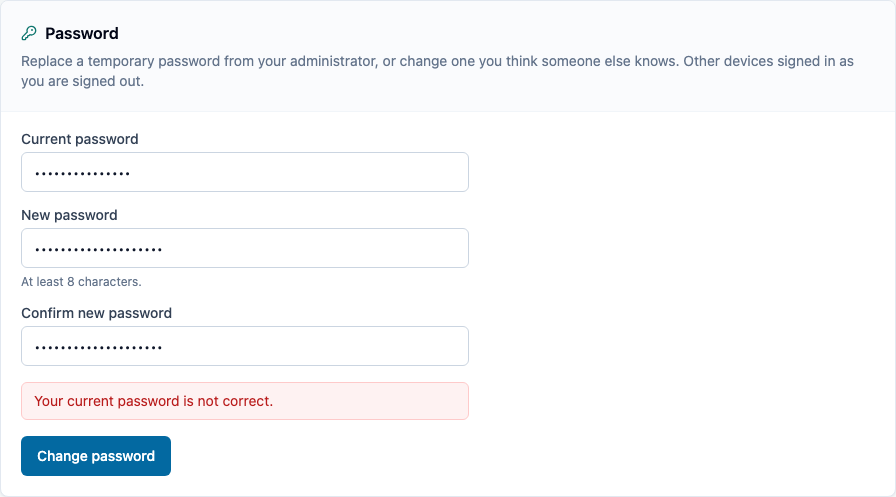
If the current password is wrong, nothing changes:
When it works, this workstation stays signed in and every other device signed in as you is signed out. The message tells you how many.
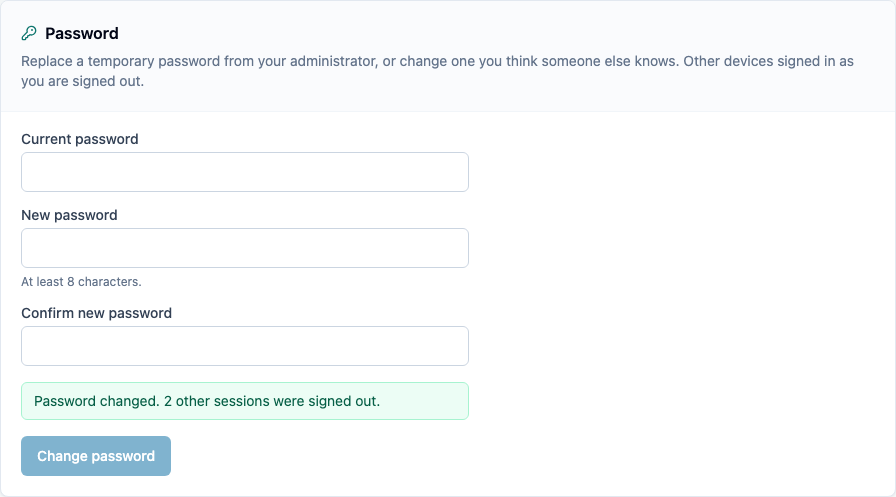
The old password stops working at once. Active sessions now lists only this workstation.
3. Turn on MFA
- In Account security, choose Set up MFA.
- In your authenticator app, add an account and type the Setup key (or paste the setup URI).
- Enter the six-digit code the app shows and choose Verify and enable.
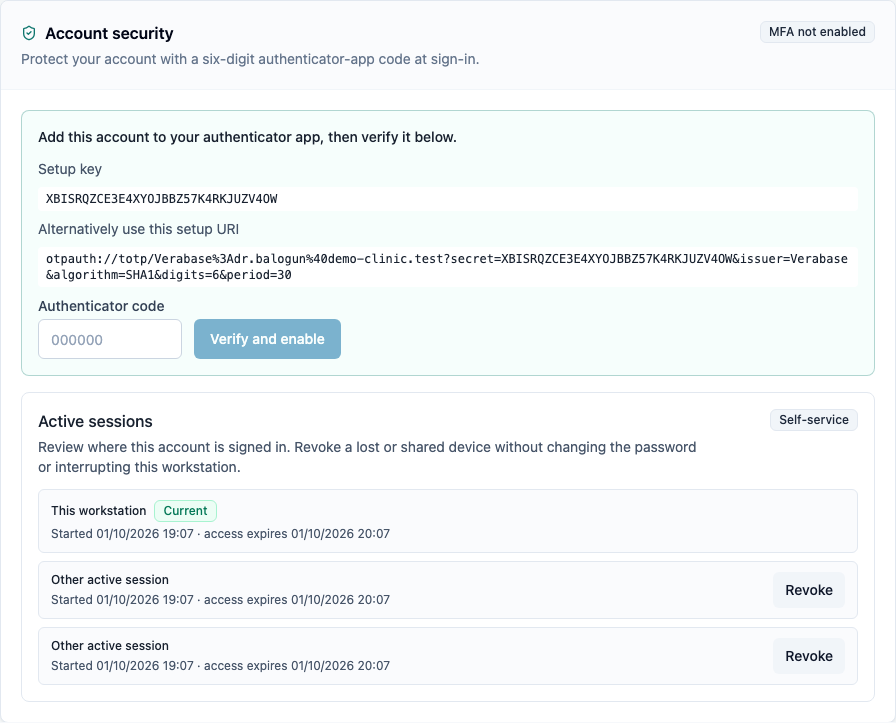
The badge changes to MFA enabled, and ten recovery codes appear, once only. Each one signs you in a single time if you lose your phone. Write them down or store them in a password manager, then choose I saved these codes.
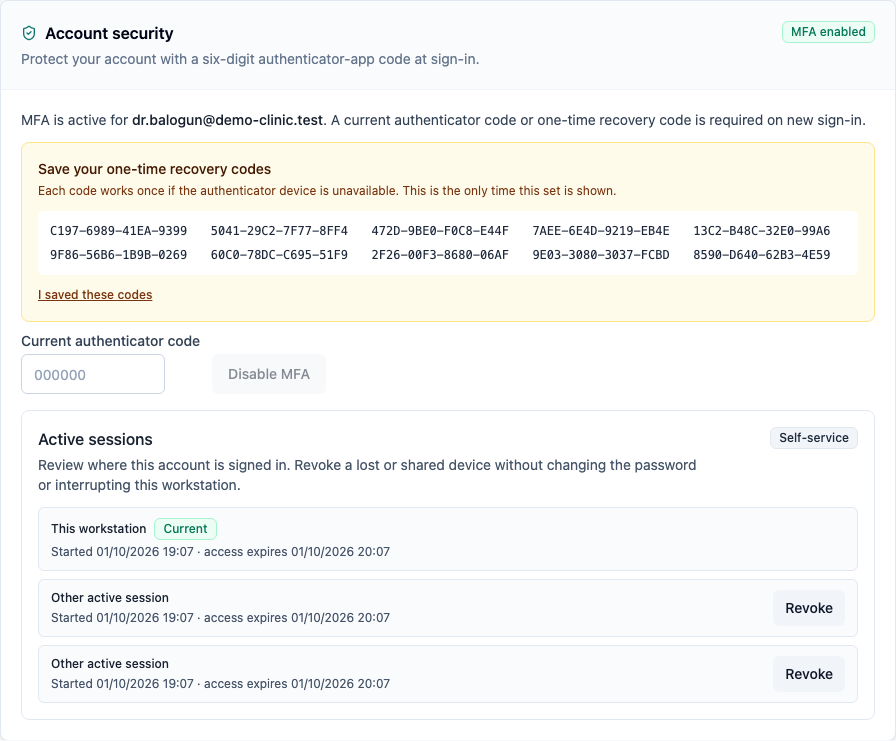
From now on, sign-in asks for the code after your password:
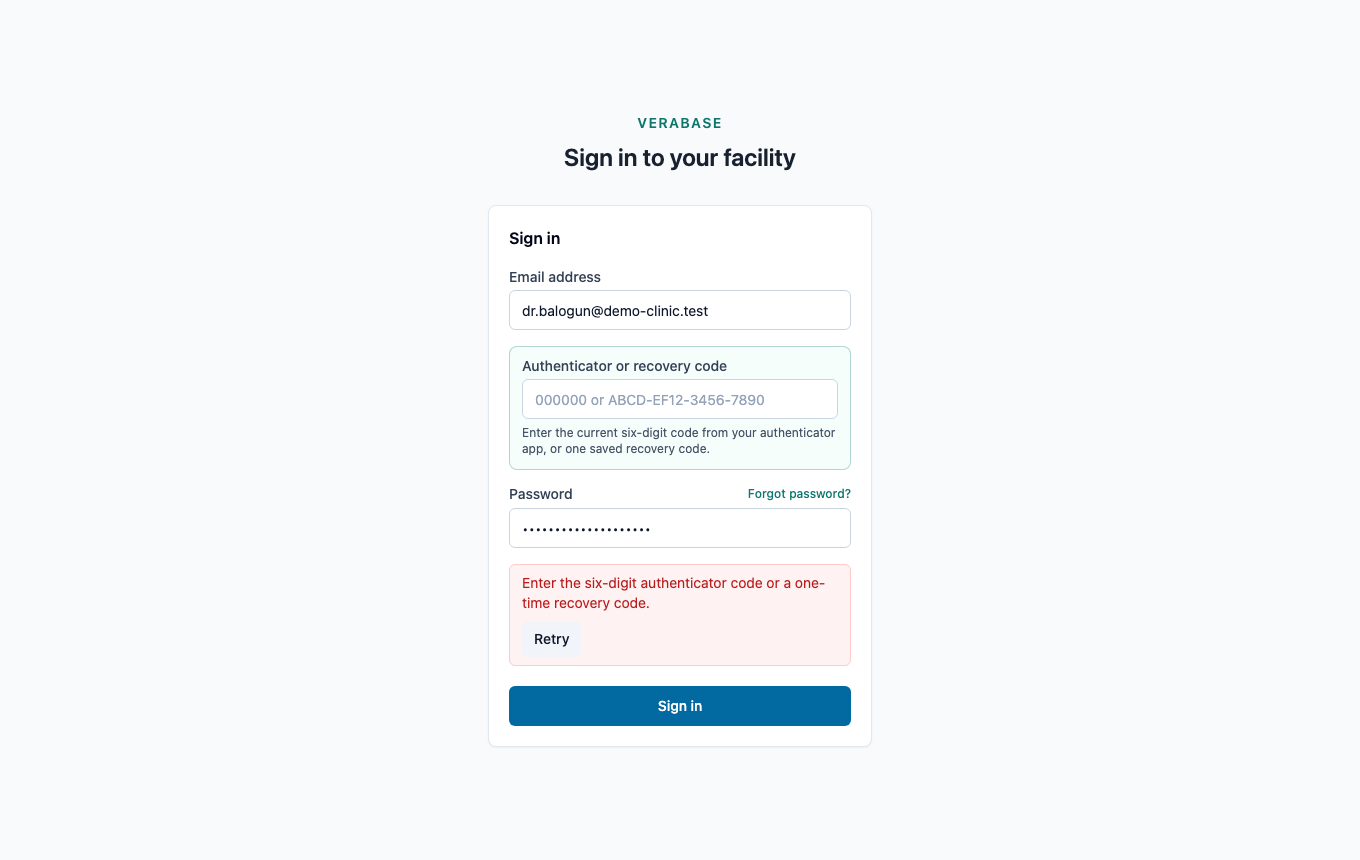
Replaced your phone? Sign in, open Account & security, enter a current code under Current authenticator code, choose Disable MFA, then set it up again on the new phone. If you've lost the phone, sign in with a recovery code first. If your hospital requires MFA for your role, you'll be asked to set it up again at your next sign-in anyway.
Hospital requires MFA and you haven't set it up? After your password, the sign-in page walks you through setting up MFA before you get in (IMP-02 step 5).
4. If you forget your password
- On the sign-in page choose Forgot password?, enter your email and choose Send reset link.
- The answer is the same whether or not the address has an account, so the page can't be used to find out who works here.
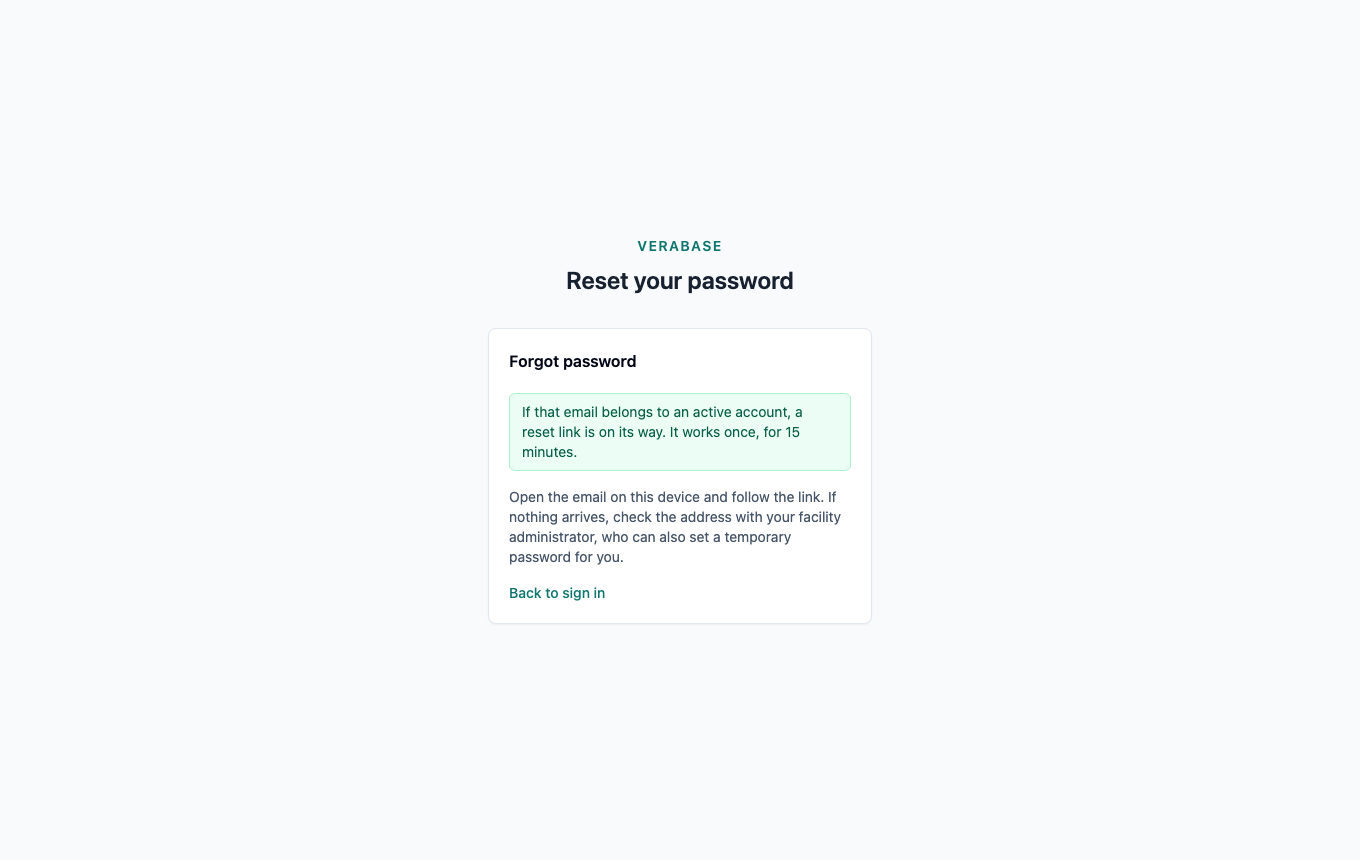
- Open the email "Reset your Verabase password" and follow the link within 15 minutes.
- Enter the new password twice and choose Set new password.
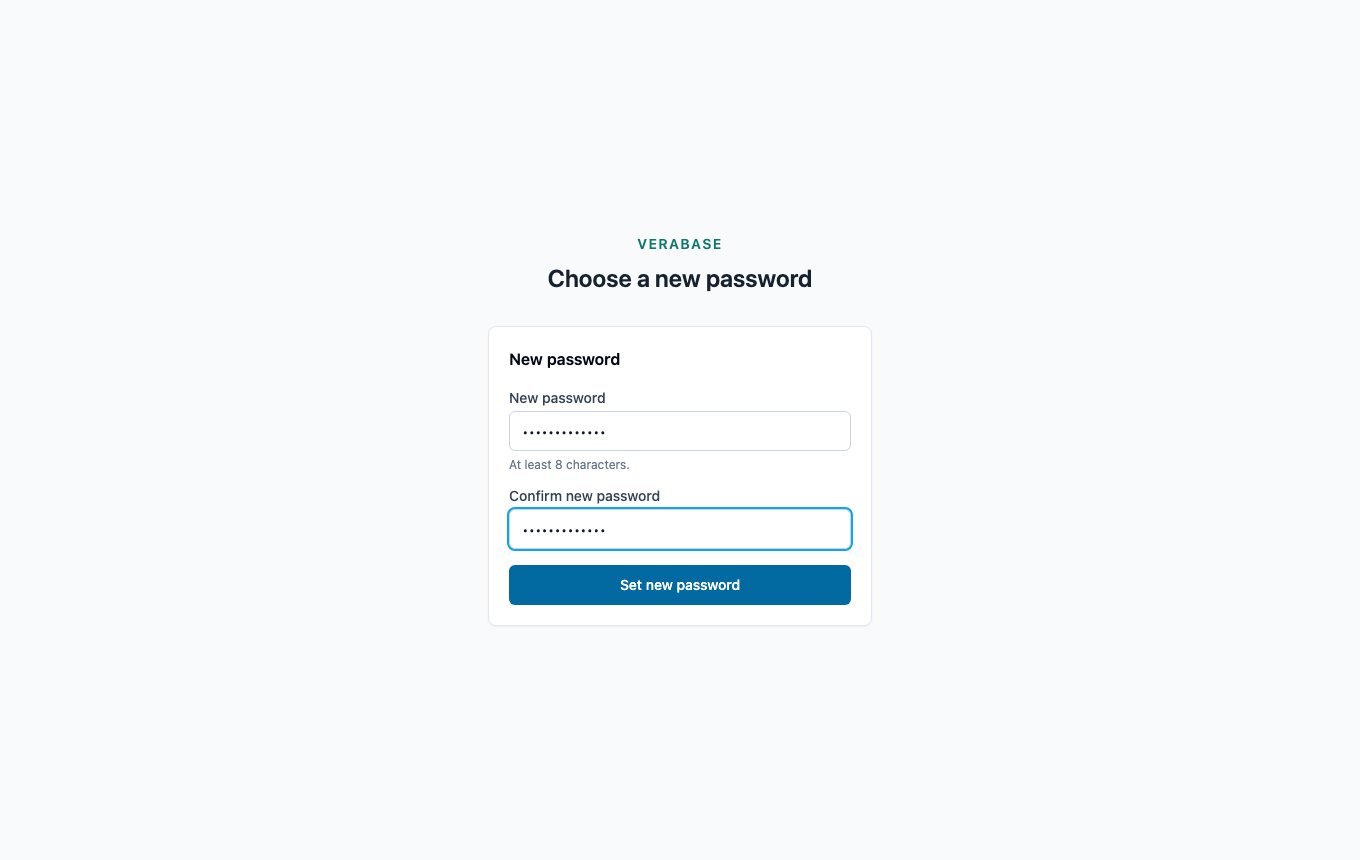
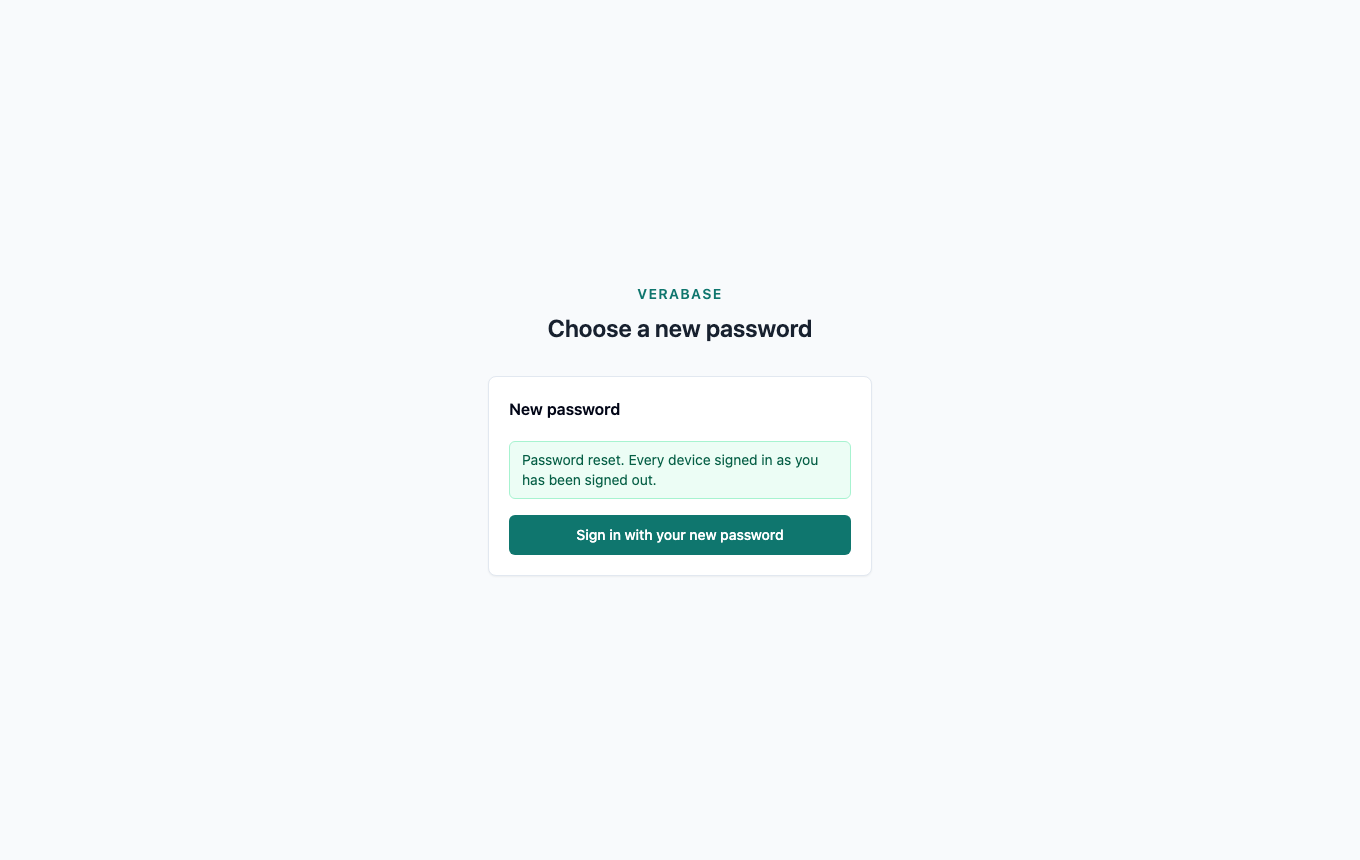
Every device signed in as you is signed out. Choose Sign in with your new password.
What Verabase will refuse and why
| You try to… | Verabase says | Why |
|---|---|---|
| Change your password with the wrong current one | Your current password is not correct. | Someone at an unlocked workstation can't take over your account |
| Reuse your current password | Choose a password different from your current one. | A "change" that changes nothing is a mistake |
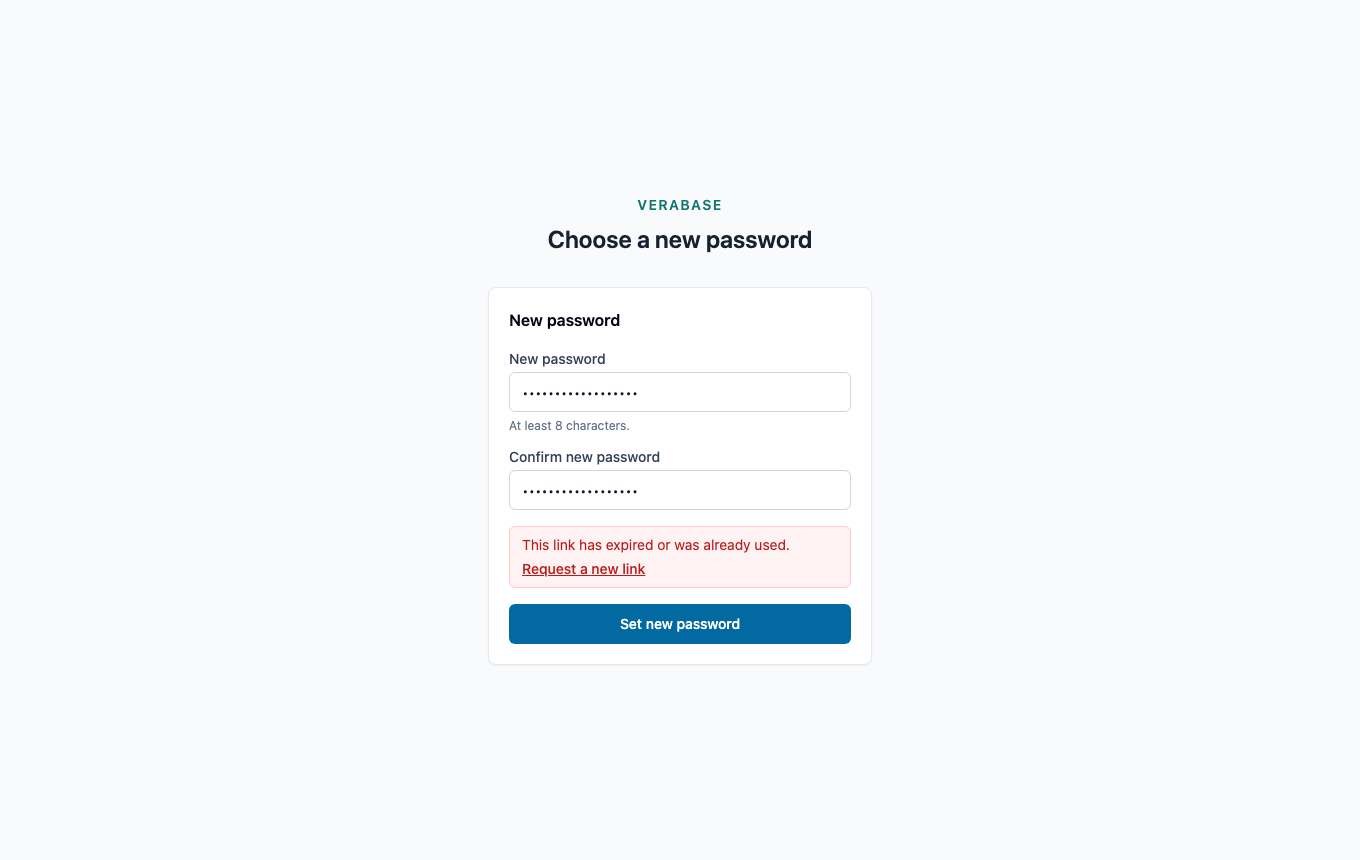
| Use a reset link twice, after 15 minutes, or after asking for a newer one | This link has expired or was already used. | A link left in an inbox must not become a key. Asking for a new link retires the older ones |
| Ask for reset links over and over | Too many reset requests. Try again later. | Stops someone flooding a colleague's inbox |
If the email never arrives
Check the address with your Facility Admin. They can also set a temporary password for you from Staff → Edit (IMP-02); replace it here straight away.
You're done when…
- [ ] You have changed the password your administrator gave you.
- [ ] Account security shows MFA enabled and your recovery codes are stored safely.
- [ ] Active sessions lists only devices you recognise.
Practice task
Change your password, then turn on MFA, sign out and sign back in with a code. Then use Forgot password? to reset the password from the email. Check: the trainer sees you land on your home page after each sign-in, and the reset link refuses a second use.
Related journeys
IMP-01 First sign-in · IMP-02 Staff, roles and the MFA policy · CP-01 Operator sign-in and security