Appearance
FAC-CHAT-01 · Escalate a patient to the treatment team in Vera Chat
Vera Chat is secure messaging between staff, in the tradition of Epic Secure Chat. Attach a patient and everyone in the conversation sees who it is about and can open the chart in one click. Chat is for coordinating care: it is not part of the medical record, so document clinical decisions in the chart.
Why this matters
A deteriorating patient needs the right doctor now, not a phone tree. Vera Chat addresses the patient's treatment team directly, marks the urgent message so it can't be missed, and tells you when it has been read and acknowledged, so you know whether to escalate further.
Before you start
- Nurse:
nurse.okon@demo-clinic.test/Verabase-2026(Nurse Grace Okon). Provider:dr.okafor@demo-clinic.test/Verabase-2026(Dr. Ngozi Okafor). - The demo seed puts both of them on the first admitted patient's treatment team and starts one conversation between them.
Steps
1. See what's waiting — as Nurse
The chat icon beside the bell shows how many conversations have unread messages; it turns red when something high priority is waiting. Select it, or Vera Chat in the Patients area.
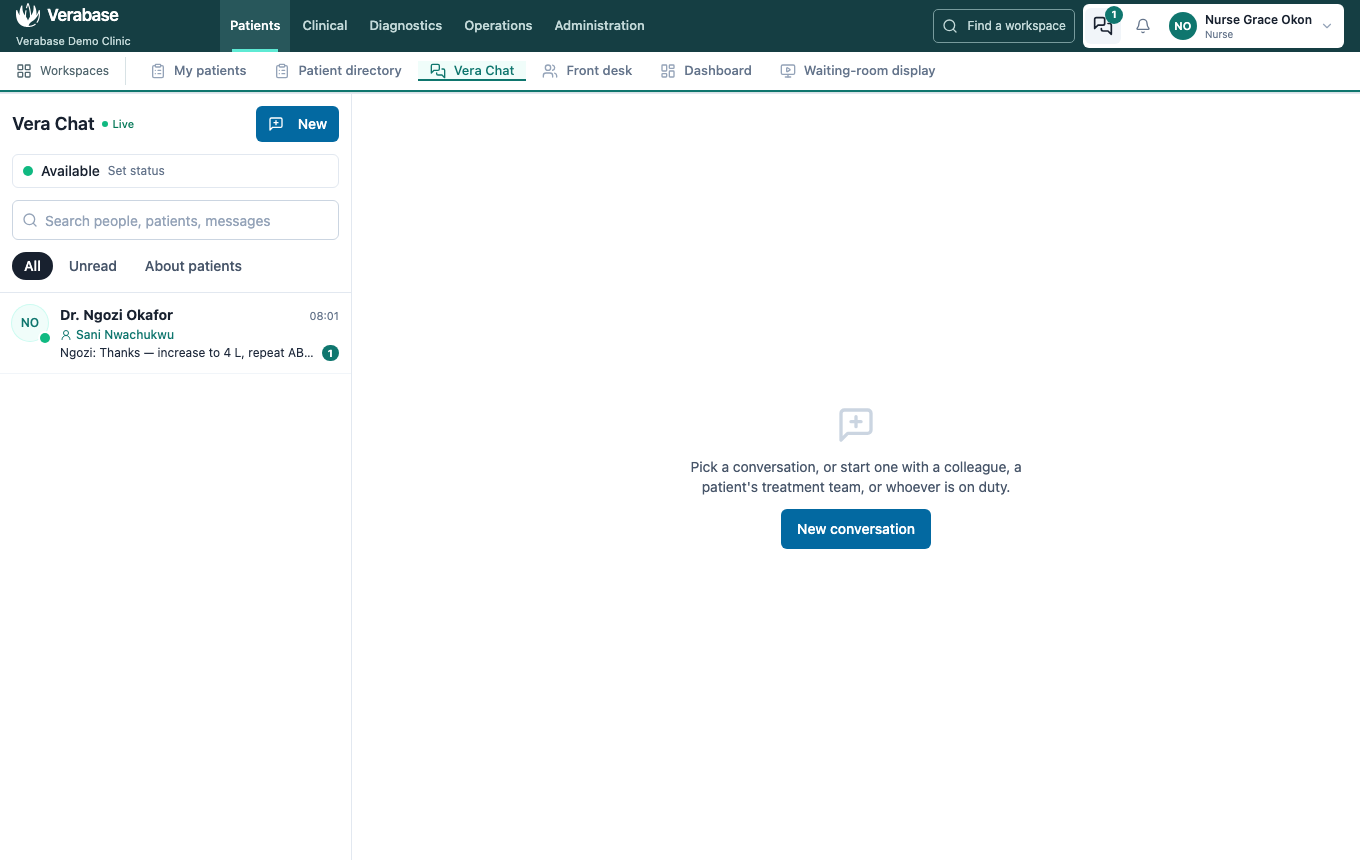
Each row shows who the conversation is with, the patient it is about, and the latest message. Filter by Unread or About patients, or search across people, patients and message text.
2. Open the thread
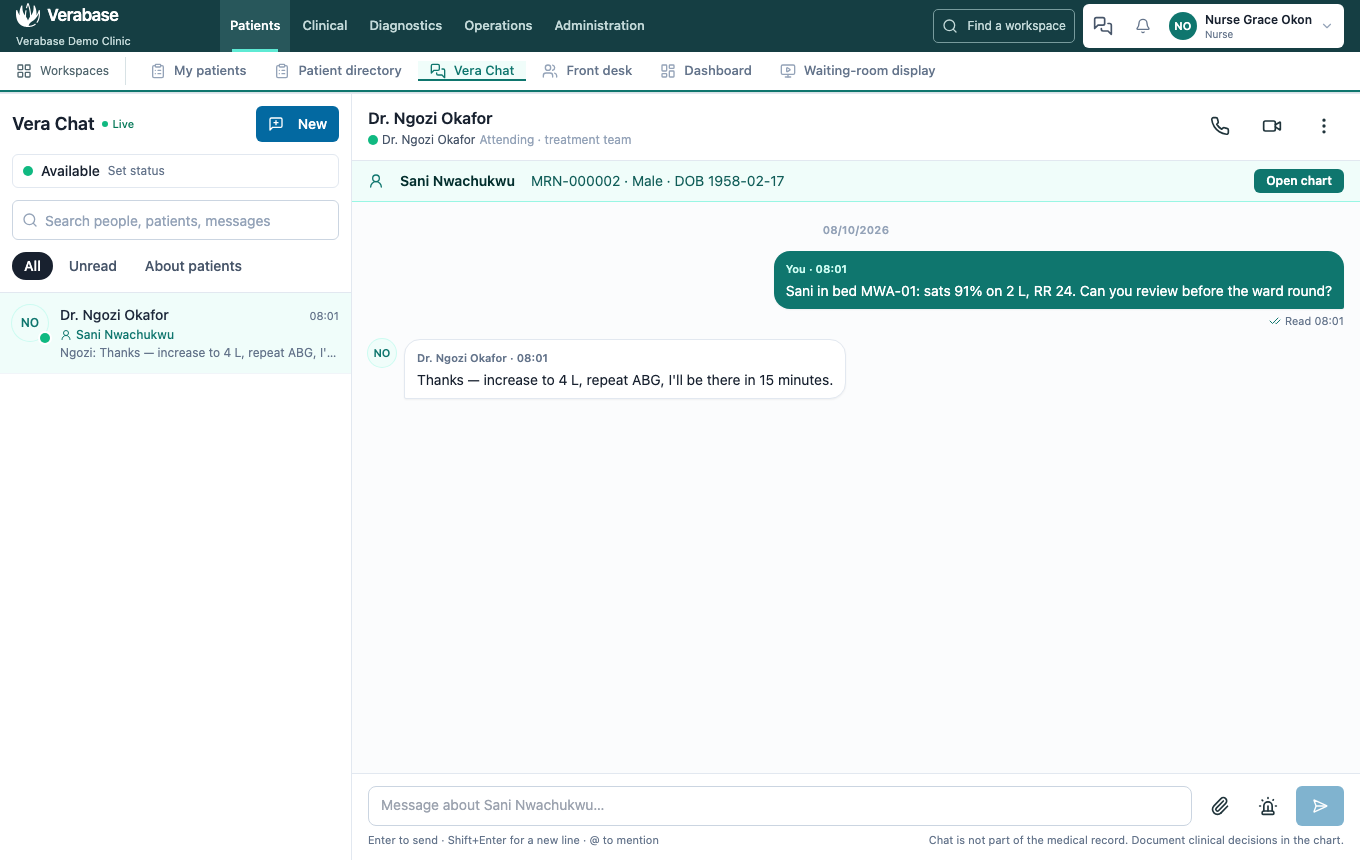
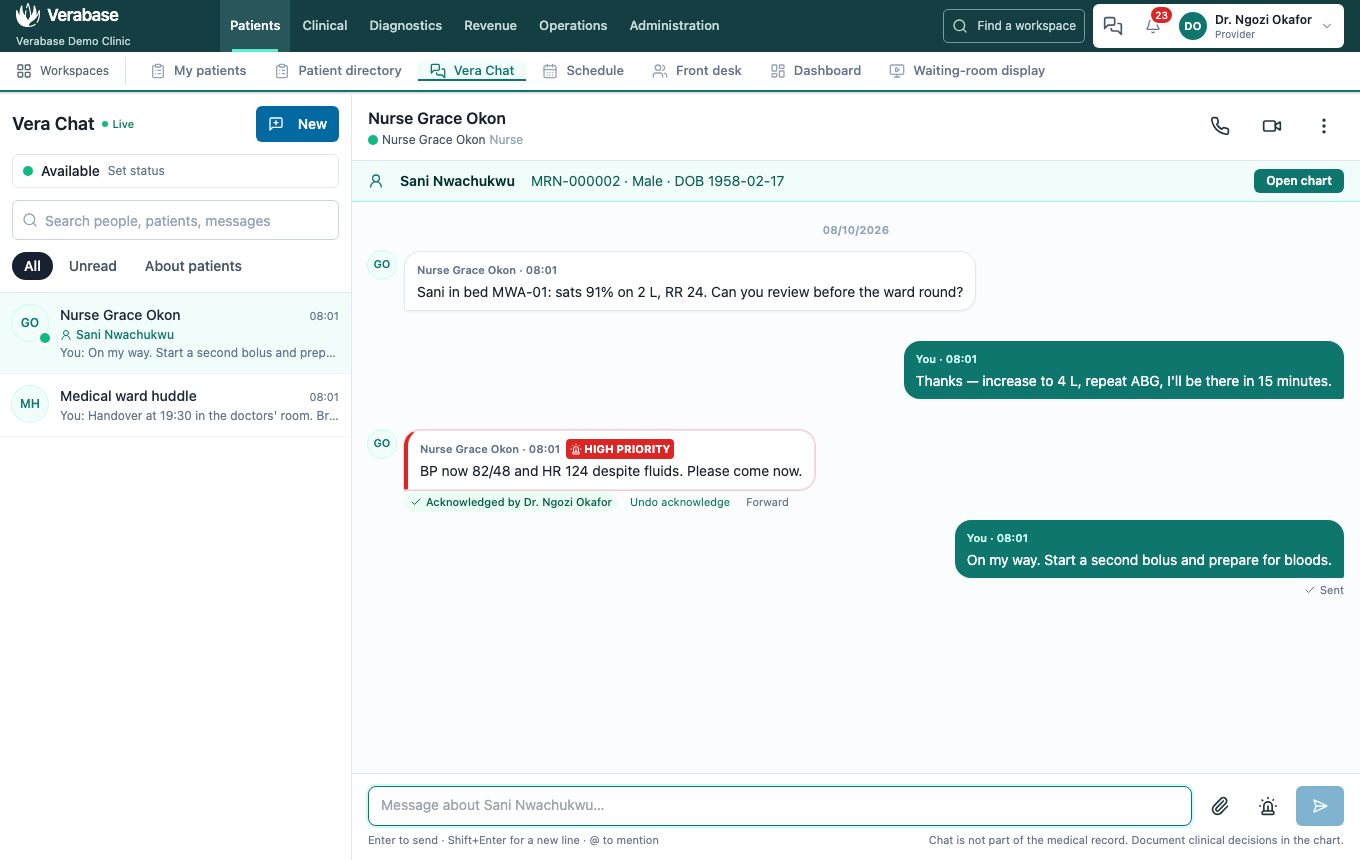
The teal strip under the names is the patient: name, MRN, sex and date of birth. Open chart goes straight to their chart.
3. Chat with the treatment team from the chart
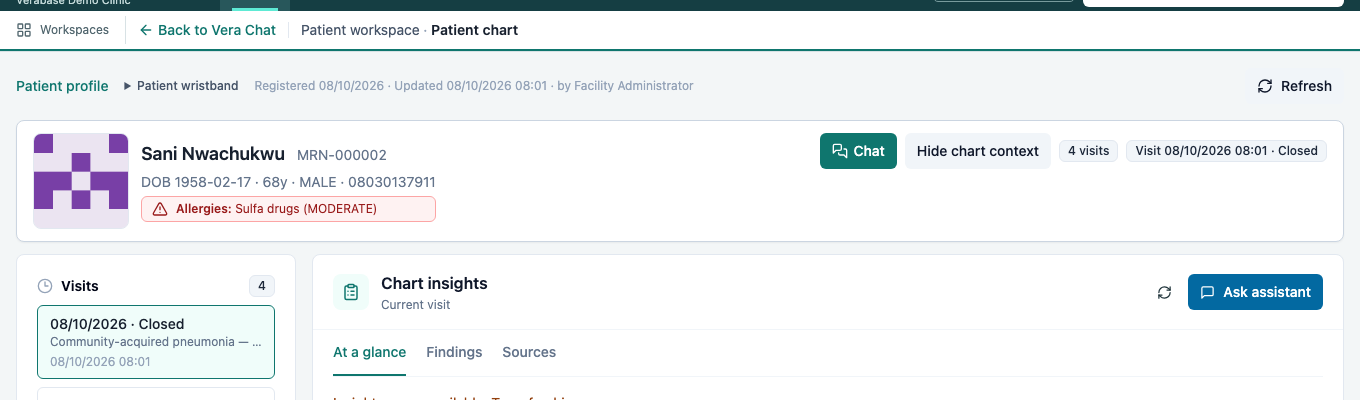
Every chart has a Chat button in the patient header. It opens a new conversation about this patient, addressed to everyone on the treatment team today. Each person is labelled with their team role.
In the composer you can also find people by People (search by name or role), Treatment team (one member or Add whole team), or On duty now (staff rostered on each unit, with on-call cover marked). A warning appears if someone you've chosen is busy, away or on Do not disturb.
4. Send it high priority
Tick High priority for anything that can't wait. It alerts recipients through the notification bell even if they have muted the conversation or set Do not disturb.
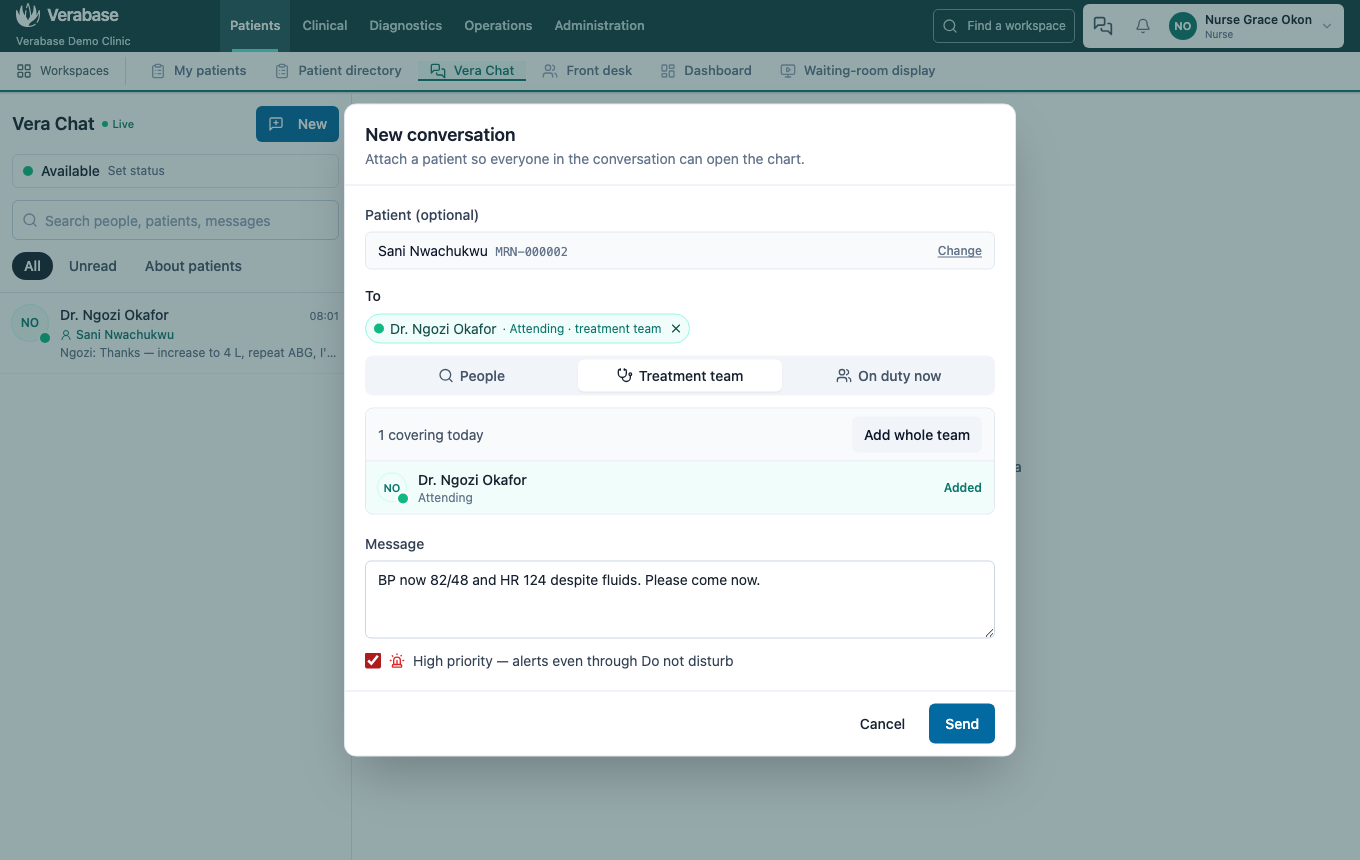
If you already have a one-to-one conversation with the same person about the same patient, your message continues it rather than starting a second thread.
5. The doctor is alerted — as Provider
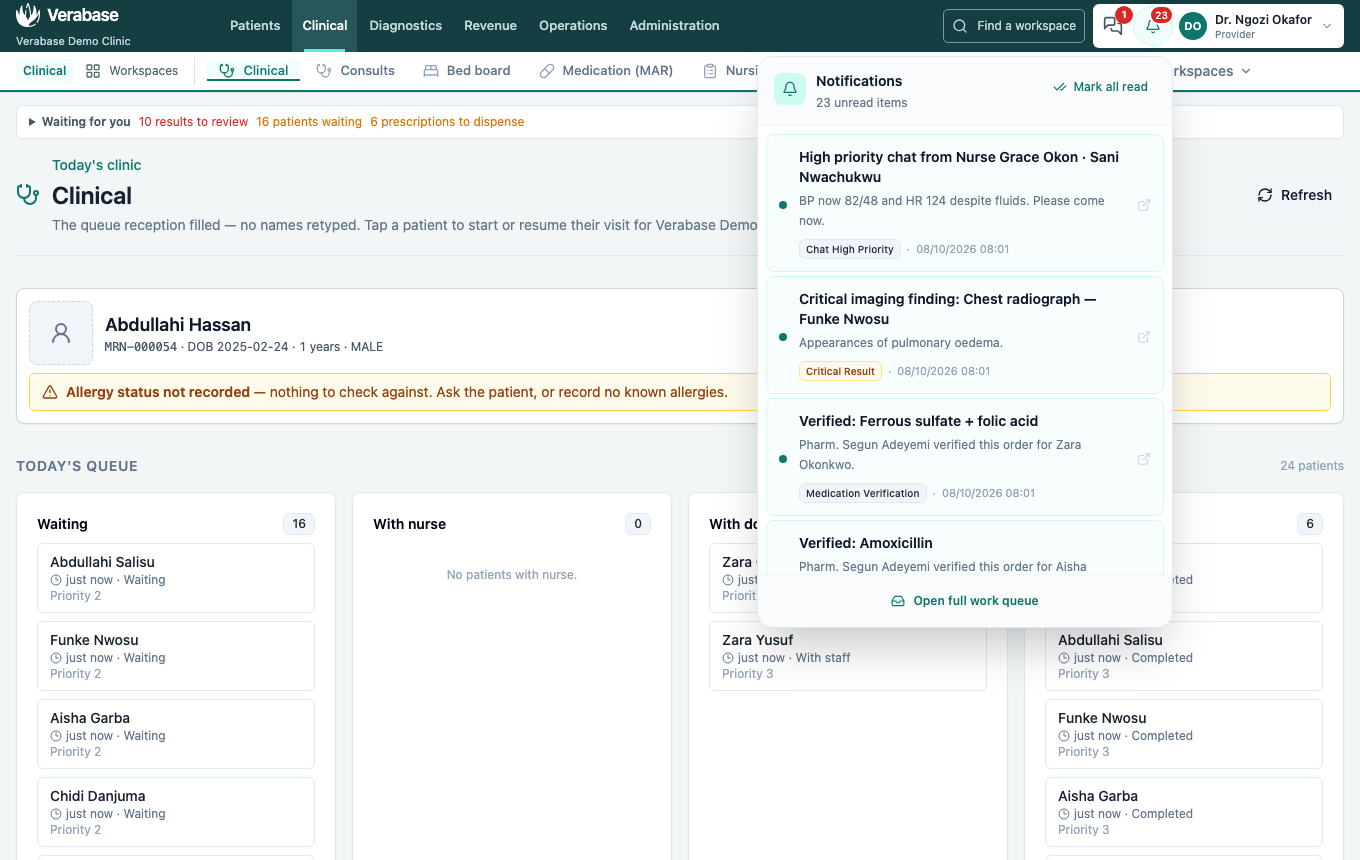
The chat icon is red, and the bell carries High priority chat from Nurse Grace Okon · (patient).
6. Acknowledge and reply
Hover a message and choose Acknowledge so the sender knows you have it without typing. Press Enter to send a reply, or Shift+Enter for a new line.
7. See it landed — as Nurse
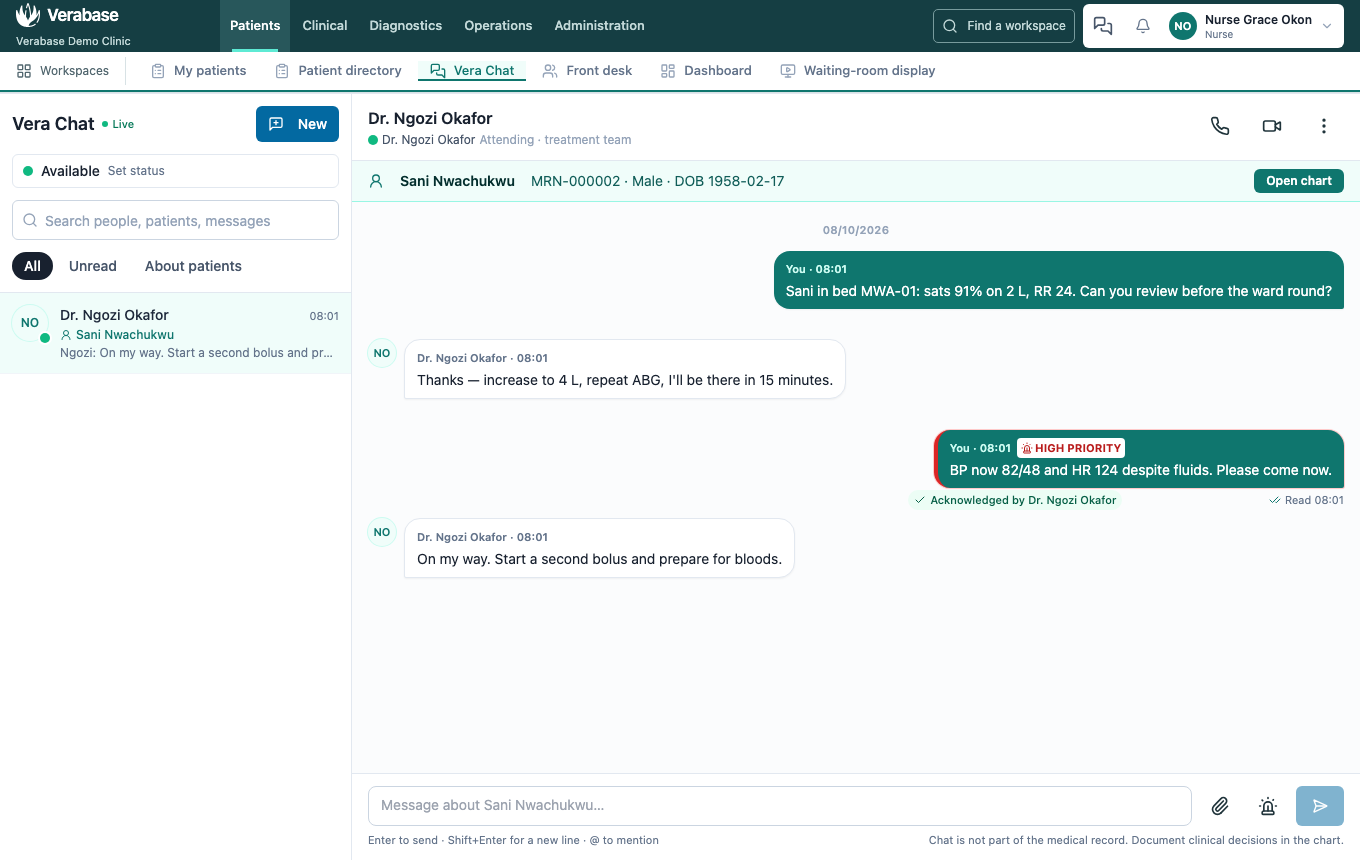
Under your latest message: Sent (on the server), Delivered (it reached their device), Read with the time. In a group it reads Read by 2 of 3; hover to see who. The acknowledgement shows under the message.
Who can see a conversation
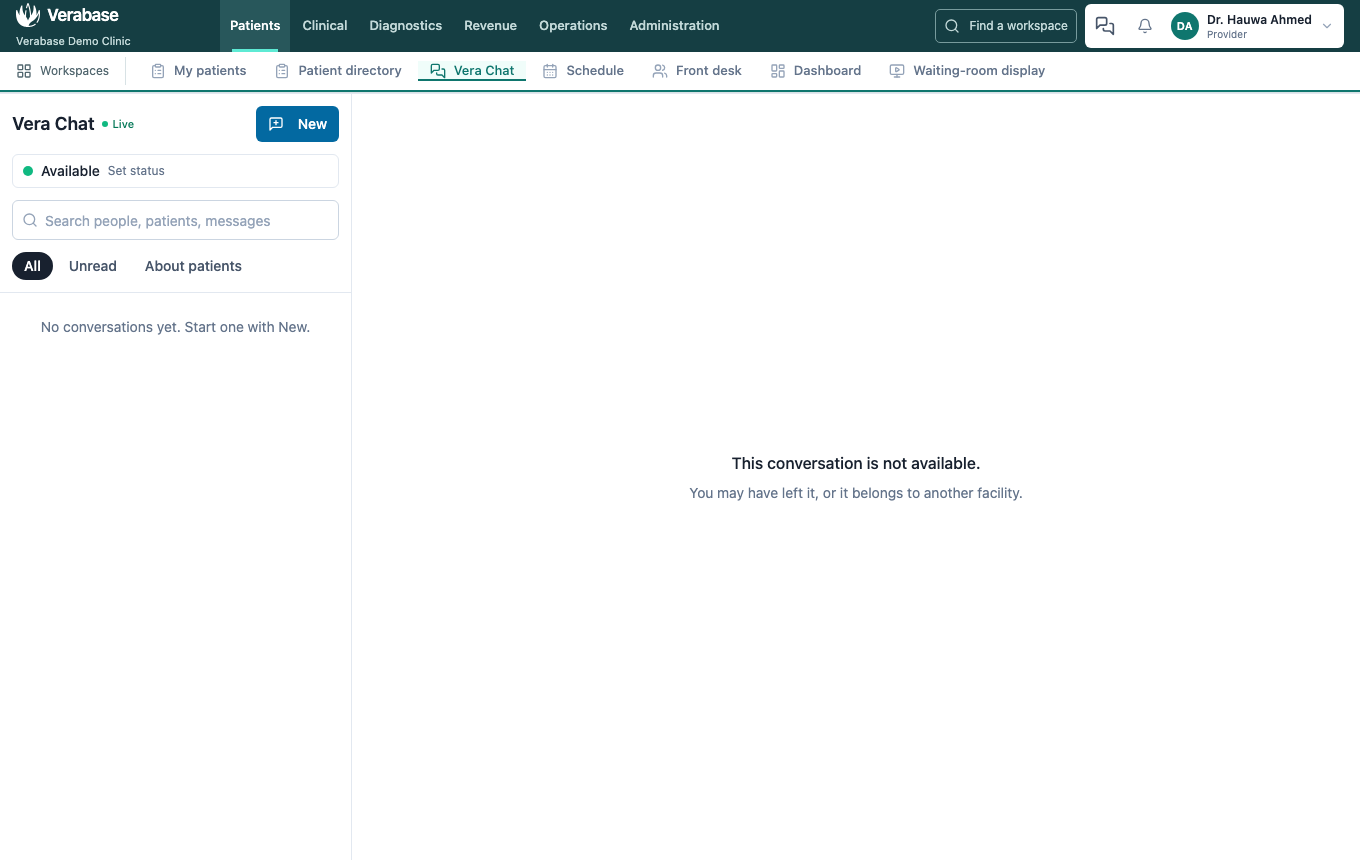
Only the people in it. A colleague who isn't a participant gets This conversation is not available, even with its link, and so does the facility administrator. The kiosk account can't use chat at all.
More from the ⋮ menu
- Add people: in a group, new members can read the history, but only new messages count as unread for them. Adding someone to a one-to-one starts a new group that carries the patient, so your private messages stay private.
- Rename a group, and Attach, change or remove the patient.
- Mute: normal messages stop counting towards your badge; high priority still gets through.
- Mark as unread, and Leave a group (a one-to-one can be muted, not left).
- Attach a photo (PNG, JPEG, WebP, GIF) or PDF up to 5 MB with the paperclip. Files are checked to be what they claim, and every view is audited.
You're done when…
- [ ] Your message is in the patient's conversation, marked High priority.
- [ ] Under it you see Read and Acknowledged by the doctor.
- [ ] The doctor's reply is in the thread, and your chat badge is clear.
Practice task
From an admitted patient's chart, use Chat to message their treatment team with a high-priority observation. As the doctor, acknowledge and reply. Check: the trainer sees the red badge and bell alert on the doctor's screen, and Read plus Acknowledged by on the nurse's message.
Related journeys
FAC-CHAT-02 Status and auto-forward · FAC-IPD-01 Inpatient stay